Workflow Assistant
Create workflows step-by-step with guided help. Perfect for beginners - the assistant walks you through every decision.
Step 1 Start the Assistant
Launch the Workflow Assistant from the main menu or when creating a new workflow.
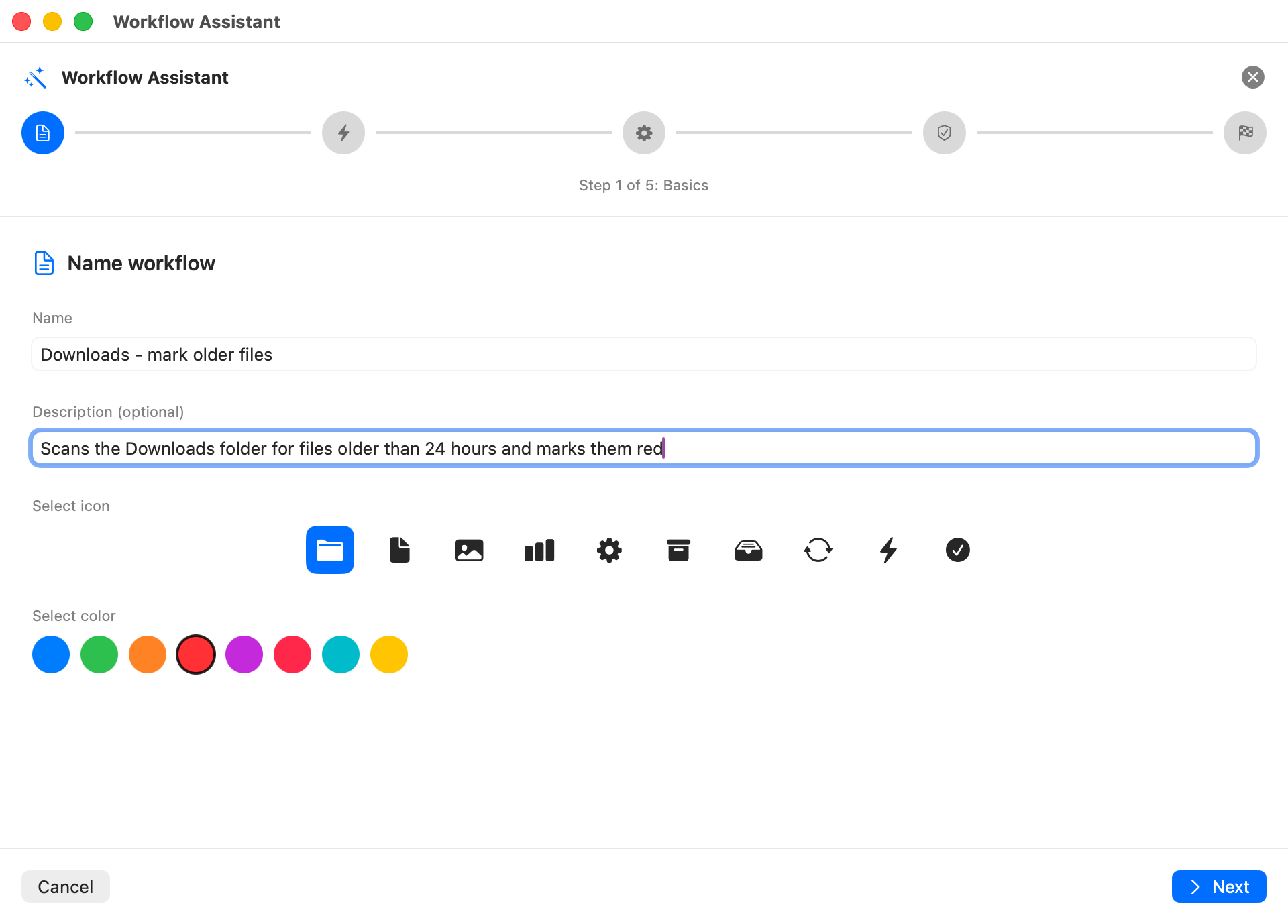
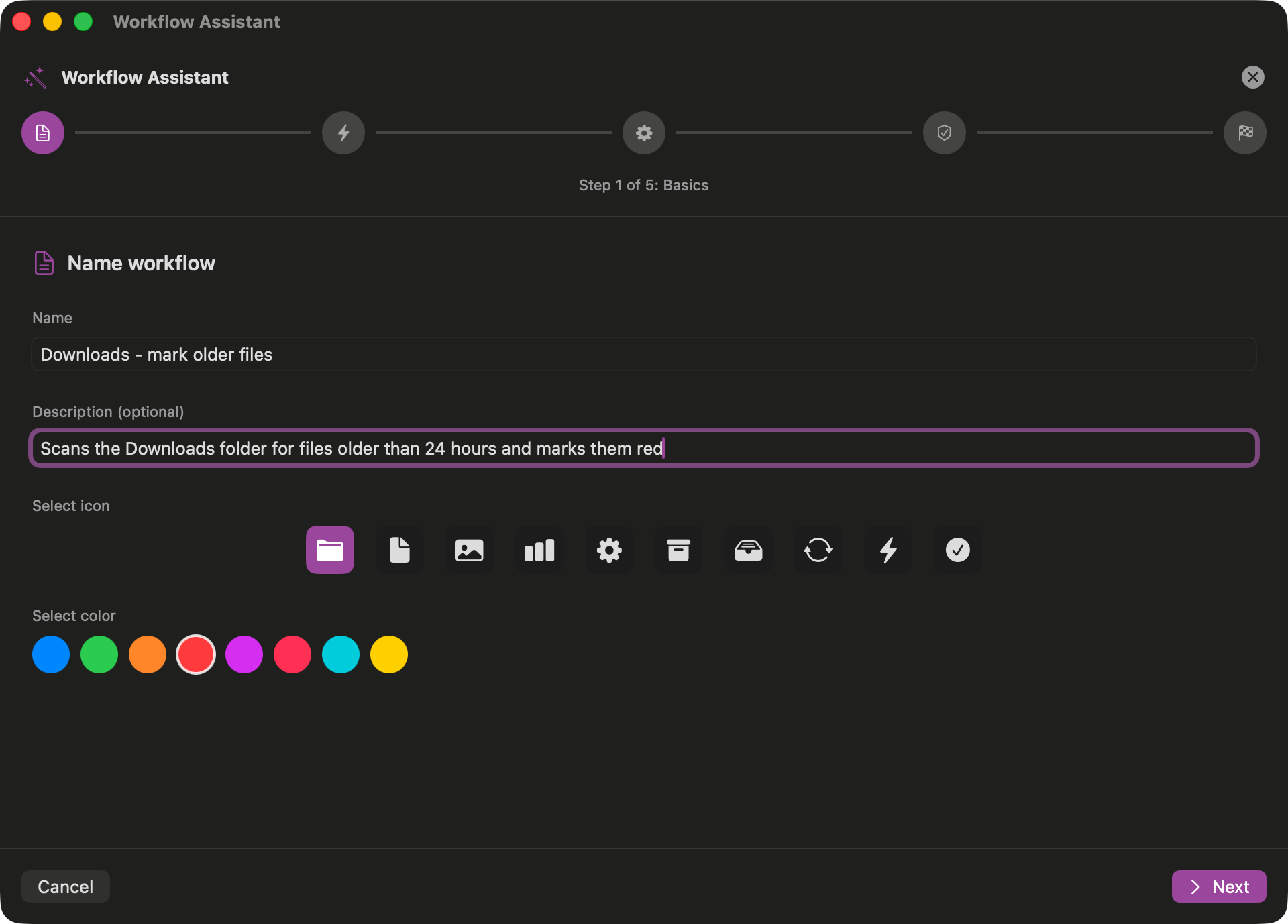
Welcome Screen
Enter a name for your workflow and choose whether to start from scratch or use a template
Step 2 Choose a Trigger
Select what should trigger your workflow. The assistant shows all available trigger types with explanations.
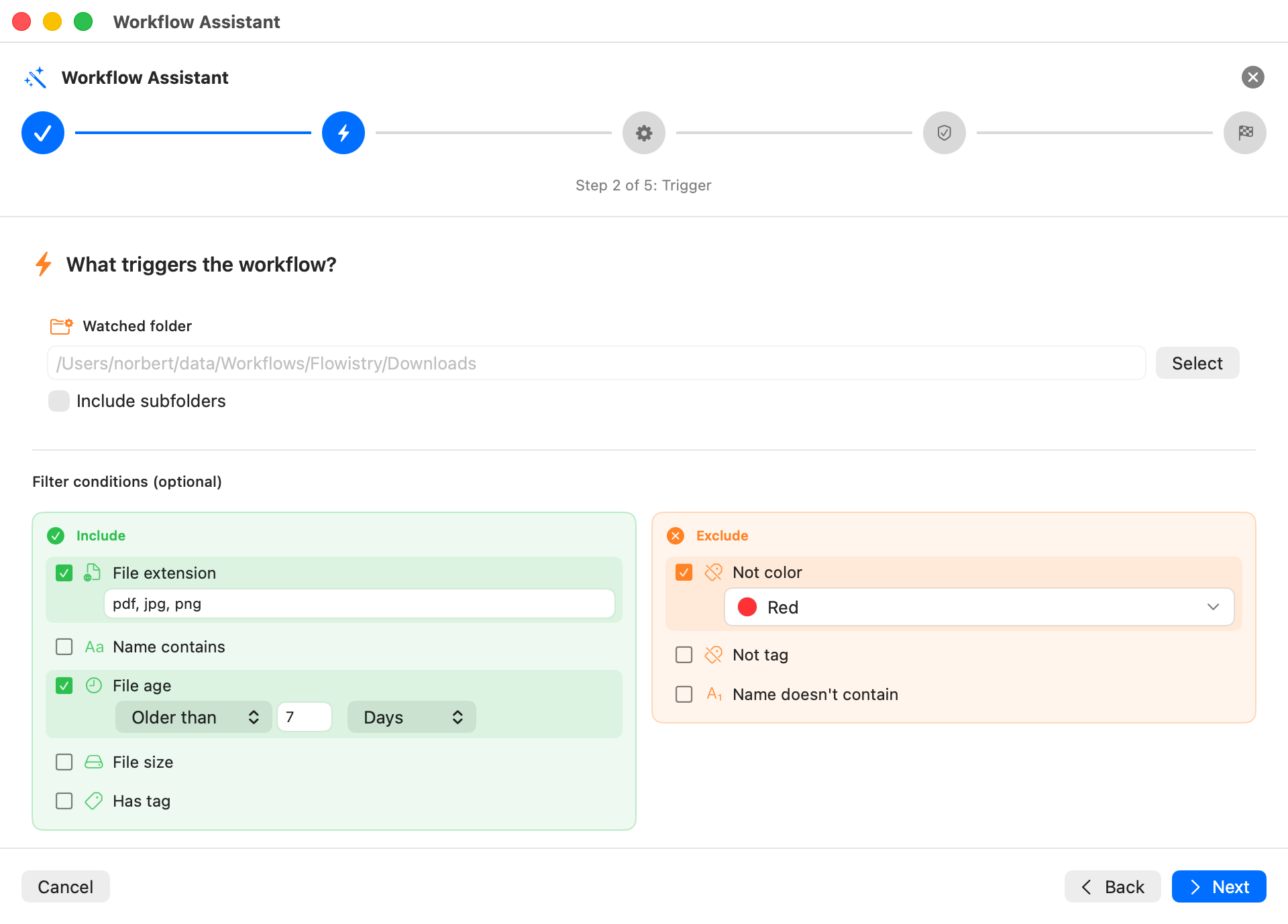
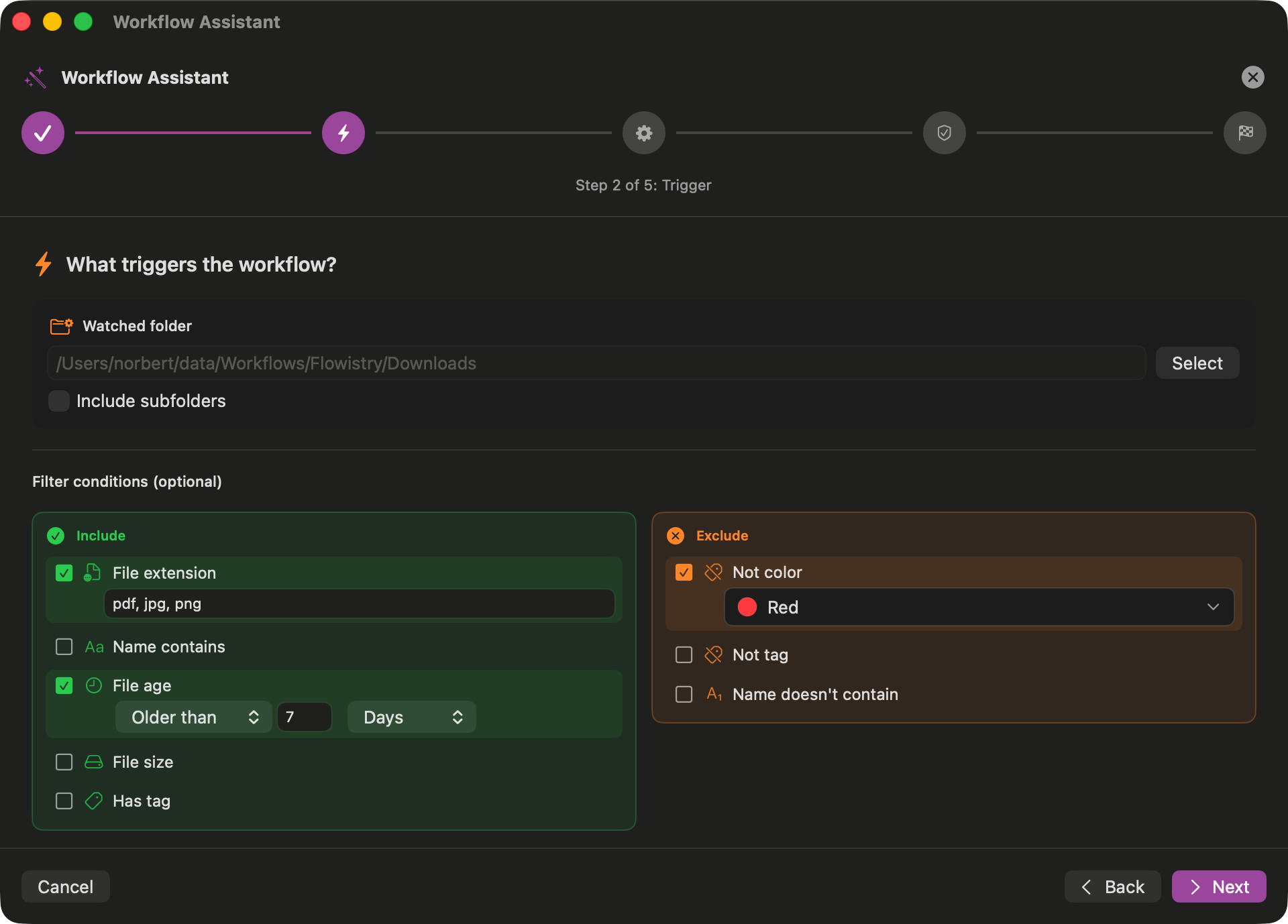
Trigger Selection
Browse triggers by category: Filename, File Size, File Type, File Age, Tags, and more
Step 3 Add Actions
Choose what should happen when the trigger fires. Add one or more actions to process your files.
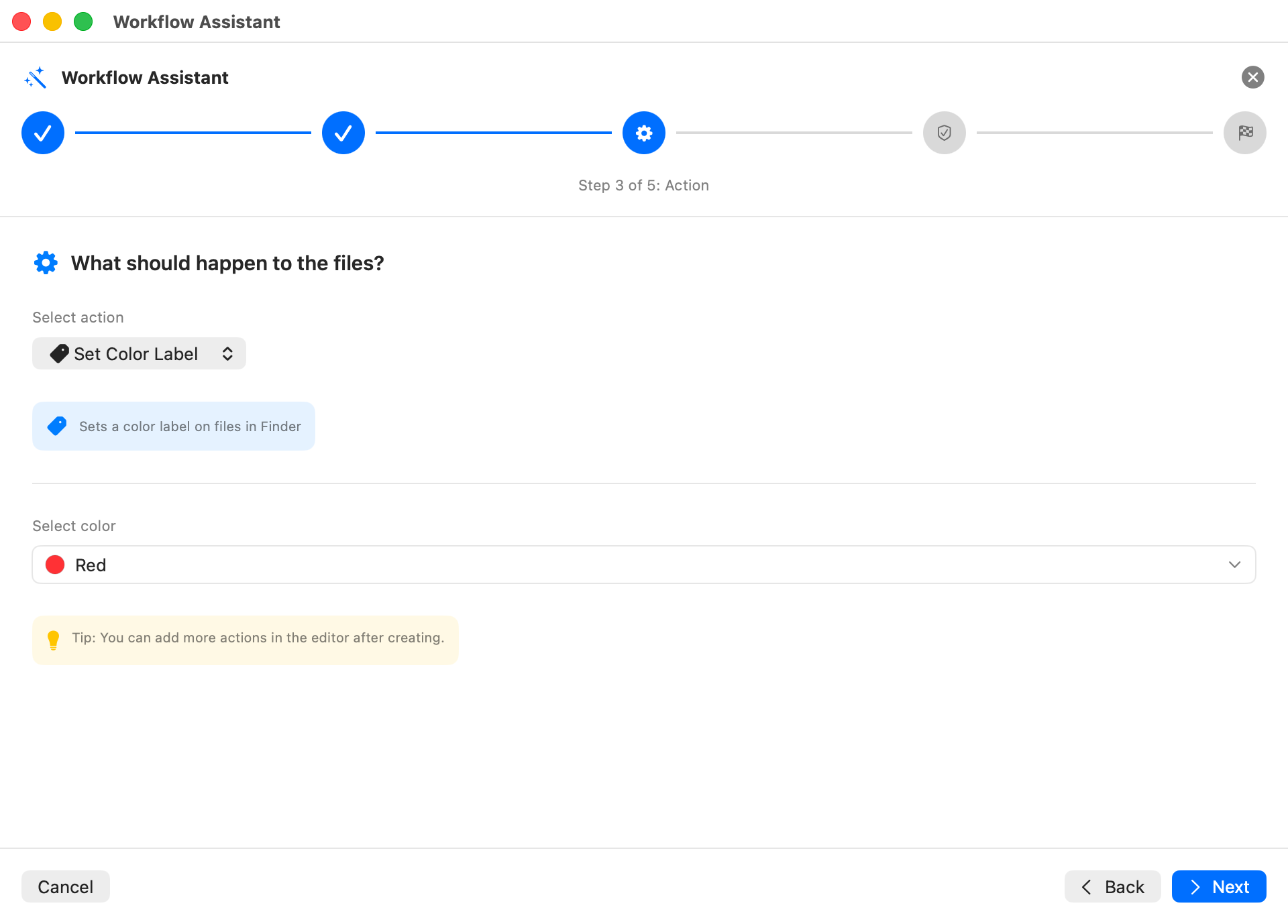
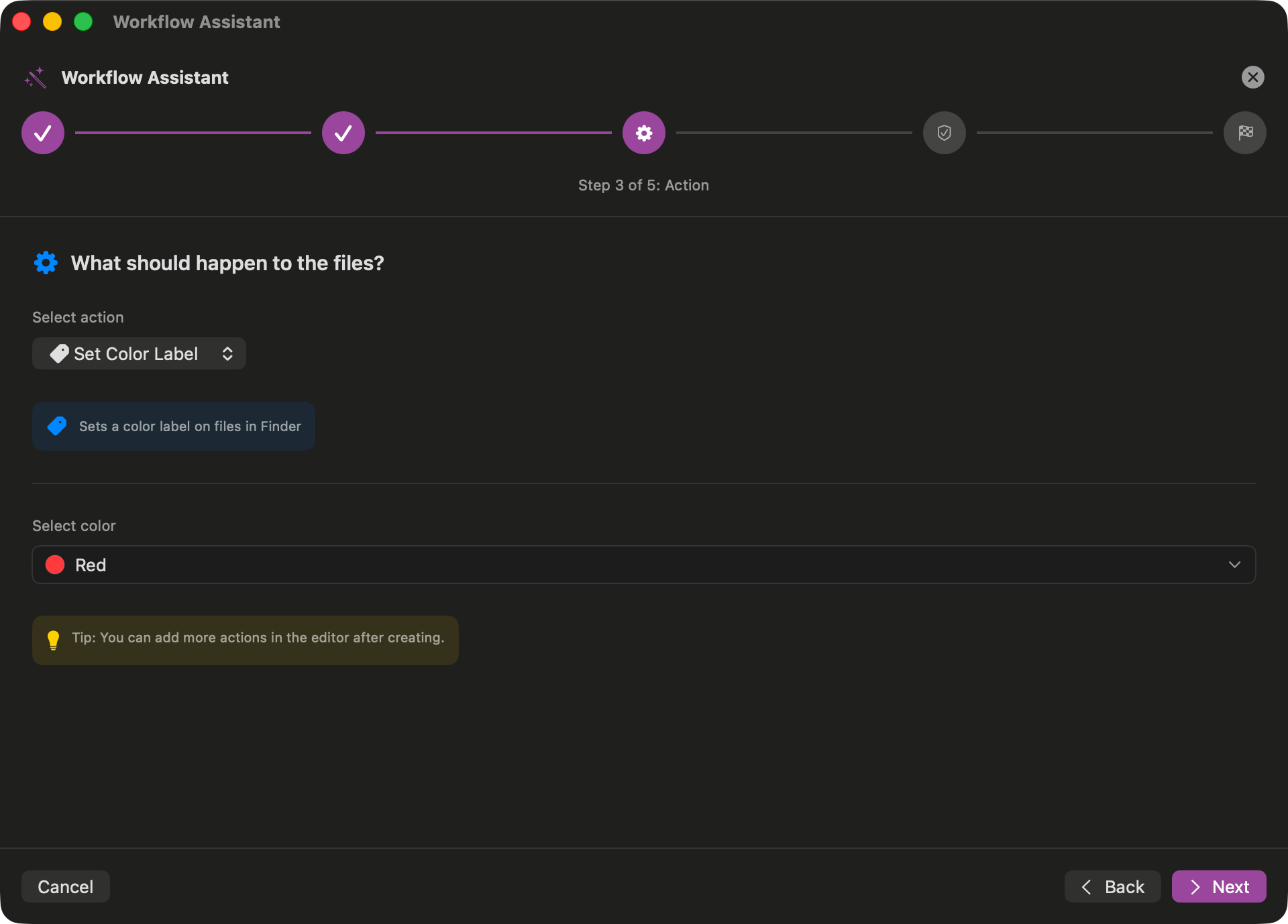
Action Selection
Choose from 40+ actions: Move, Copy, Rename, Convert, Archive, Notify, and more
Step 4 Validation
The assistant validates your workflow configuration and highlights any issues.
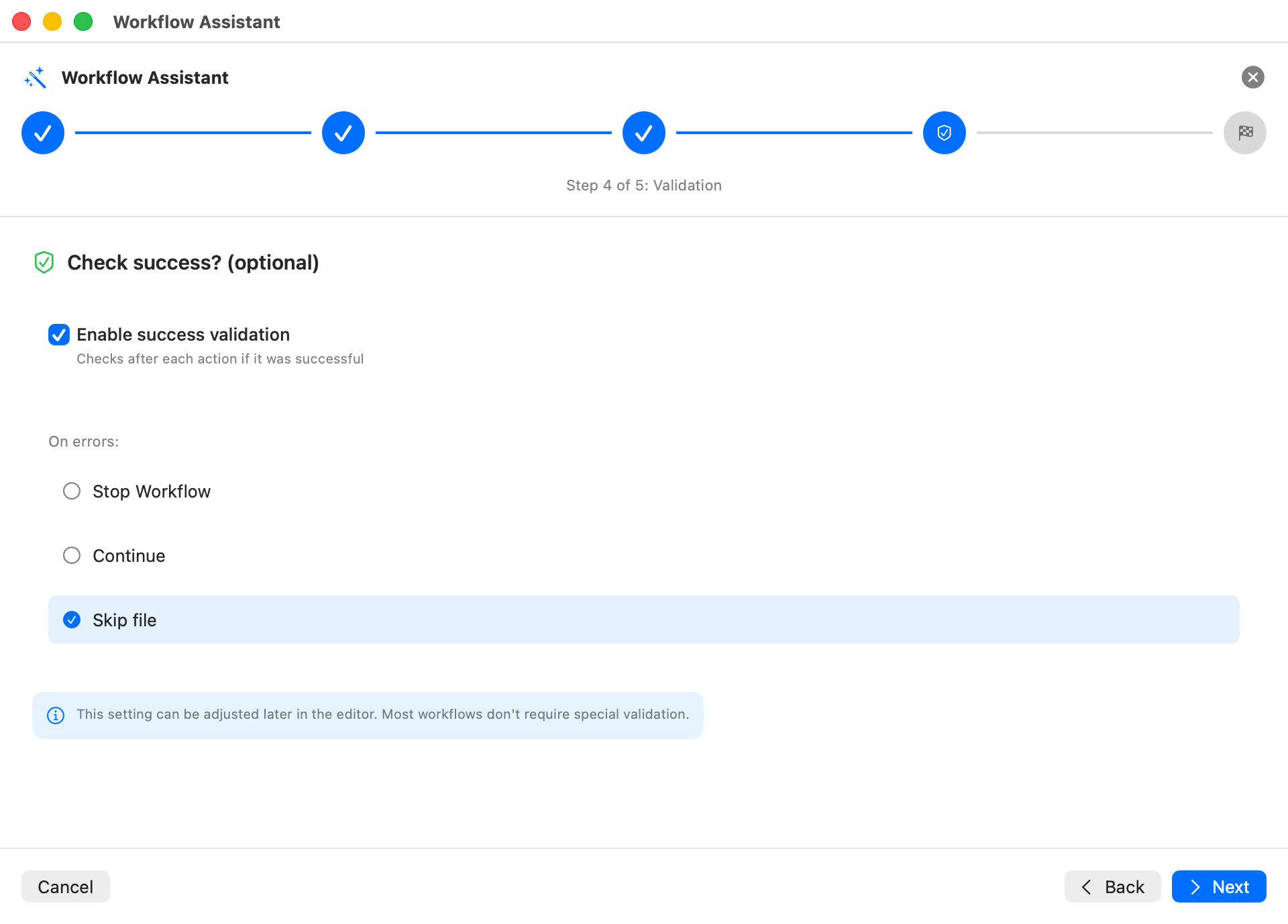
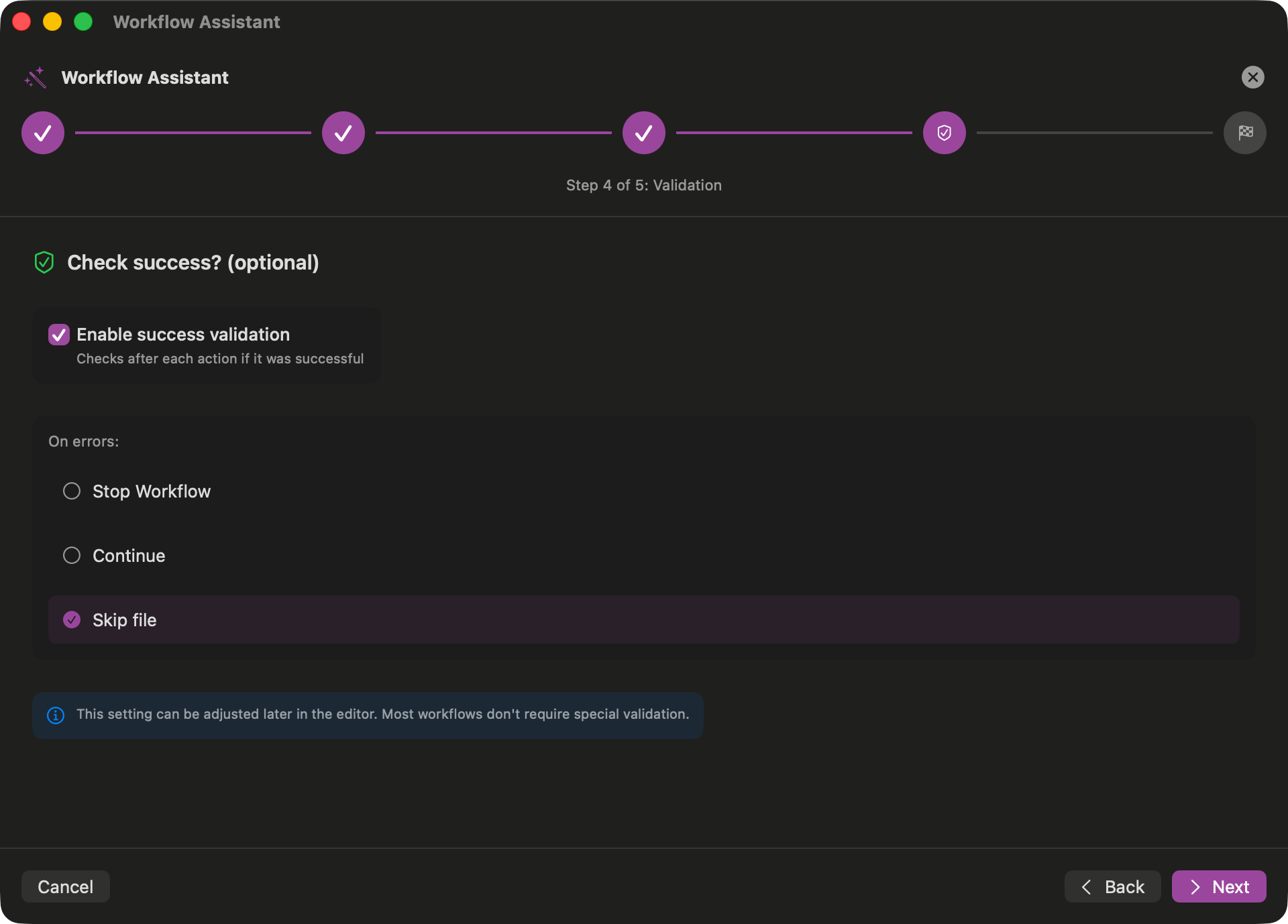
Configuration Check
Verify all settings are correct before creating the workflow
Step 5 Finish & Create
Review your workflow and create it. You can edit it later in the visual designer.
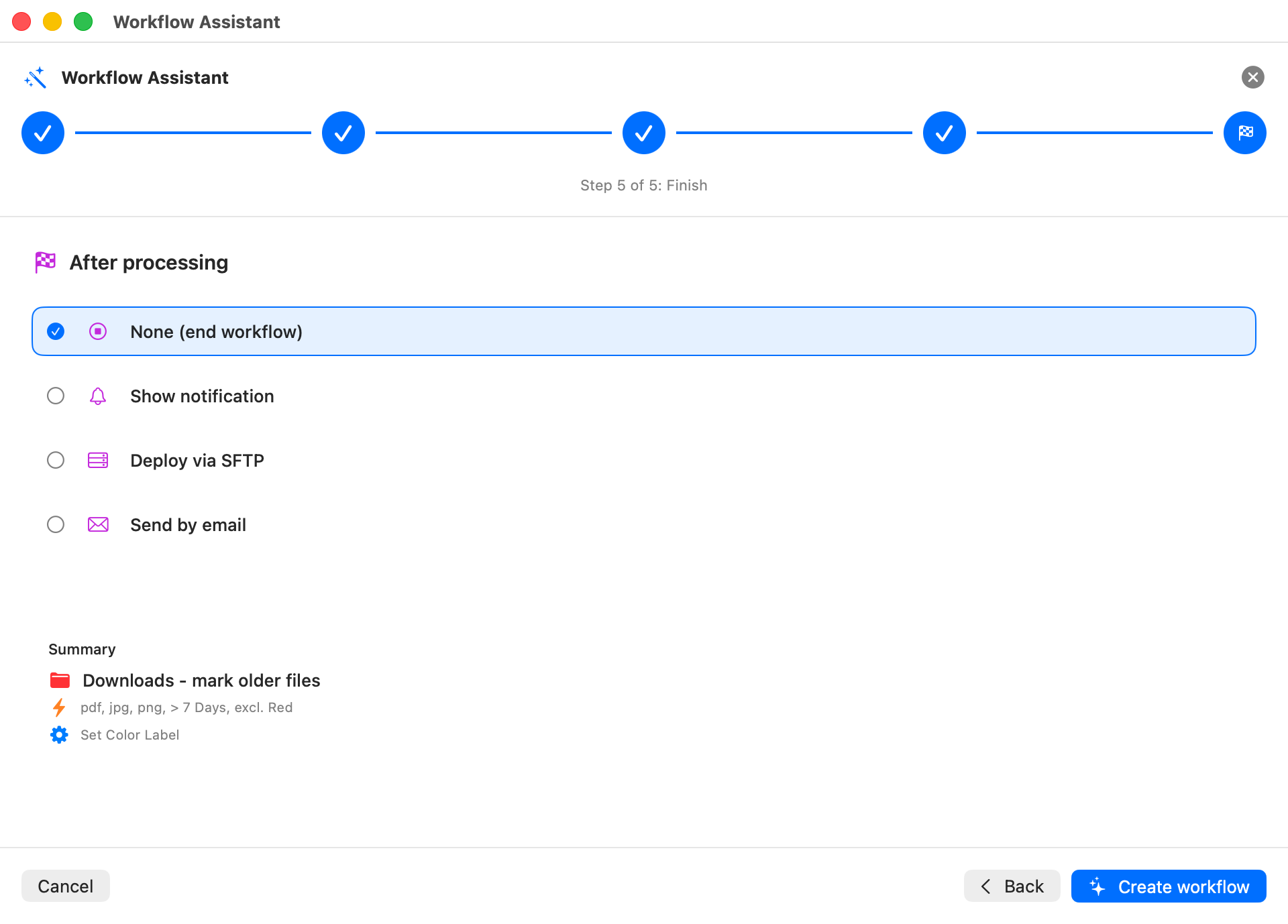
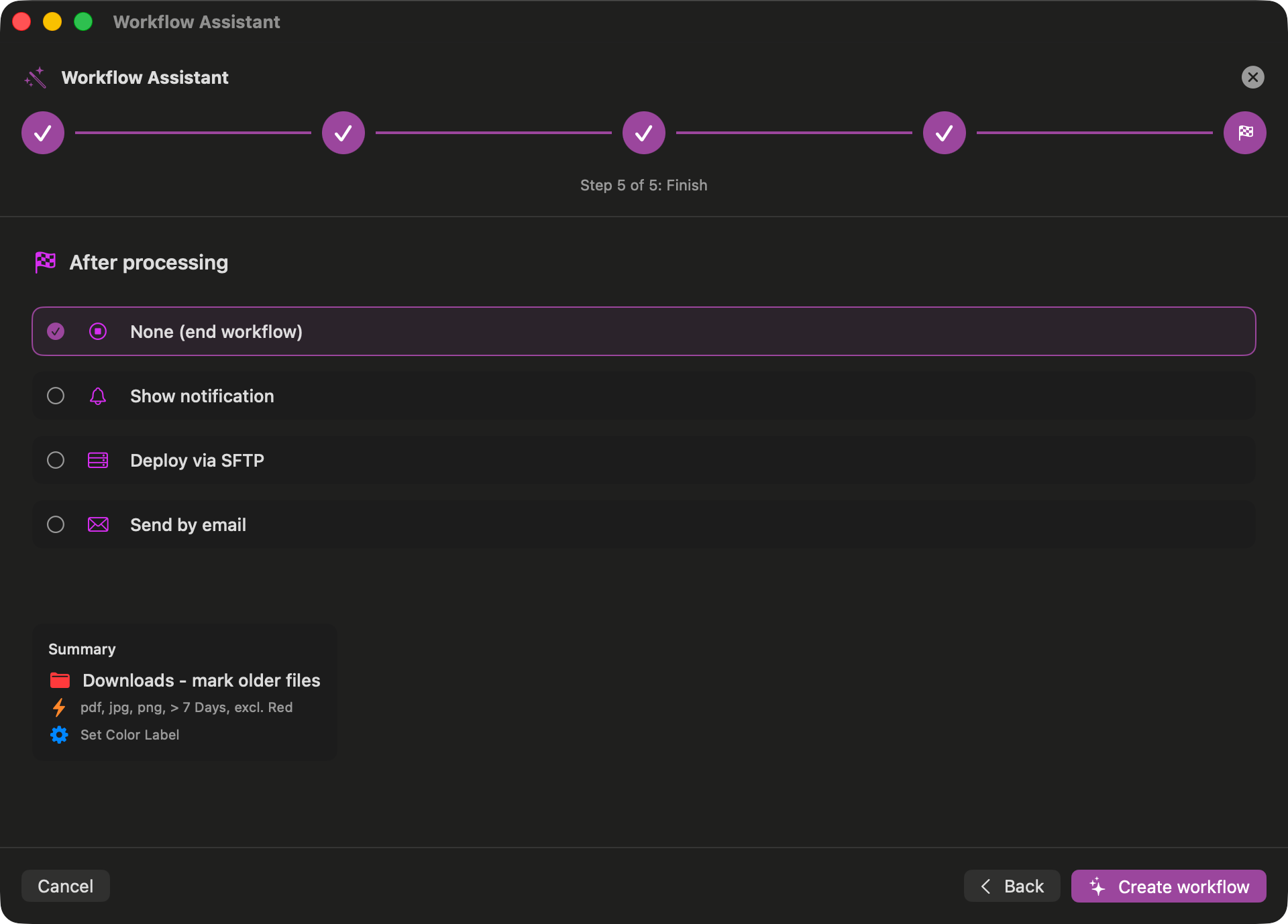
Ready to Create
Your workflow is configured and ready to be created
After the Assistant
Once created, your workflow opens in the visual designer where you can make further adjustments.
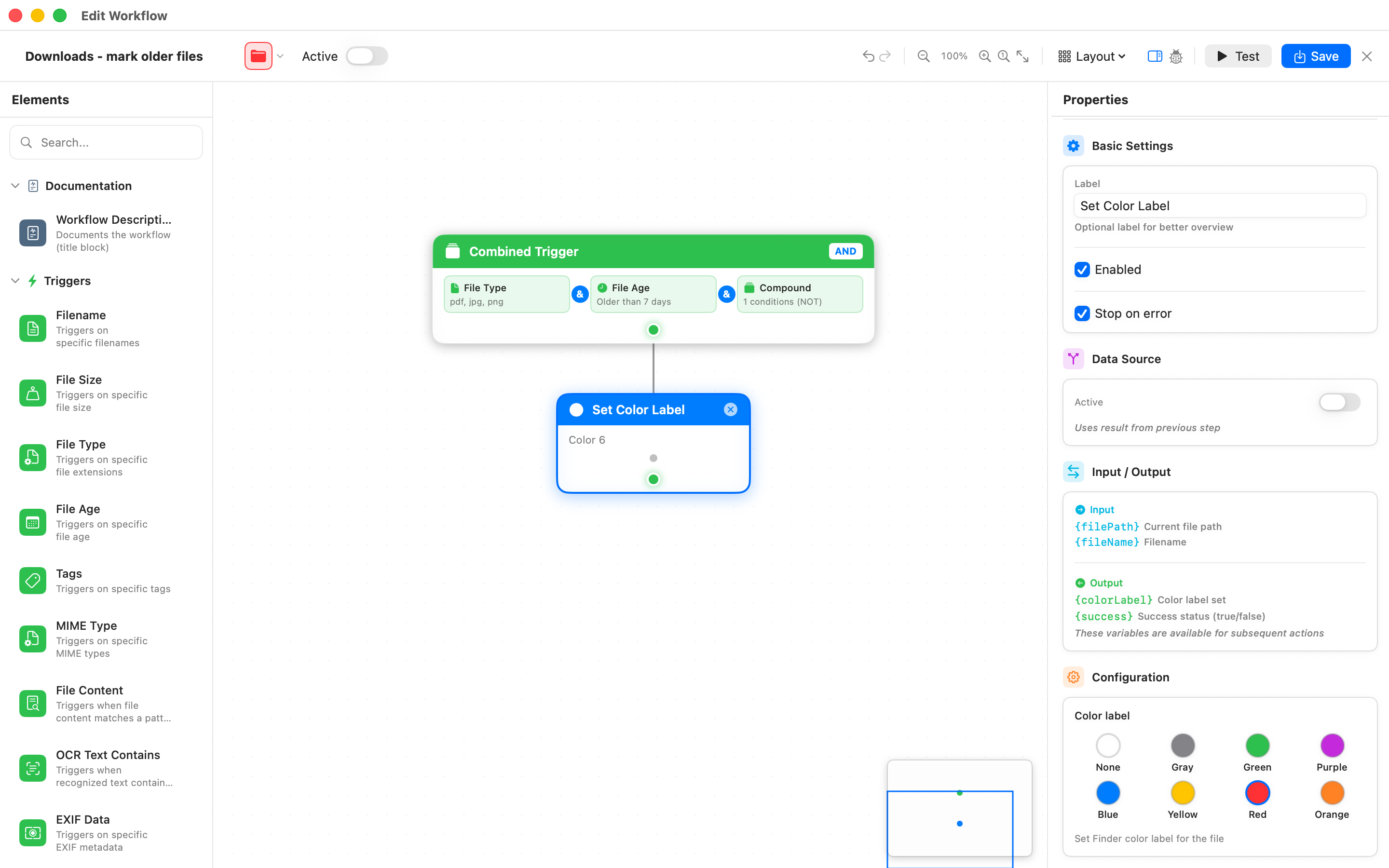
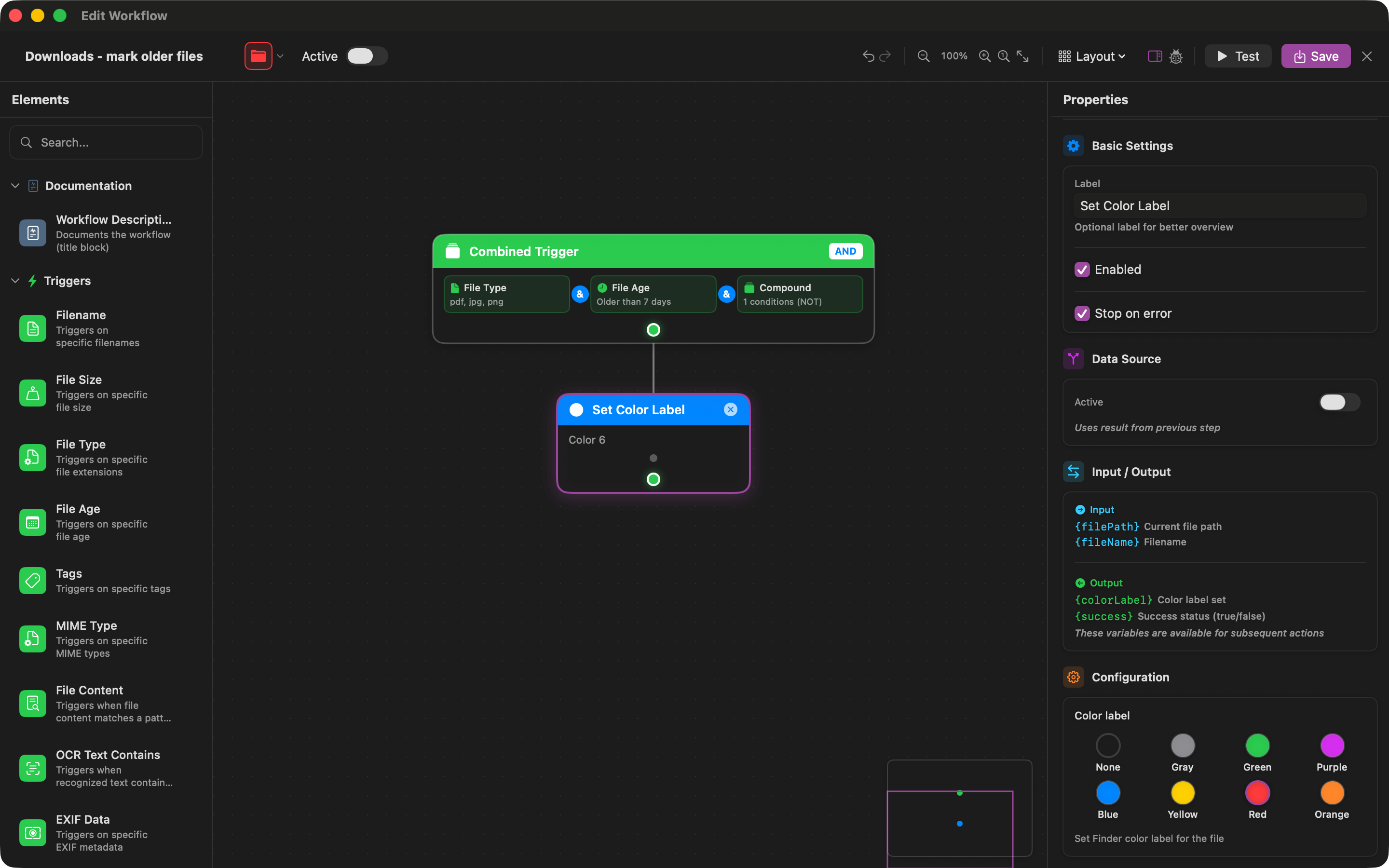
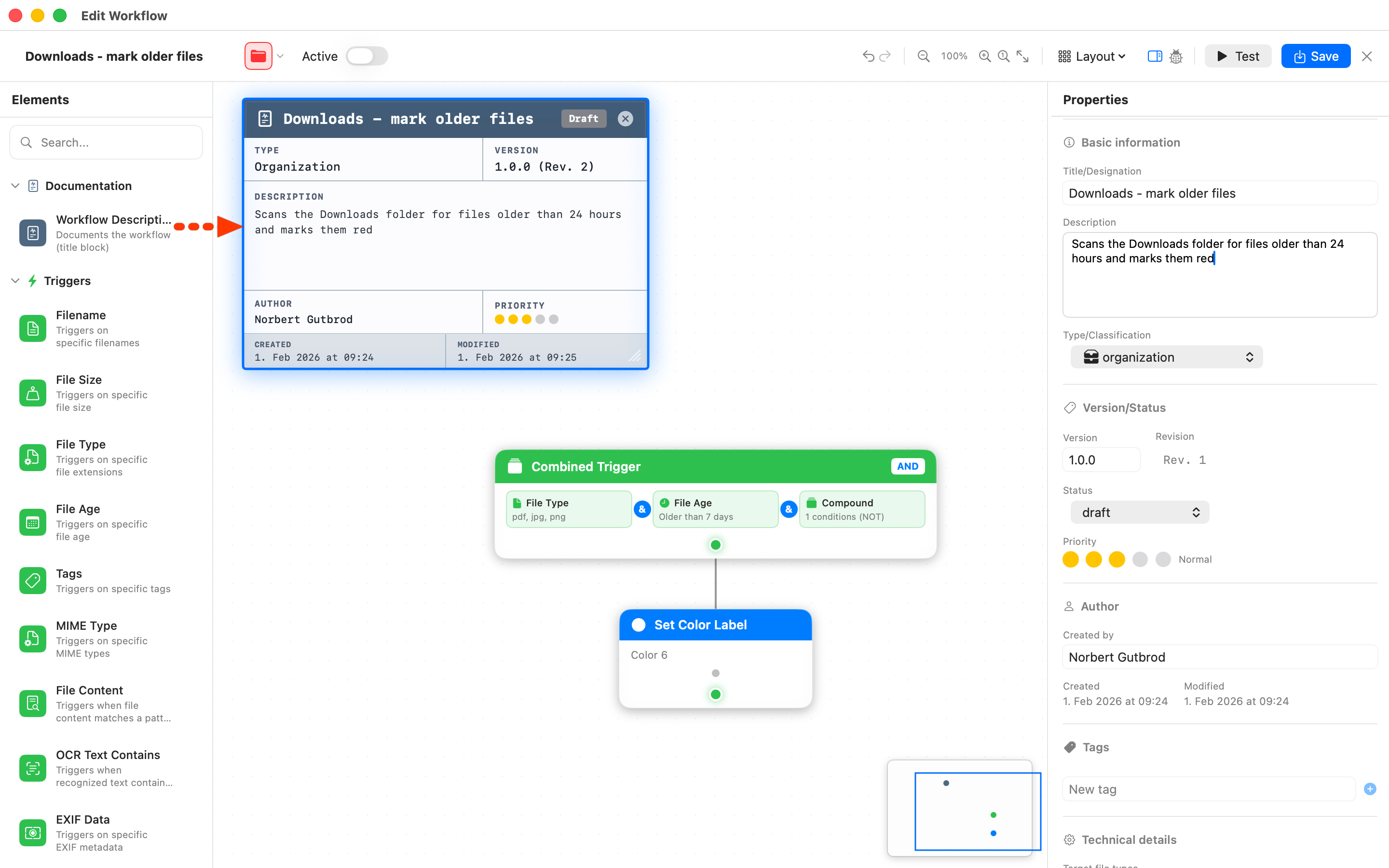
Visual Designer
Your workflow in the drag & drop editor
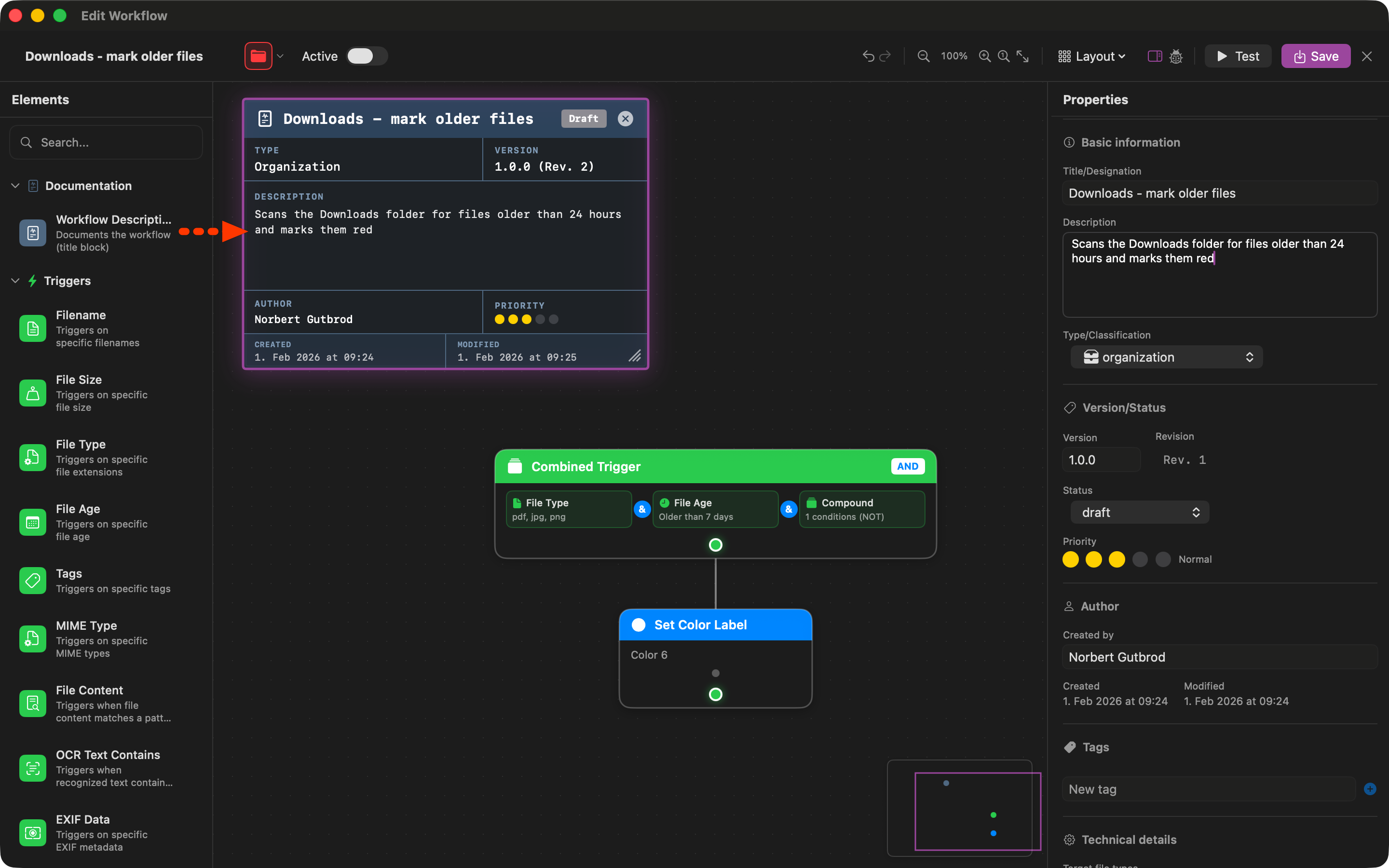
Add Details
Add a description and configure advanced settings
Activate & Run
Configure your source folder, activate the workflow, and watch it work.
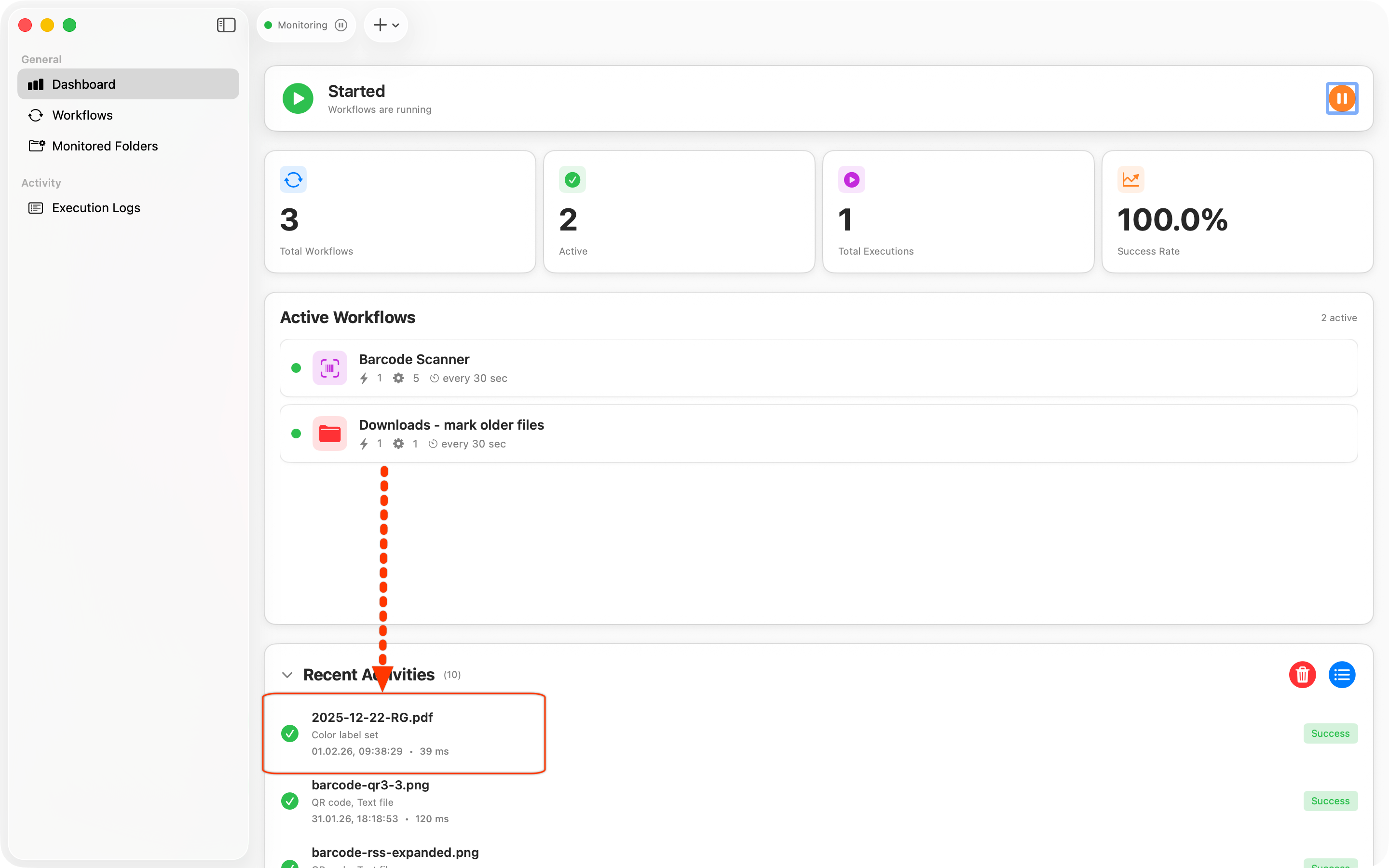
See Results
The dashboard shows active workflows and recent activity
Execution Logging
Track every workflow execution with detailed logs.
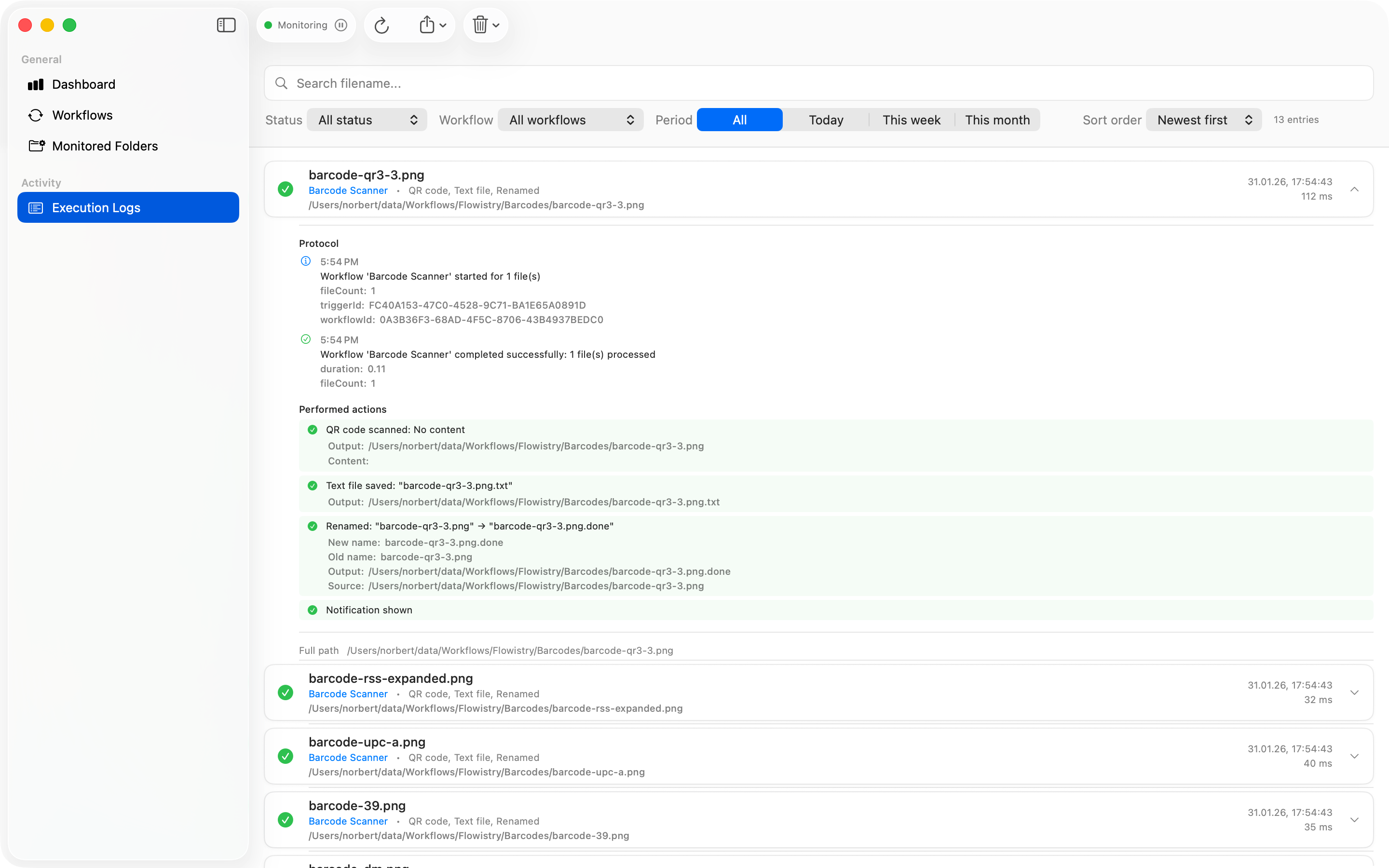
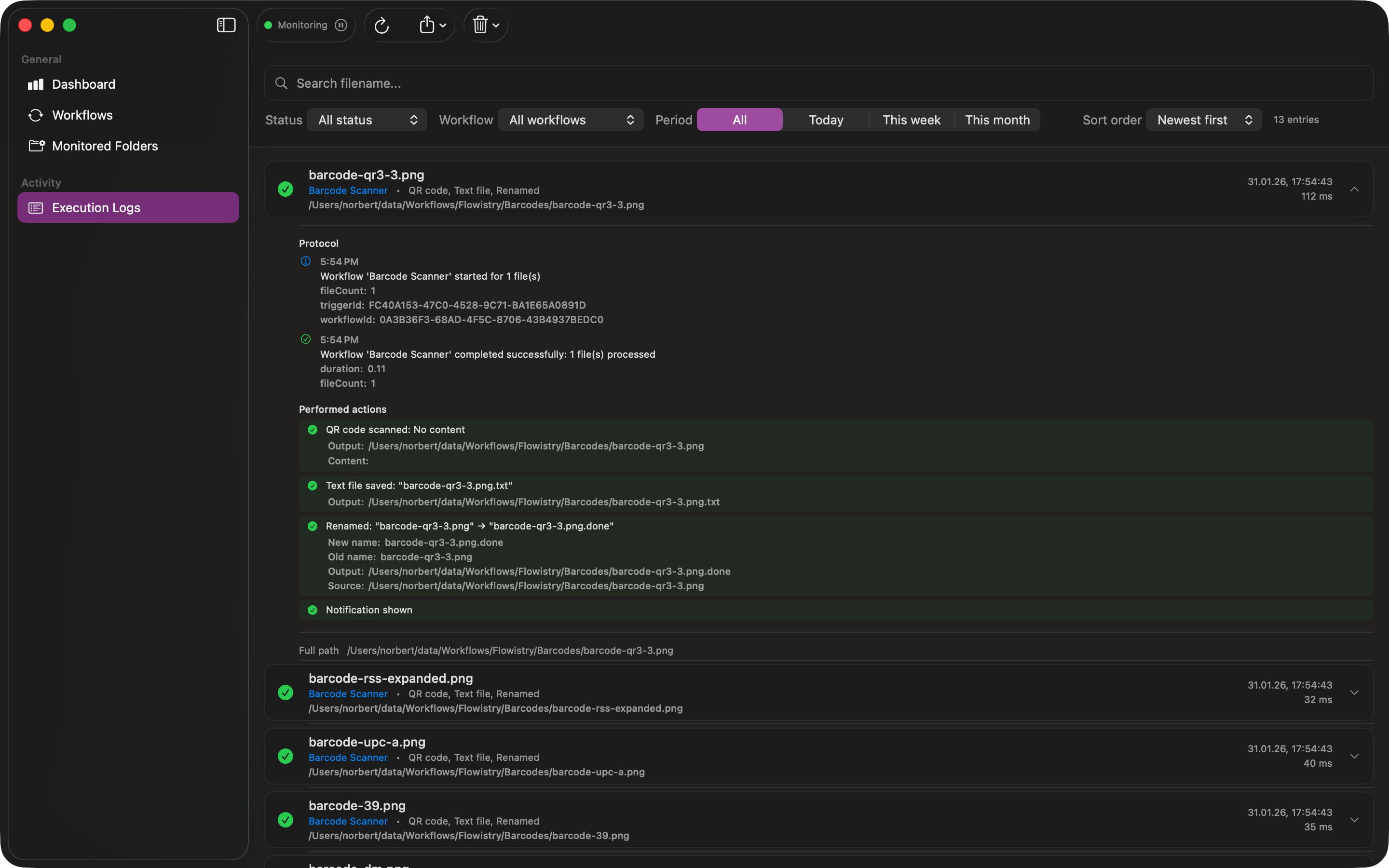
Detailed Logs
See what happened, when, and the result of each action
Ready to Create?
Download Flowistry and create your first workflow in minutes.