Der Dateimanager,
der keine Grenzen kennt.
The file manager
without limits.
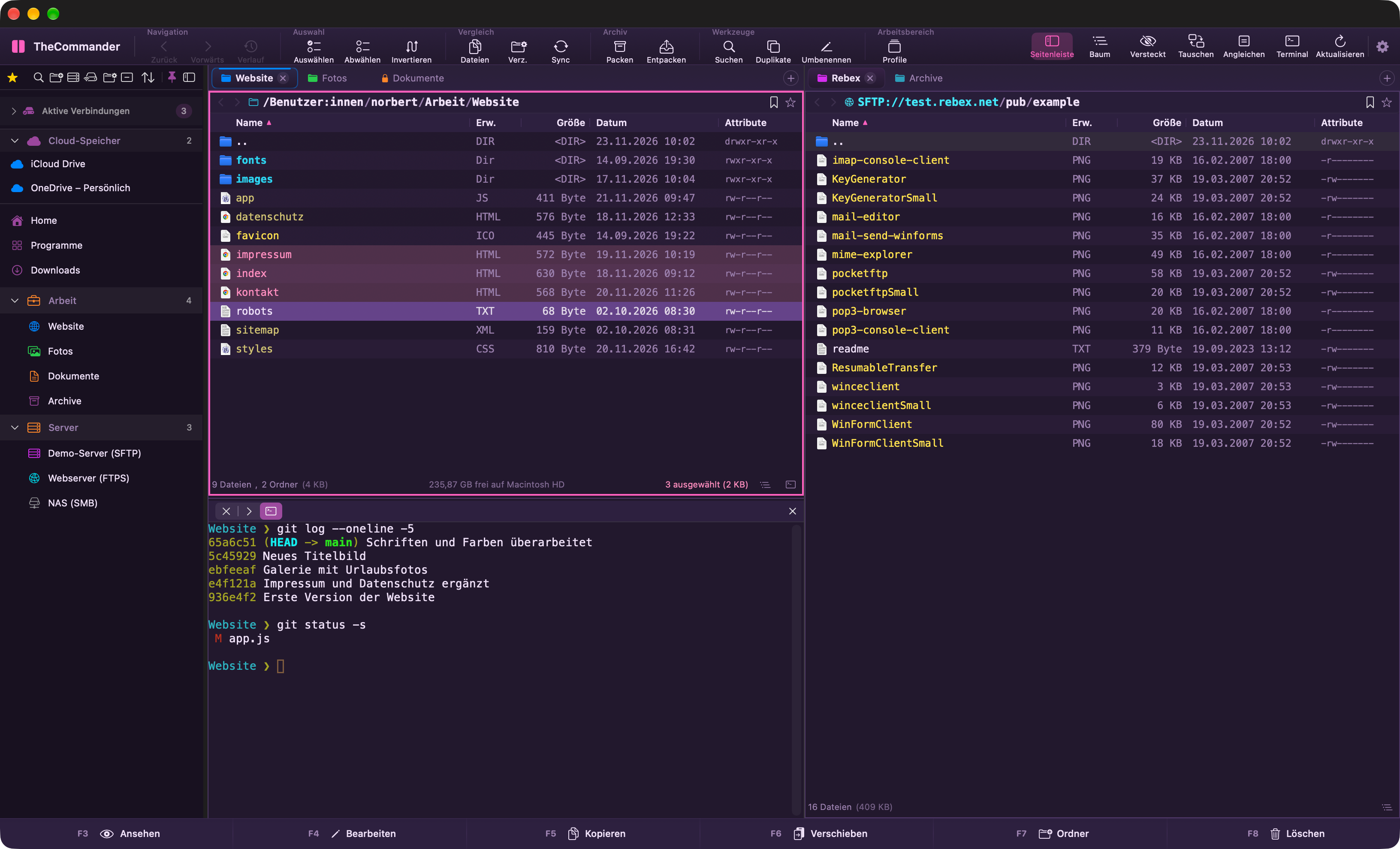
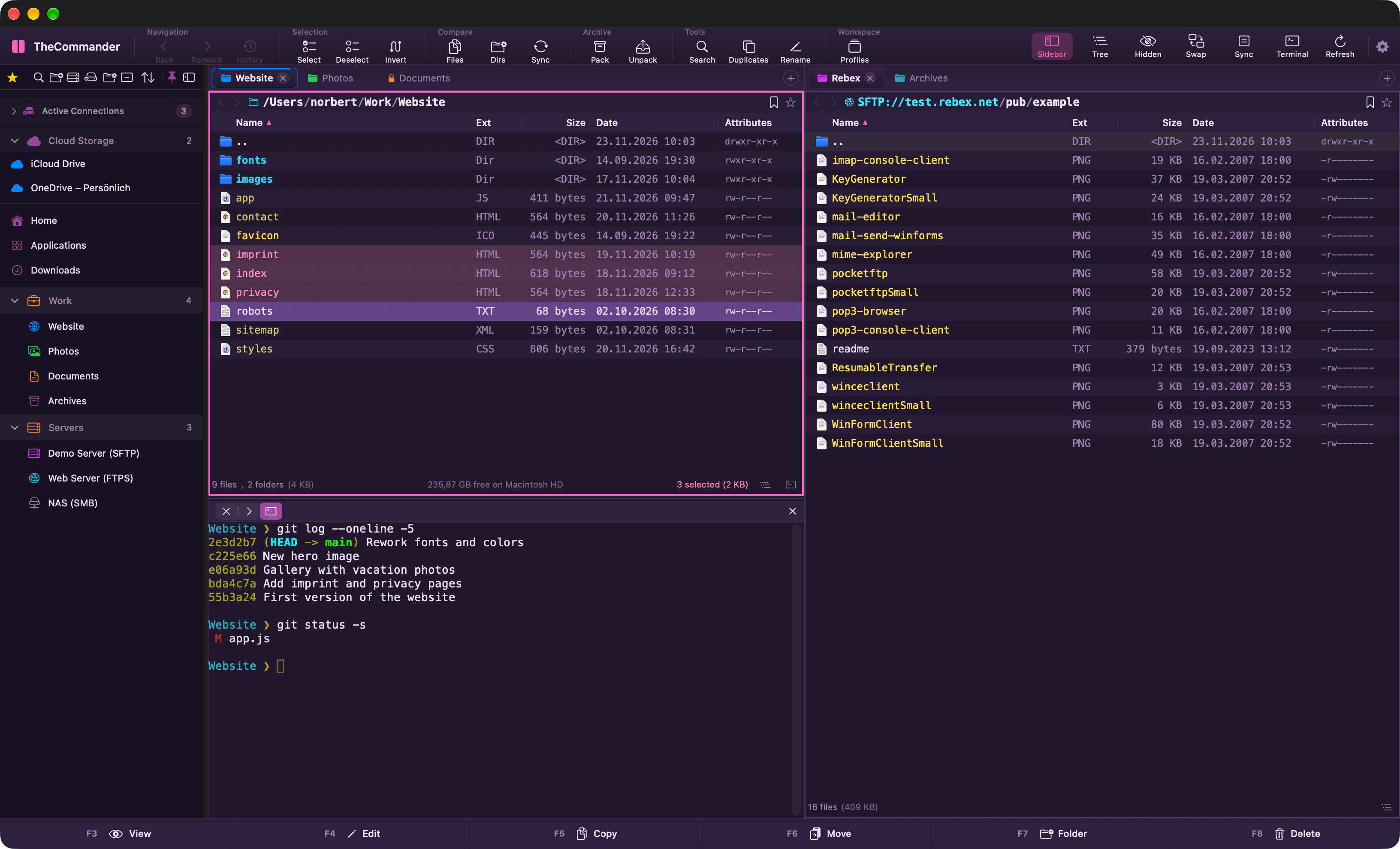
TheCommander ist ein leistungsstarker Dual-Panel Dateimanager für macOS – inspiriert von Total Commander. Mit Tabs und Profilen, Netzwerkzugriff, integriertem Terminal, Archivverwaltung, Dateivergleich, Verzeichnis-Synchronisation und frei belegbaren Tastaturkürzeln.
TheCommander is a powerful dual-panel file manager for macOS – inspired by Total Commander. With tabs and profiles, network access, an integrated terminal, archive management, file comparison, directory synchronization and fully customizable keyboard shortcuts.
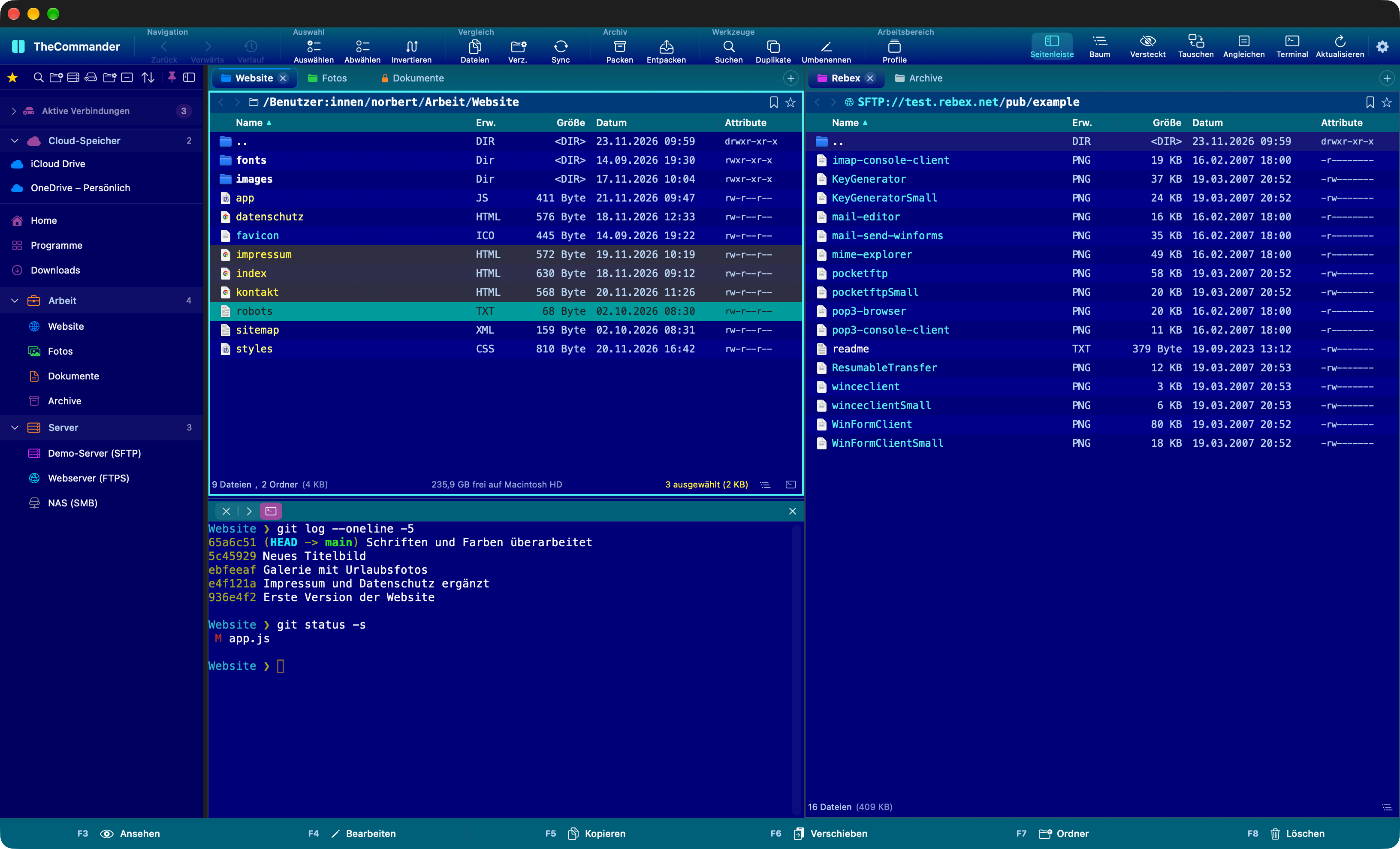
Alles, was ein Dateimanager braucht
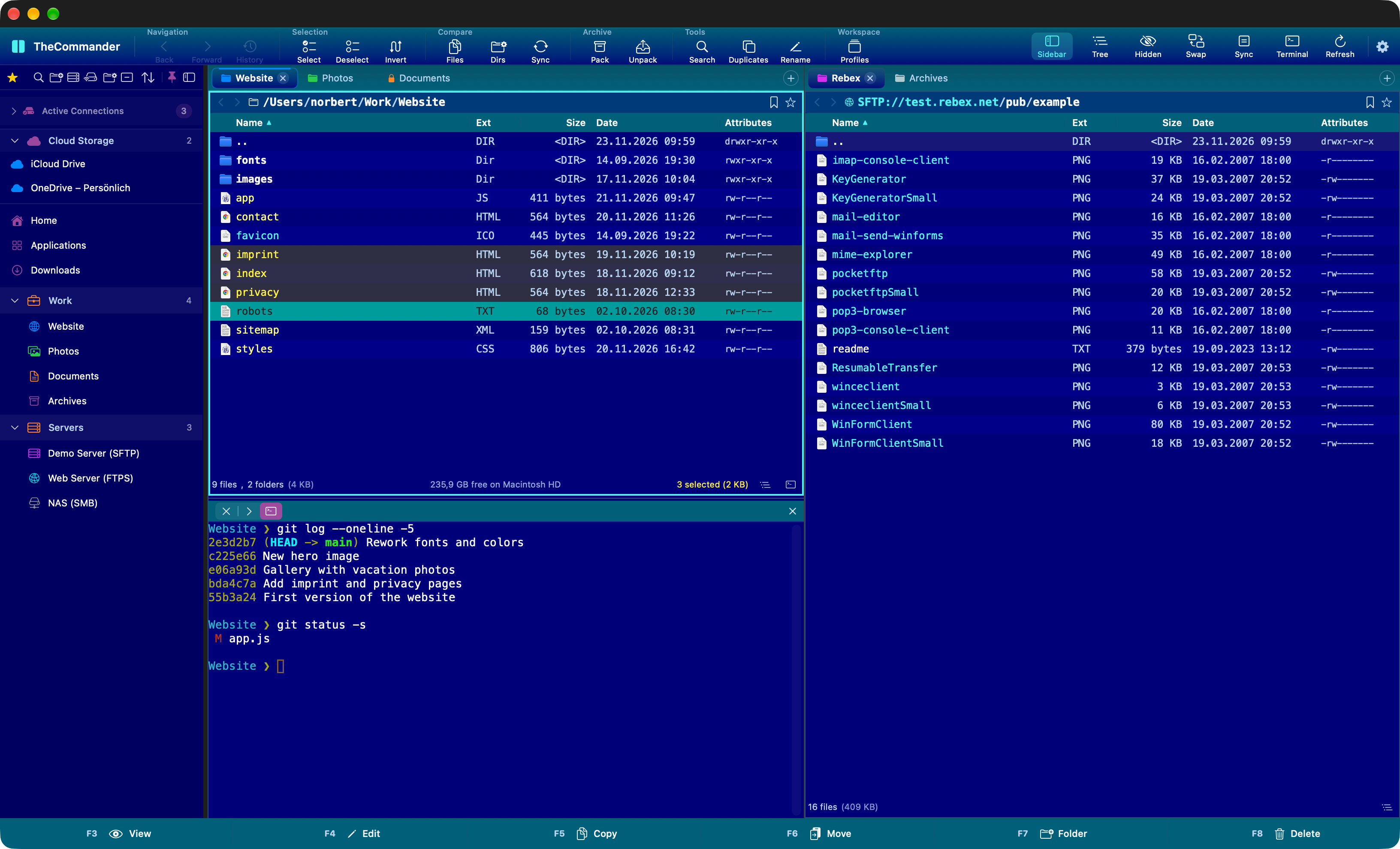
Everything a file manager needs
TheCommander vereint die Effizienz eines Dual-Panel-Layouts mit modernen macOS-Funktionen und einem riesigen Funktionsumfang.
TheCommander combines the efficiency of a dual-panel layout with modern macOS features and an extensive set of functions.
Dual-Panel Layout
Dual-Panel Layout
Zwei unabhängige Panels mit eigenen Tabs, Verlauf und Auswahl. Profile sichern ganze Arbeitsplätze, die Hotlist bringt dich per Tastatur in jeden Ordner.
Two independent panels with their own tabs, history and selection. Profiles save entire workspaces, and the hotlist takes you to any folder by keyboard.
Netzwerk & Remote
Network & Remote
SFTP, FTP/FTPS und SMB direkt im Panel. Dateien auf dem Server öffnen, bearbeiten und per Drag & Drop herausziehen. Passwörter im Schlüsselbund.
SFTP, FTP/FTPS and SMB right in the panel. Open and edit files on the server and drag them out via drag & drop. Passwords in the Keychain.
Vollständig konfigurierbar
Fully Configurable
20 Themes und Theme-Editor, freie Schriftwahl, Spalten und Tastaturkürzel – mit Vorlagen für Total Commander, Norton Commander, ForkLift und Midnight Commander.
20 themes and a theme editor, any font, columns and keyboard shortcuts – with presets for Total Commander, Norton Commander, ForkLift and Midnight Commander.
Features im Detail
Features in Detail
Ein umfassender Überblick über alle Funktionen, die TheCommander bietet.
A comprehensive overview of all functions TheCommander offers.
Dateioperationen
File Operations
Alle wichtigen Dateioperationen mit Fortschrittsanzeige, Konfliktlösung und Mehrfachauswahl.
All important file operations with progress display, conflict resolution and multi-selection.
Kopieren & Verschieben Copy & Move
- Kopieren (F5) und Verschieben (F6) mit Fortschrittsanzeige
- Konflikte lösen: Überschreiben, Überspringen, Umbenennen oder „Alle älteren überschreiben“
- Relative Ziele wie im Total Commander: „..“, „../Backup“ oder „Archiv“
- Drag & Drop zwischen Panels, mit dem Finder und vom Server auf den Schreibtisch
- Fehlen Rechte, auf Wunsch als Administrator – wie im Finder
- Copy (F5) and Move (F6) with progress display
- Resolve conflicts: overwrite, skip, rename or “Overwrite All Older”
- Relative destinations as in Total Commander: “..”, “../Backup” or “Archive”
- Drag & drop between panels, with Finder and from a server onto the desktop
- Missing permissions? Carry on as administrator if you like – as in Finder
Erstellen & Umbenennen Create & Rename
- Neuer Ordner (F7), neue Datei (Shift+F4), Umbenennen (F2)
- Mehrfachumbenennung (Ctrl+M) in eigenem Fenster mit Live-Vorschau
- Platzhalter für Name, Zähler, Datum und Teilstrings – Zeichenbereich per Maus wählbar
- Suchen & Ersetzen (auch mit RegEx), Groß-/Kleinschreibung
- Dateien duplizieren (Cmd+D)
- New folder (F7), new file (Shift+F4), rename (F2)
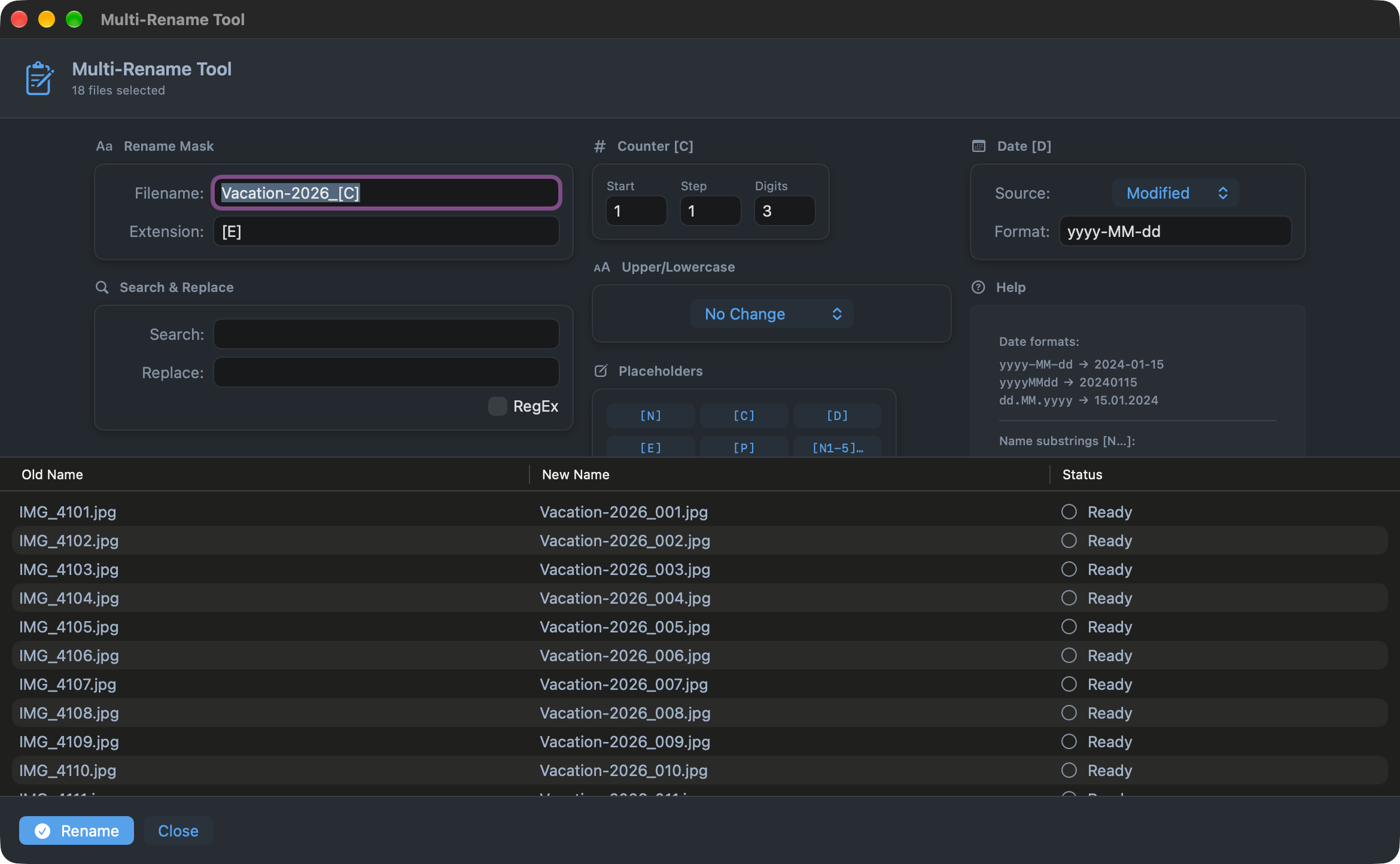
- Batch rename (Ctrl+M) in its own window with live preview
- Placeholders for name, counter, date and substrings – pick character ranges with the mouse
- Search & replace (regex too), upper/lowercase
- Duplicate files (Cmd+D)
Löschen & Auswahl Delete & Selection
- Löschen (F8) in den Papierkorb, Shift+F8 löscht endgültig
- Sicherheitsabfragen in drei Stufen oder einzeln einstellbar
- Markieren mit Leertaste oder Einfg, Mehrfachauswahl mit der Maus
- Auswahl nach Muster (+), Abwahl (-), Invertieren (*)
- Dateien aufteilen und zusammenfügen
- Delete (F8) to the Trash, Shift+F8 deletes permanently
- Safety prompts in three levels or set one by one
- Mark with Space or Ins, multi-selection with the mouse
- Select by pattern (+), deselect (-), invert (*)
- Split and merge files
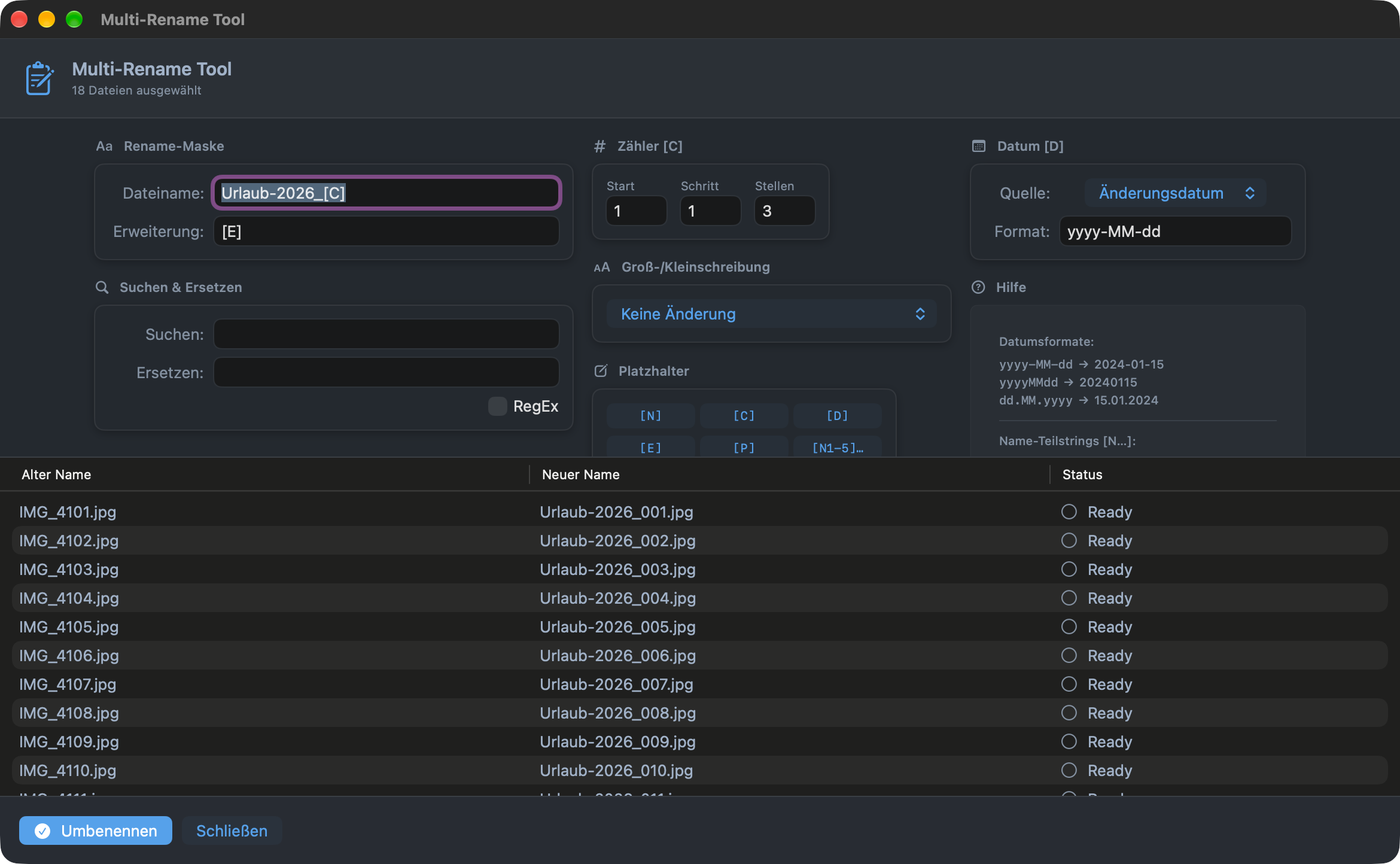
Mehrfachumbenennung
Batch Rename
18 Urlaubsfotos auf einmal umbenennen – mit Live-Vorschau
Rename 18 vacation photos at once – with live preview
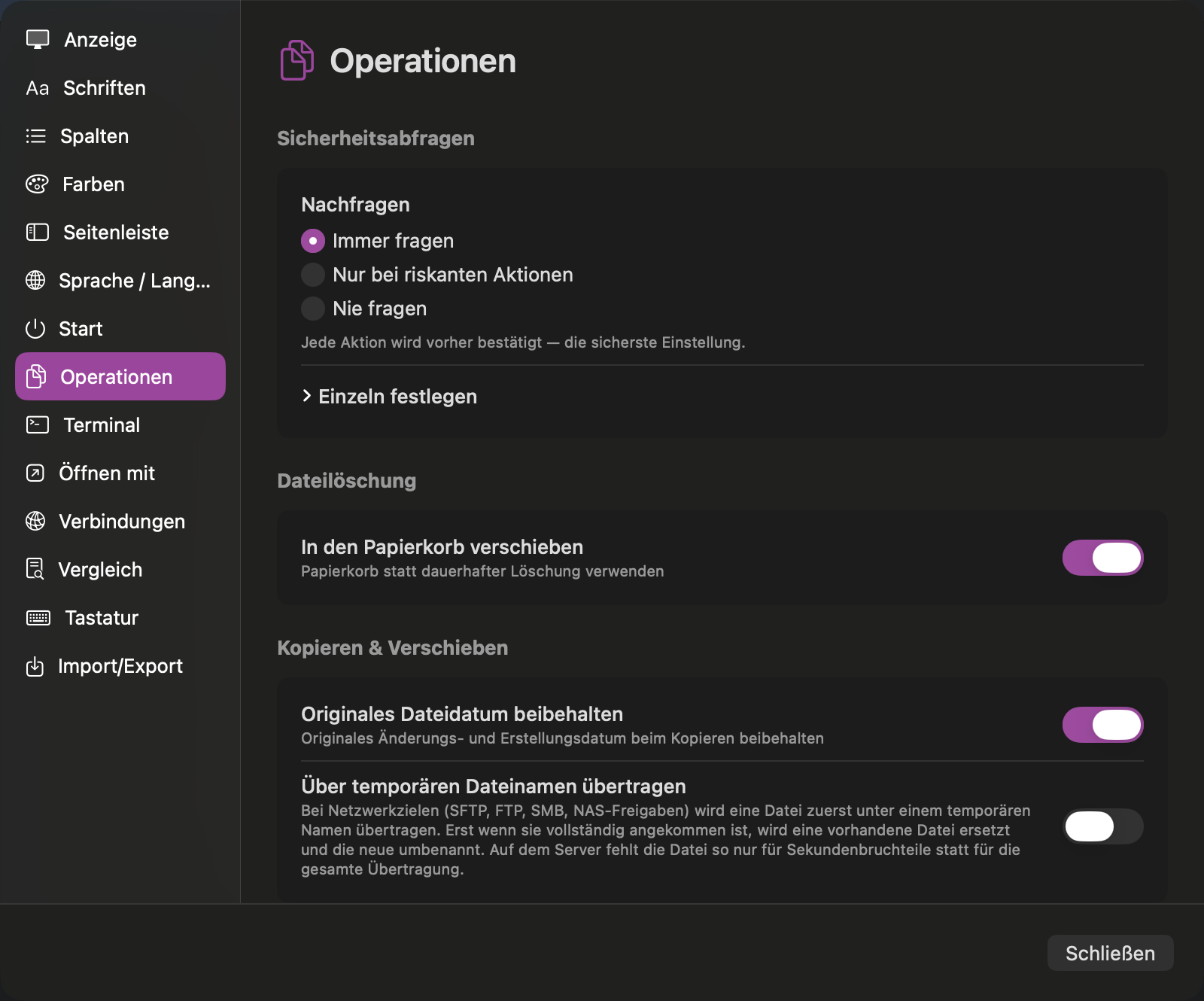
Sicherheitsabfragen
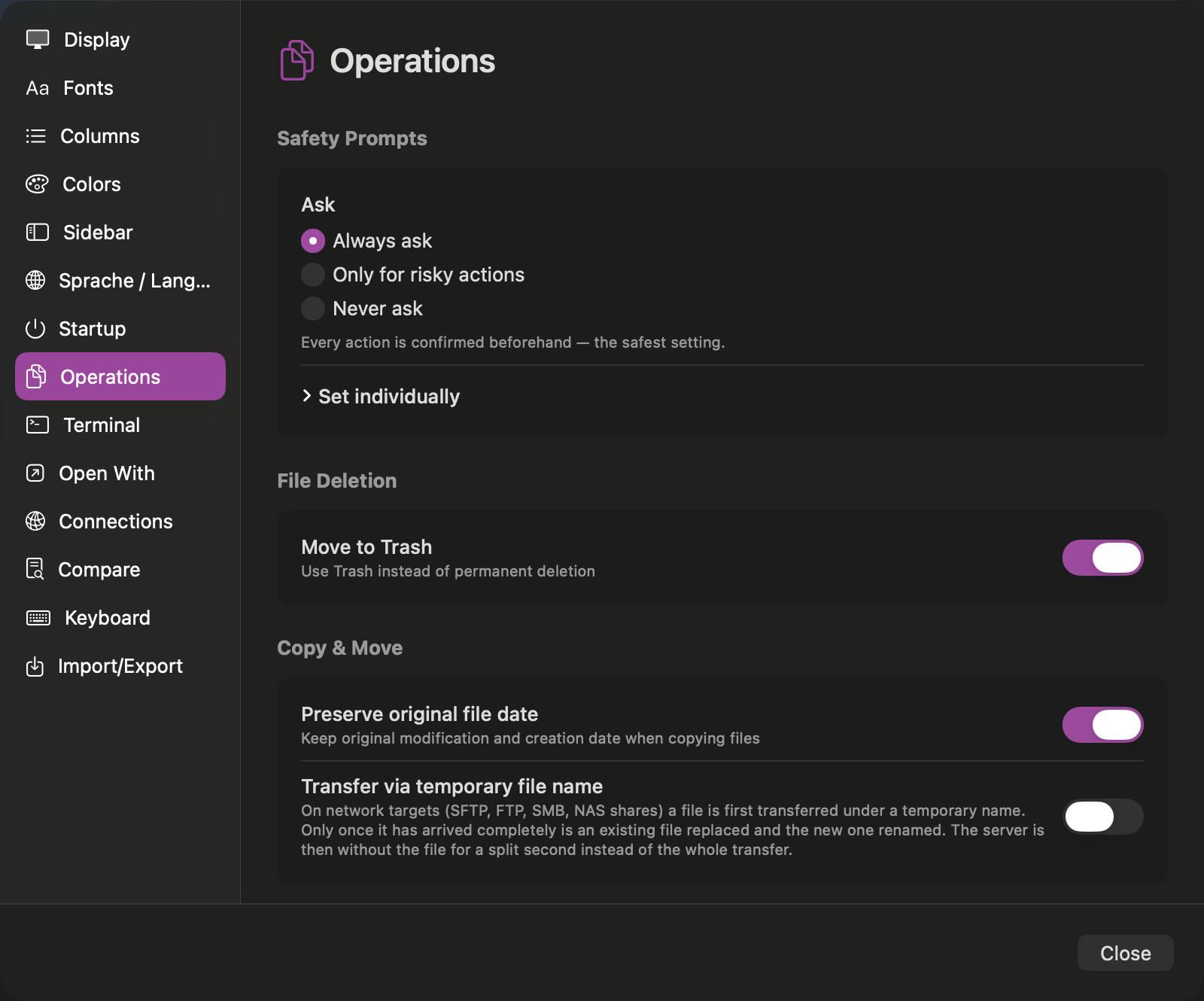
Safety Prompts
Immer fragen, nur bei riskanten Aktionen oder nie – oder einzeln festlegen
Always ask, only for risky actions or never – or decide one by one
Archivverwaltung
Archive Management
Archive erstellen, entpacken und direkt durchsuchen wie normale Ordner.
Create, extract and browse archives just like regular folders.
Unterstützte Formate Supported Formats
Unterstützung für die gängigsten Archivformate:
Support for the most common archive formats:
Archiv-Funktionen Archive Functions
- Archive packen (Alt+F5) und entpacken (Alt+F9)
- Archiv-Inhalte durchsuchen wie normale Ordner
- Einzelne Dateien aus Archiven extrahieren
- Beim Entpacken Konflikte lösen: Überschreiben, Überspringen, Umbenennen
- Dateien zu bestehenden Archiven hinzufügen
- Archiv-Integrität prüfen
- Verschlüsselte Archive (ZIP, RAR, 7z)
- Pack archives (Alt+F5) and extract (Alt+F9)
- Browse archive contents like regular folders
- Extract individual files from archives
- Resolve conflicts when extracting: overwrite, skip, rename
- Add files to existing archives
- Verify archive integrity
- Encrypted archives (ZIP, RAR, 7z)
Netzwerk & Remote-Zugriff
Network & Remote Access
Verbinde dich mit entfernten Servern und arbeite mit Dateien, als wären sie lokal.
Connect to remote servers and work with files as if they were local.
Protokolle & Cloud Protocols & Cloud
- SFTP – SSH-Schlüssel und Passwort-Authentifizierung
- FTP / FTPS – explizit und implizit, inkl. anonymem Zugang
- SMB/CIFS – Windows- und NAS-Freigaben
- iCloud Drive mit den App-Ordnern wie im Finder, dazu OneDrive in der Seitenleiste
- Baumansicht, Suche und Vergleich auch auf Servern
- SFTP – SSH key and password authentication
- FTP / FTPS – explicit and implicit, including anonymous access
- SMB/CIFS – Windows and NAS shares
- iCloud Drive with the app folders as in Finder, plus OneDrive in the sidebar
- Tree view, search and comparison on servers too
Arbeiten auf dem Server Working on the Server
- Verbindungen als Favoriten speichern, Passwörter im macOS-Schlüsselbund
- Dateien auf dem Server öffnen und bearbeiten wie lokale – beim Speichern wird hochgeladen
- „Öffnen mit“ auch für Server-Dateien
- Dateien und Ordner per Drag & Drop vom Server auf den Schreibtisch ziehen
- Upload unter temporärem Namen (z. B.
.part) – erst vollständig, dann umbenannt - Abgerissene Verbindungen, etwa nach dem Ruhezustand, werden neu aufgebaut
- Save connections as favorites, passwords in the macOS Keychain
- Open and edit files on the server like local ones – saving uploads them again
- “Open With” for server files too
- Drag files and folders from a server straight onto the desktop
- Upload under a temporary name (e.g.
.part) – complete first, then renamed - Dropped connections, after sleep for instance, are rebuilt automatically
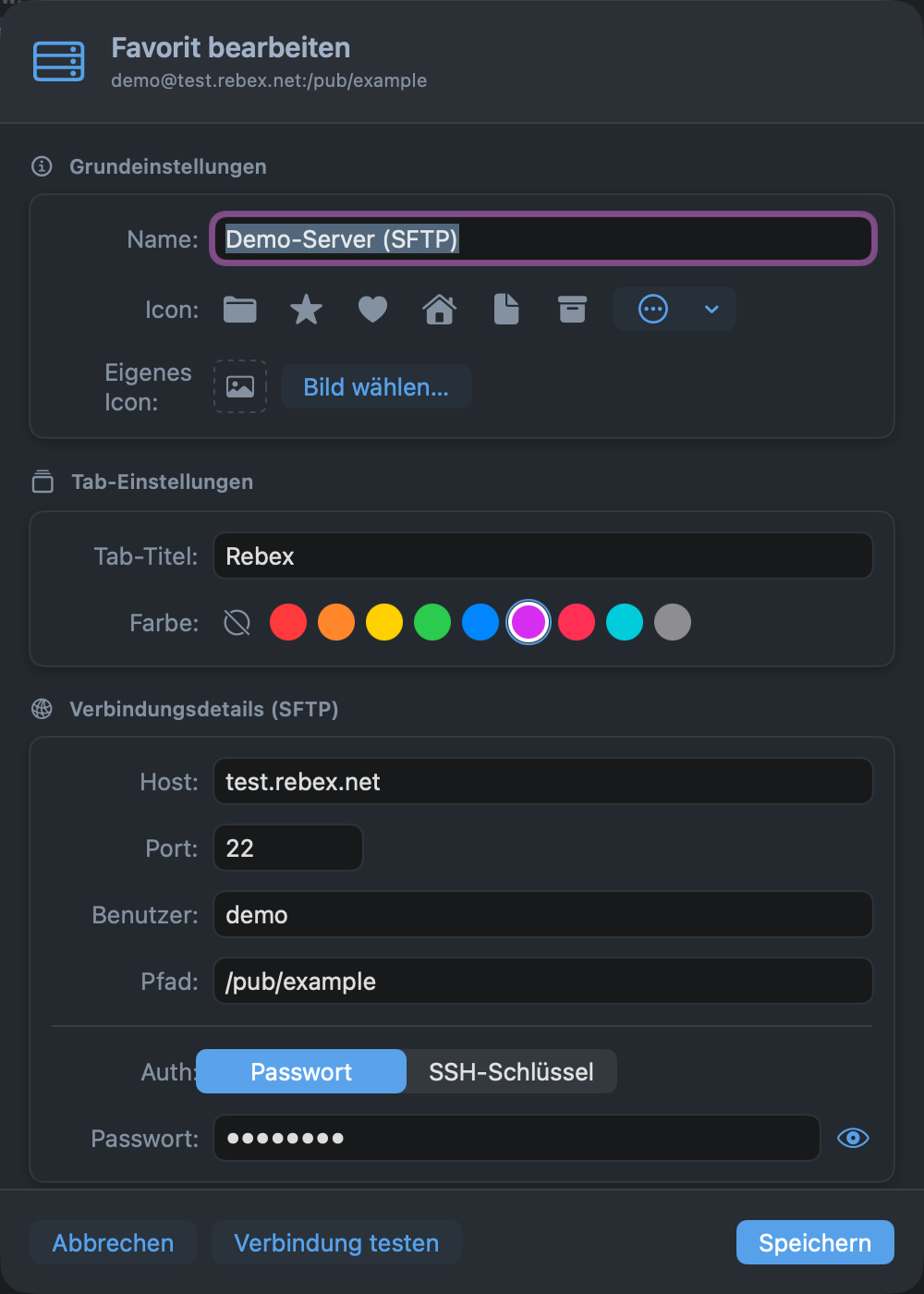
Server als Favorit
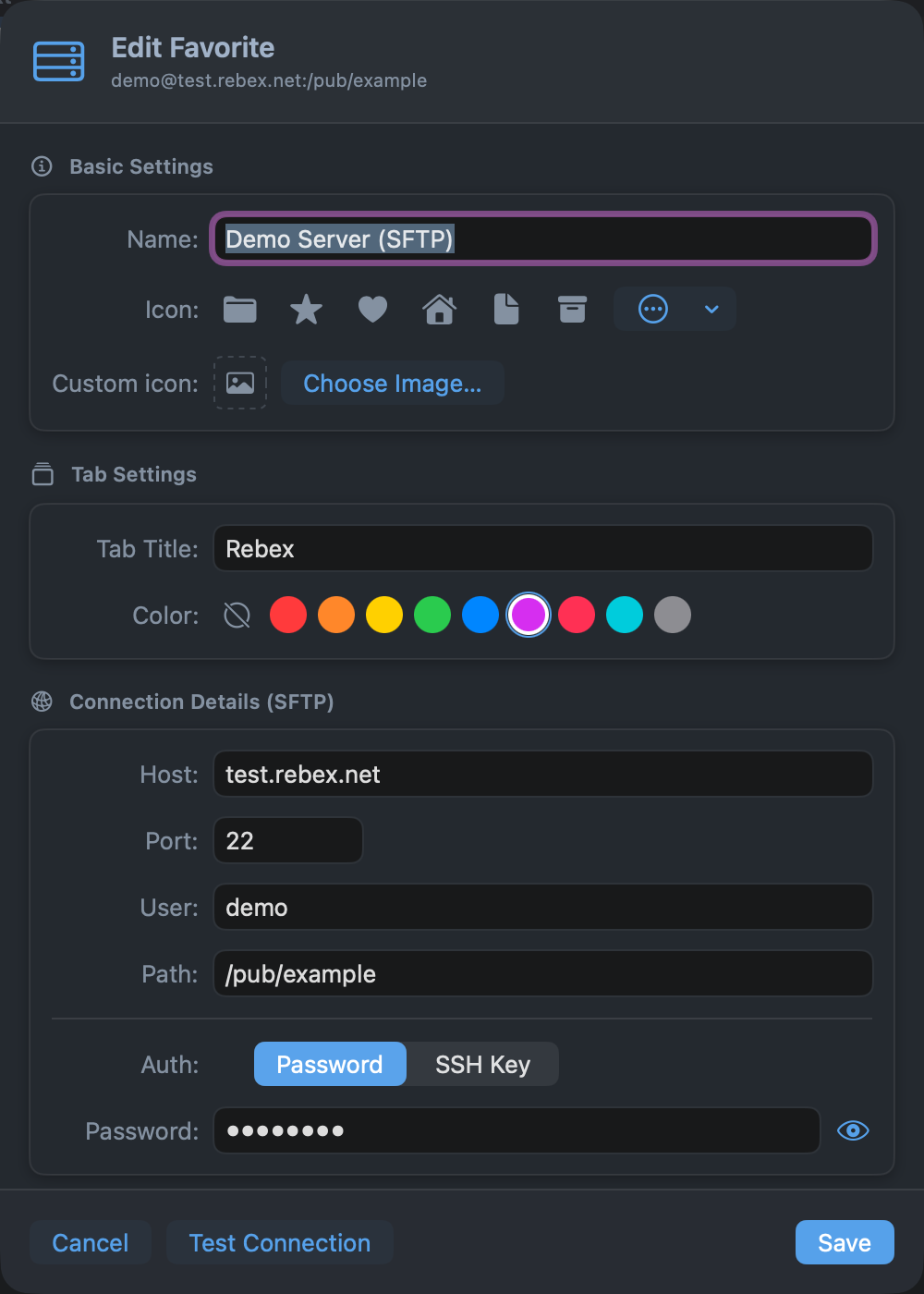
Server as a Favorite
Verbindung, Tab-Titel und Farbe – das Passwort liegt im Schlüsselbund
Connection, tab title and color – the password stays in the Keychain
Tabs, Profile & Hotlist
Tabs, Profiles & Hotlist
Arbeite wie im Total Commander: viele Tabs, feste Arbeitsplätze und schnelle Sprünge per Tastatur.
Work the Total Commander way: plenty of tabs, fixed workspaces and quick jumps by keyboard.
Tabs Tabs
- Beliebig viele Tabs je Panel, mit Farbe und eigenem Titel
- Gesperrte Tabs bleiben auf ihrem Ordner und schließen nicht versehentlich
- Ctrl+Tab wechselt reihum, Cmd+1–9 springt direkt
- Jeder Tab merkt sich Sortierung, Spaltenbreiten, Baumansicht und Terminal
- Panels tauschen (Cmd+U), anderes Panel angleichen (Ctrl+Cmd+O)
- Any number of tabs per panel, with a color and a title of their own
- Locked tabs stay on their folder and never close by accident
- Ctrl+Tab cycles through them, Cmd+1–9 jumps directly
- Each tab remembers its sorting, column widths, tree view and terminal
- Swap panels (Cmd+U), make the other panel match (Ctrl+Cmd+O)
Profile Profiles
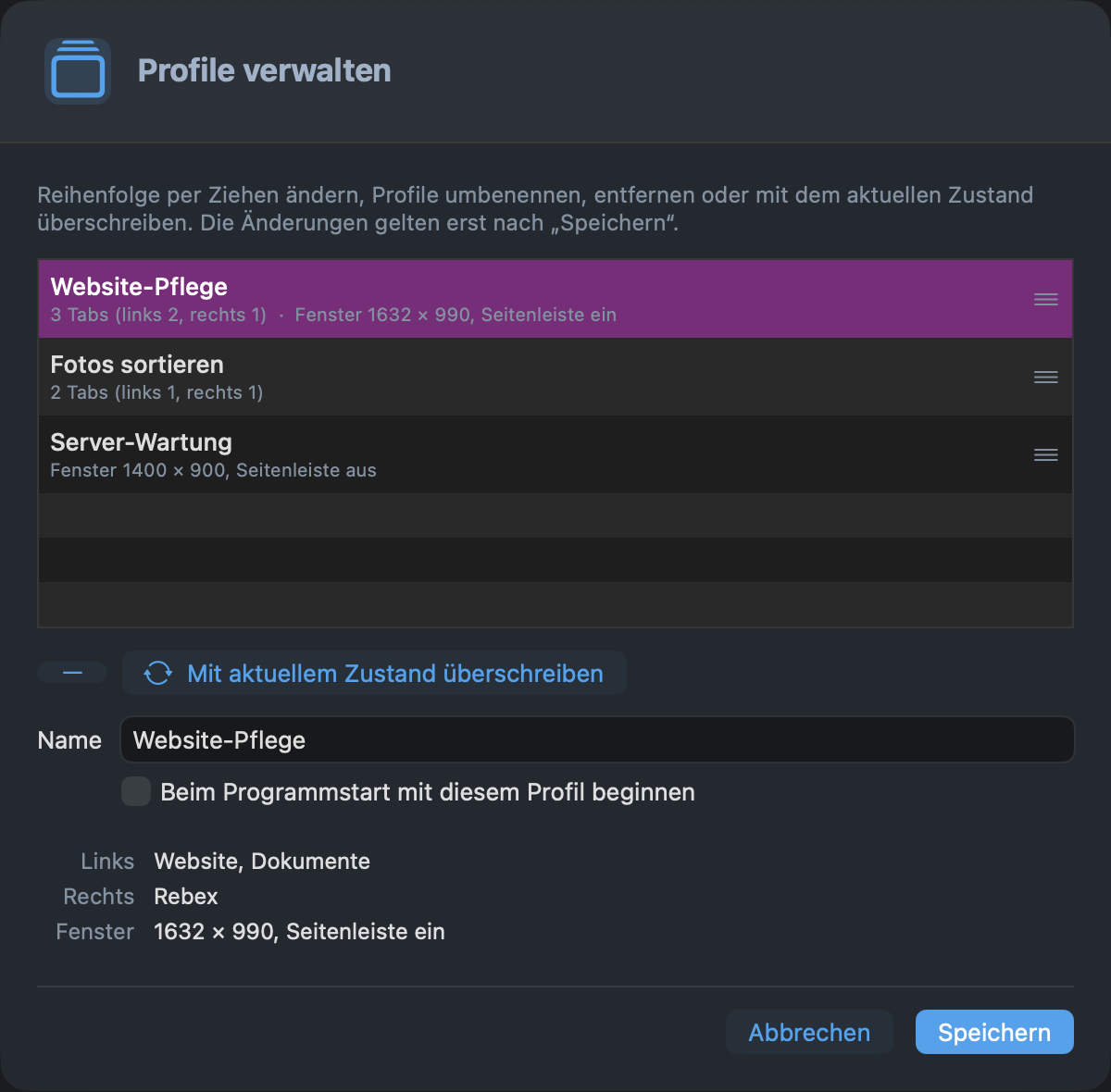
- Den aktuellen Zustand als Profil sichern: Tabs beider Panels und/oder das Fenster
- Profile jederzeit laden – die Profilliste öffnet Ctrl+P
- Auf Wunsch mit einem Profil starten statt mit dem letzten Zustand
- Profile umbenennen, ordnen und mit dem aktuellen Zustand überschreiben
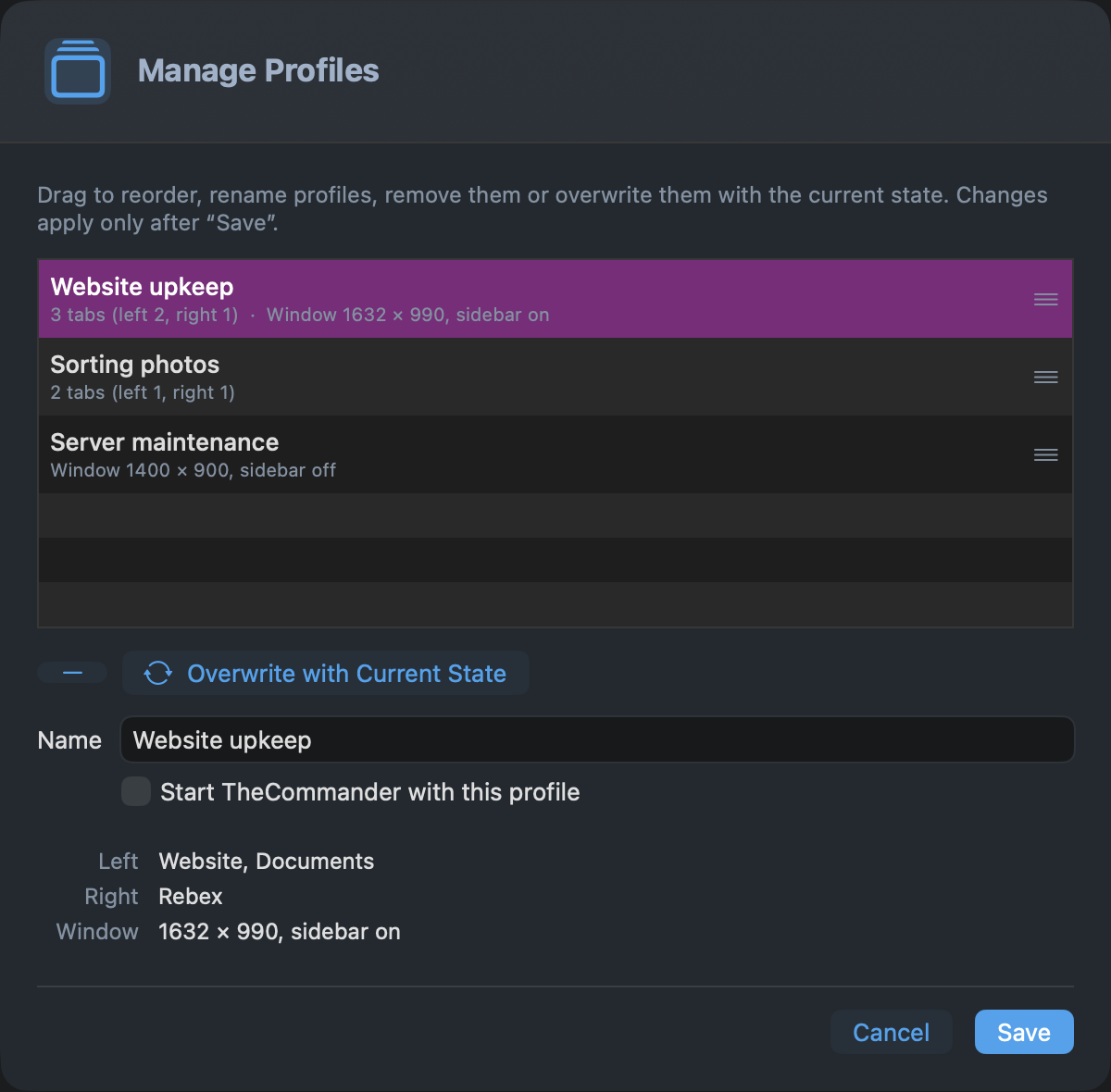
- Save the current state as a profile: the tabs of both panels and/or the window
- Load profiles at any time – Ctrl+P opens the profile list
- Start with a profile instead of the last state if you like
- Rename, reorder and overwrite profiles with the current state
Hotlist Hotlist
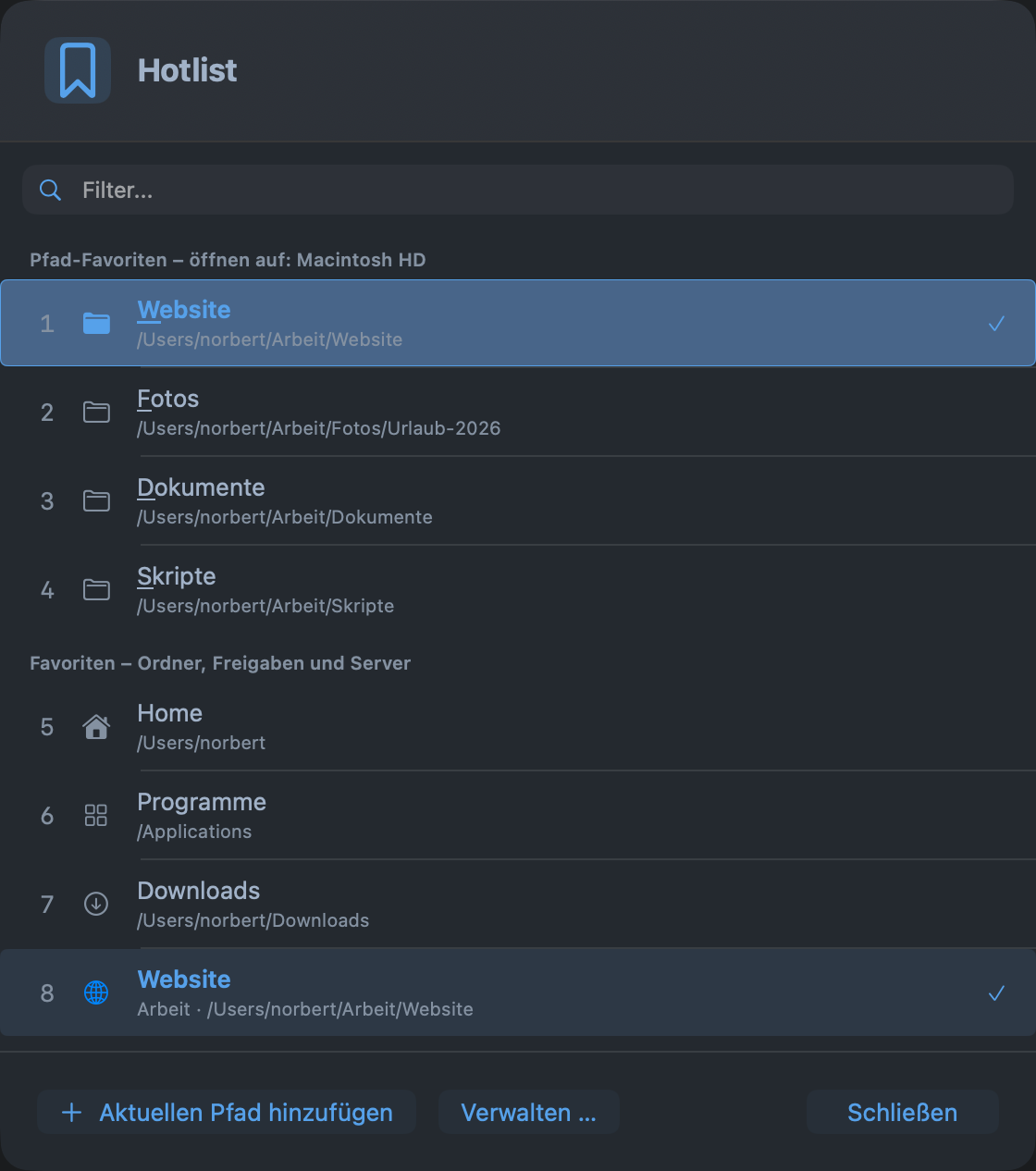
- Ctrl+D öffnet die Hotlist wie im Total Commander
- Pfad-Favoriten sind nur ein Pfad – sie öffnen auf der aktuellen Verbindung, ideal für gleich aufgebaute Server
- Darunter alle Favoriten der Seitenleiste: Ordner, Freigaben und Server
- Tippen filtert, Ziffern und Kurzbuchstaben springen direkt
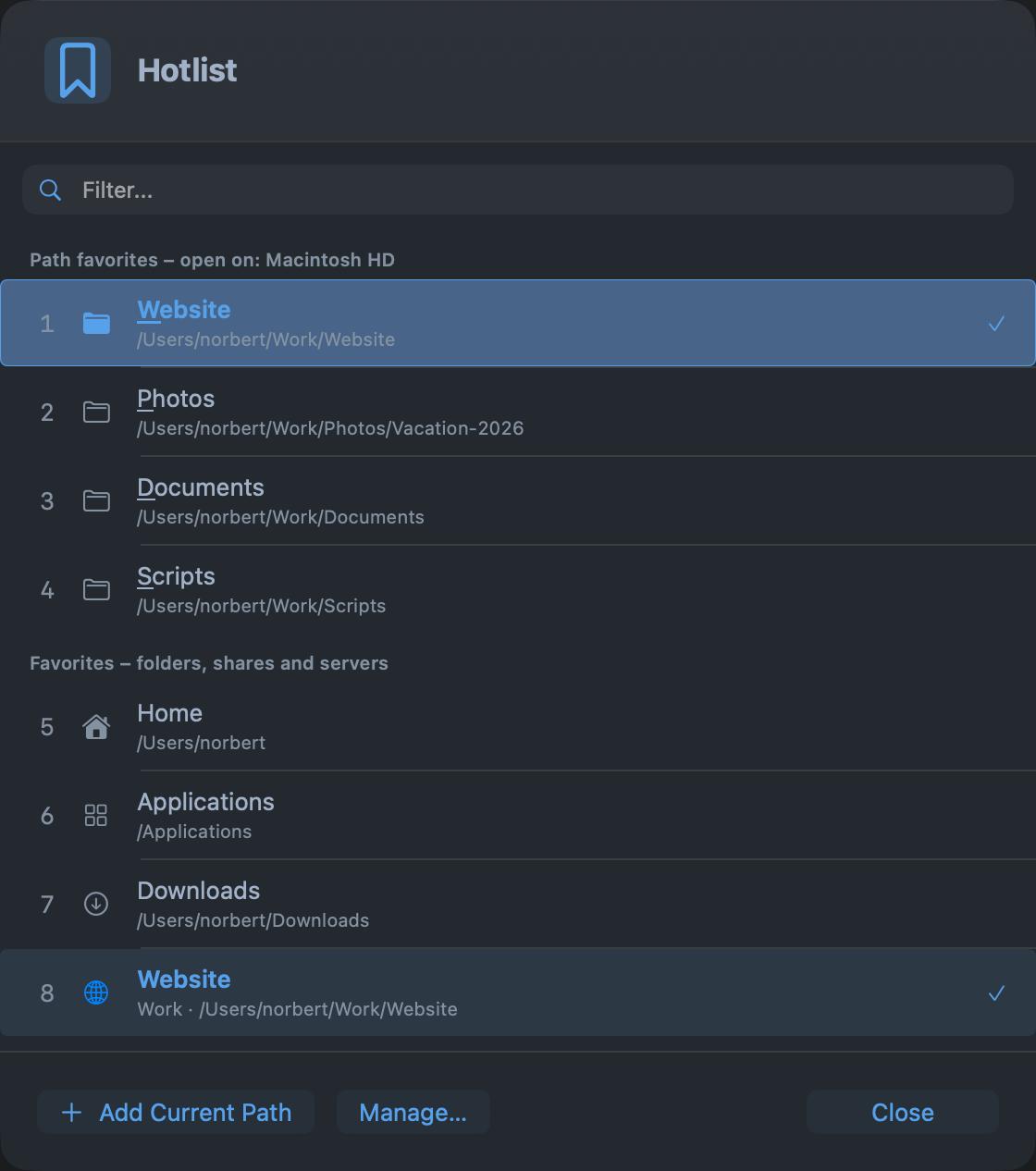
- Ctrl+D opens the hotlist as in Total Commander
- Path favorites are just a path – they open on the current connection, ideal for servers laid out alike
- Below them, all sidebar favorites: folders, shares and servers
- Typing filters, digits and shortcut letters jump straight to an entry
Profile
Profiles
Gesicherte Arbeitsplätze mit Tabs und Fenster – einer davon auf Wunsch beim Start
Saved workspaces with tabs and window – one of them at startup if you like
Hotlist
Pfad-Favoriten und Favoriten – per Tastatur in Sekunden am Ziel
Path favorites and favorites – there in seconds by keyboard
Integriertes Terminal
Integrated Terminal
Ein vollwertiges Terminal direkt im Dateimanager – ohne Wechsel zwischen App und Shell.
A full terminal right inside the file manager – with no switching between app and shell.
Eingebettetes Terminal Embedded Terminal
- Vollwertiges Terminal pro Tab (Ctrl+T oder Button in der Fußleiste)
- Startet im aktuellen Verzeichnis und übernimmt sofort den Fokus
- Pfad-Synchronisation: beidseitig, nur Panel → Terminal oder unabhängig
- Schrift, Farben (Theme oder eigene) und Cursor-Stil konfigurierbar
- Tab-Taste wahlweise zur Vervollständigung oder zum Panelwechsel
- Full terminal per tab (Ctrl+T or the button in the footer)
- Starts in the current directory and takes focus immediately
- Path sync: both directions, panel → terminal only, or independent
- Configurable font, colors (theme or custom) and cursor style
- Tab key for command completion or to switch panels
Kommandozeile & externes Terminal Command Line & External Terminal
- Kompakte einzeilige Kommandozeile unter den Panels
- Befehle direkt im aktuellen Verzeichnis ausführen
- „Terminal hier öffnen“ (Ctrl+Cmd+T) startet ein externes Terminal
- Freie Wahl der App: Terminal, iTerm2, Warp, Ghostty, kitty …
- Compact one-line command line below the panels
- Run commands directly in the current directory
- “Open terminal here” (Ctrl+Cmd+T) launches an external terminal
- Freely choose the app: Terminal, iTerm2, Warp, Ghostty, kitty …
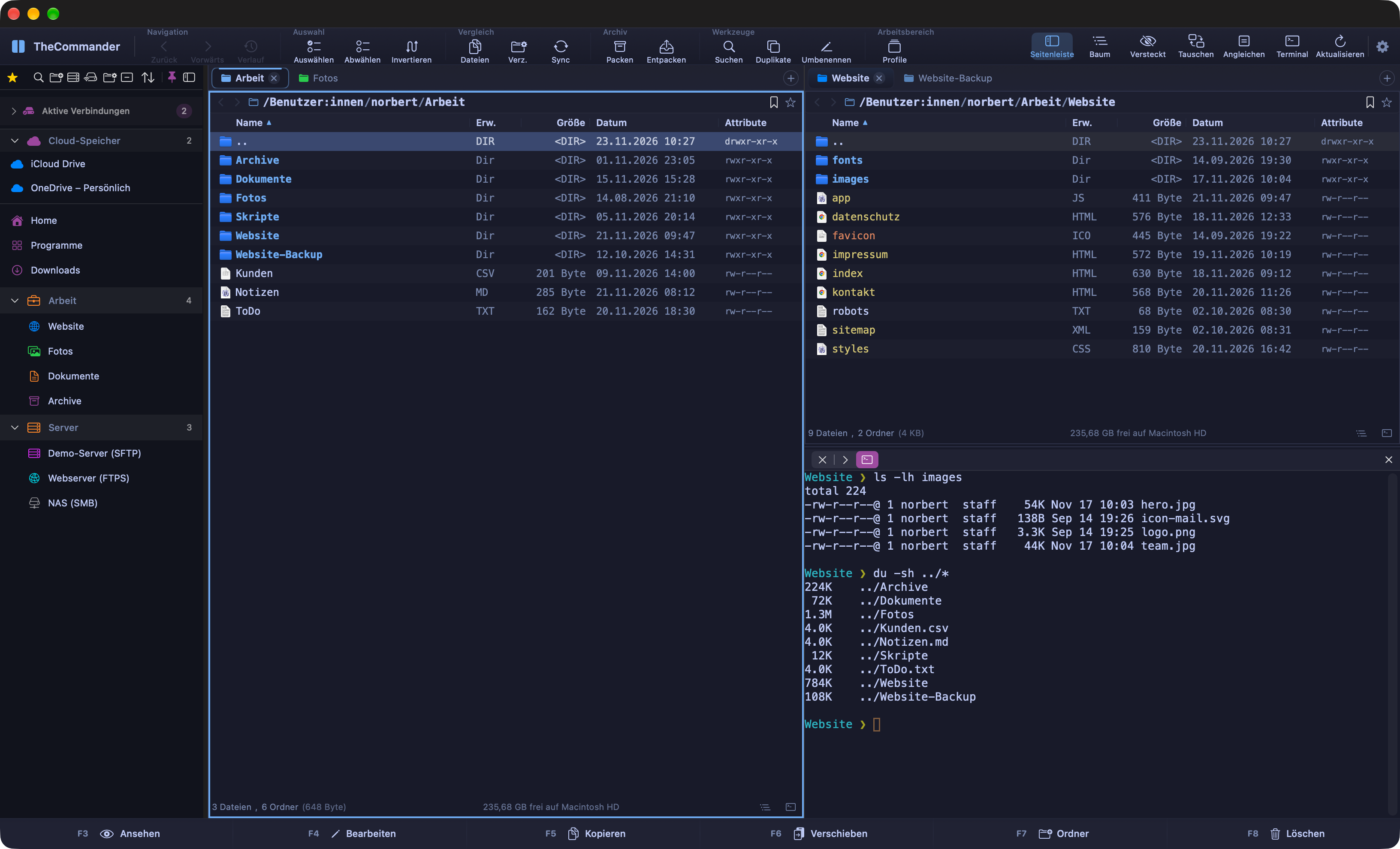
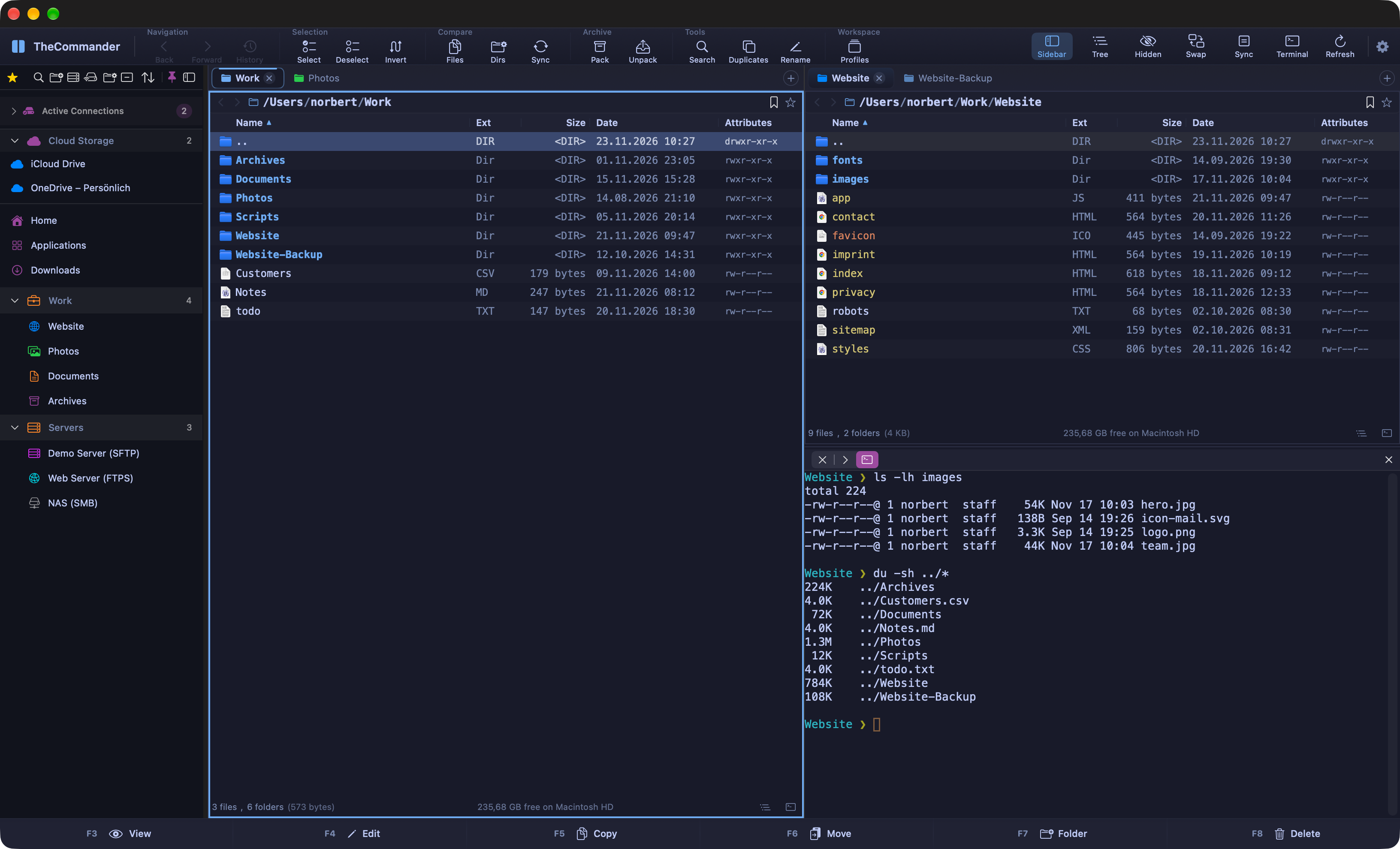
Terminal im Panel
Terminal in the Panel
Eingebettetes Terminal direkt unter der Dateiliste – im Kontext des aktuellen Verzeichnisses
Embedded terminal right below the file list – in the context of the current directory
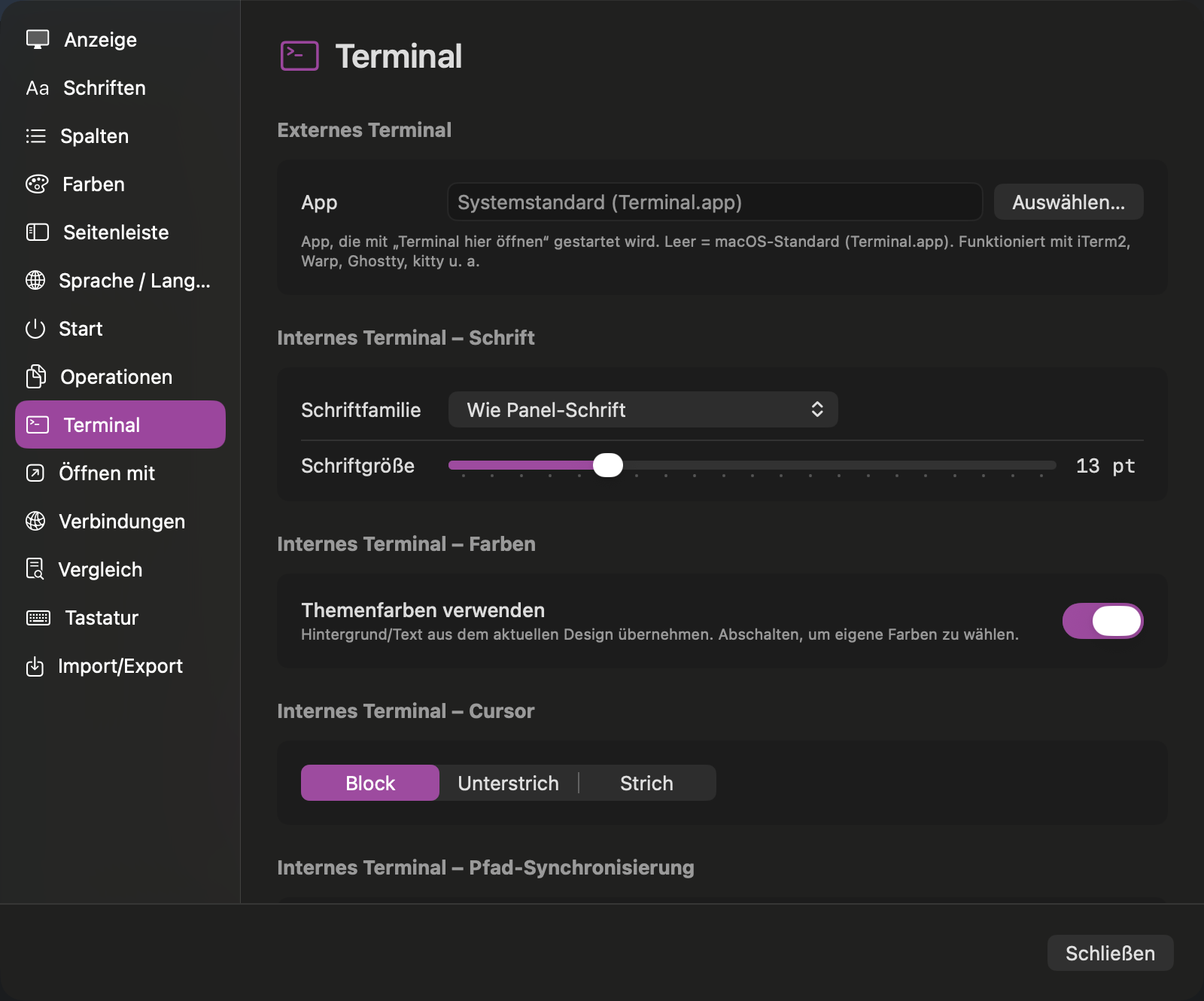
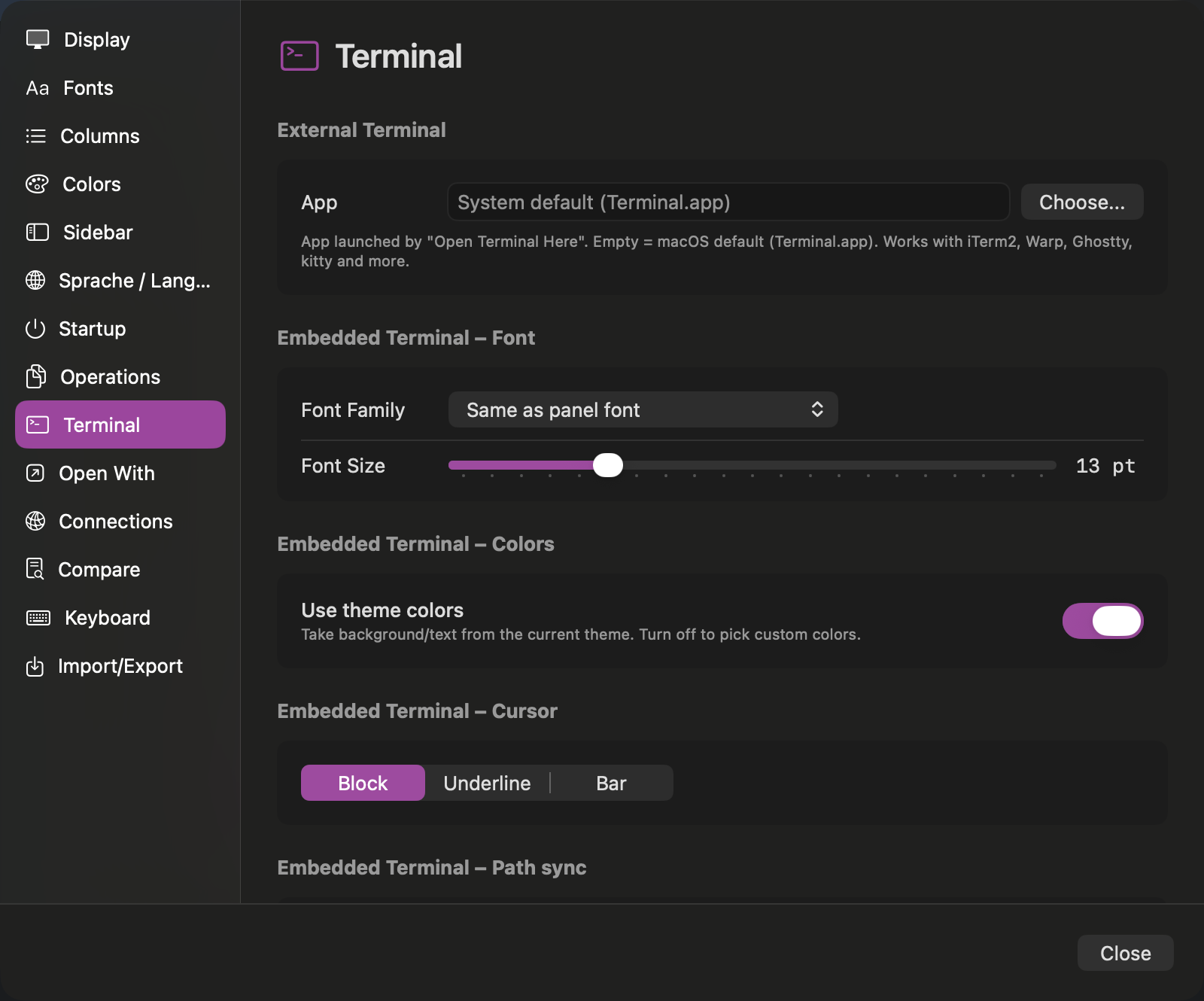
Terminal-Einstellungen
Terminal Settings
Externes Terminal, Schrift, Farben, Cursor und Pfad-Synchronisation
External terminal, font, colors, cursor and path sync
Betrachter, Vorschau & Baum
Viewer, Preview & Tree
Dateien ansehen, ohne sie zu öffnen – vom Urlaubsfoto bis zur Gigabyte-Datei im Hex-Dump.
Look into files without opening them – from a vacation photo to a gigabyte file in a hex dump.
Interner Betrachter Internal Viewer
- Shift+F3 öffnet ein eigenes, frei skalierbares Fenster
- Ansichten für Text, Hex, Bild, Video und Audio
- Hex-Ansicht öffnet auch Gigabyte-Dateien sofort
- Suche nach Text oder Bytefolgen, Sprung zu einem Offset
- Erkennt den echten Dateityp am Inhalt und warnt, wenn die Endung nicht passt
- Rohansicht (Alt+Shift+F3) zeigt nur Bytes – für Dateien aus unsicheren Quellen
- Shift+F3 opens a window of its own that you can resize freely
- Views for text, hex, image, video and audio
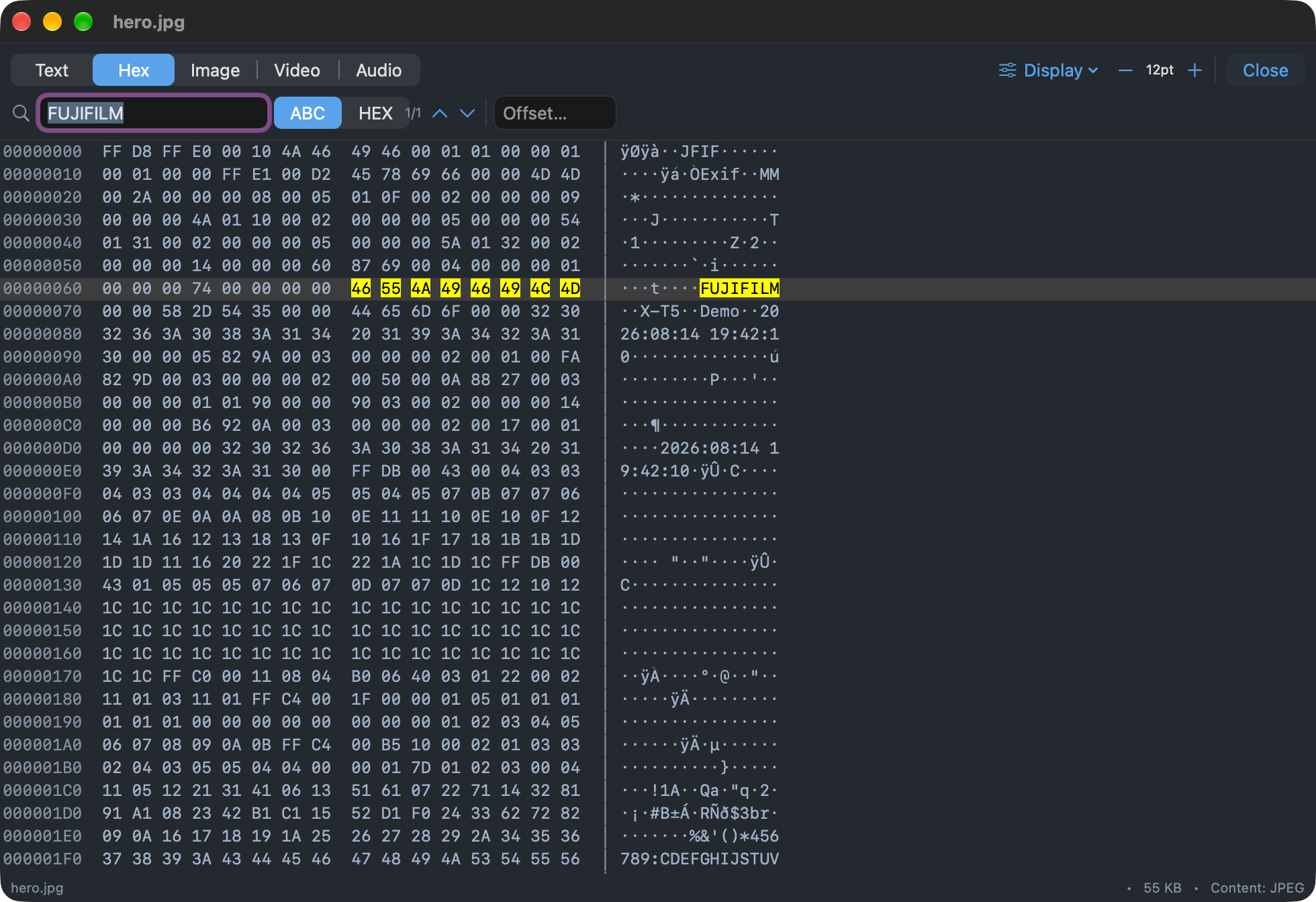
- The hex view opens even gigabyte files instantly
- Search for text or byte sequences, jump to an offset
- Detects the real file type from the content and warns when the extension does not match
- Raw view (Alt+Shift+F3) shows bytes only – for files from untrusted sources
Quick View & Vorschaubilder Quick View & Thumbnails
- Quick View (F3) mit Quick Look – Dateien ohne macOS-Vorschau als Text oder Hex
- Dateisymbole zeigen den Inhalt: Fotos, PDFs und Videos als Miniatur
- Vorschaubilder immer, nur lokal oder nie – damit große Netzwerkordner flott bleiben
- Leertaste wahlweise zum Markieren oder für Quick Look
- Schnellfilter: beim Tippen filtern
- Quick View (F3) with Quick Look – files without a macOS preview as text or hex
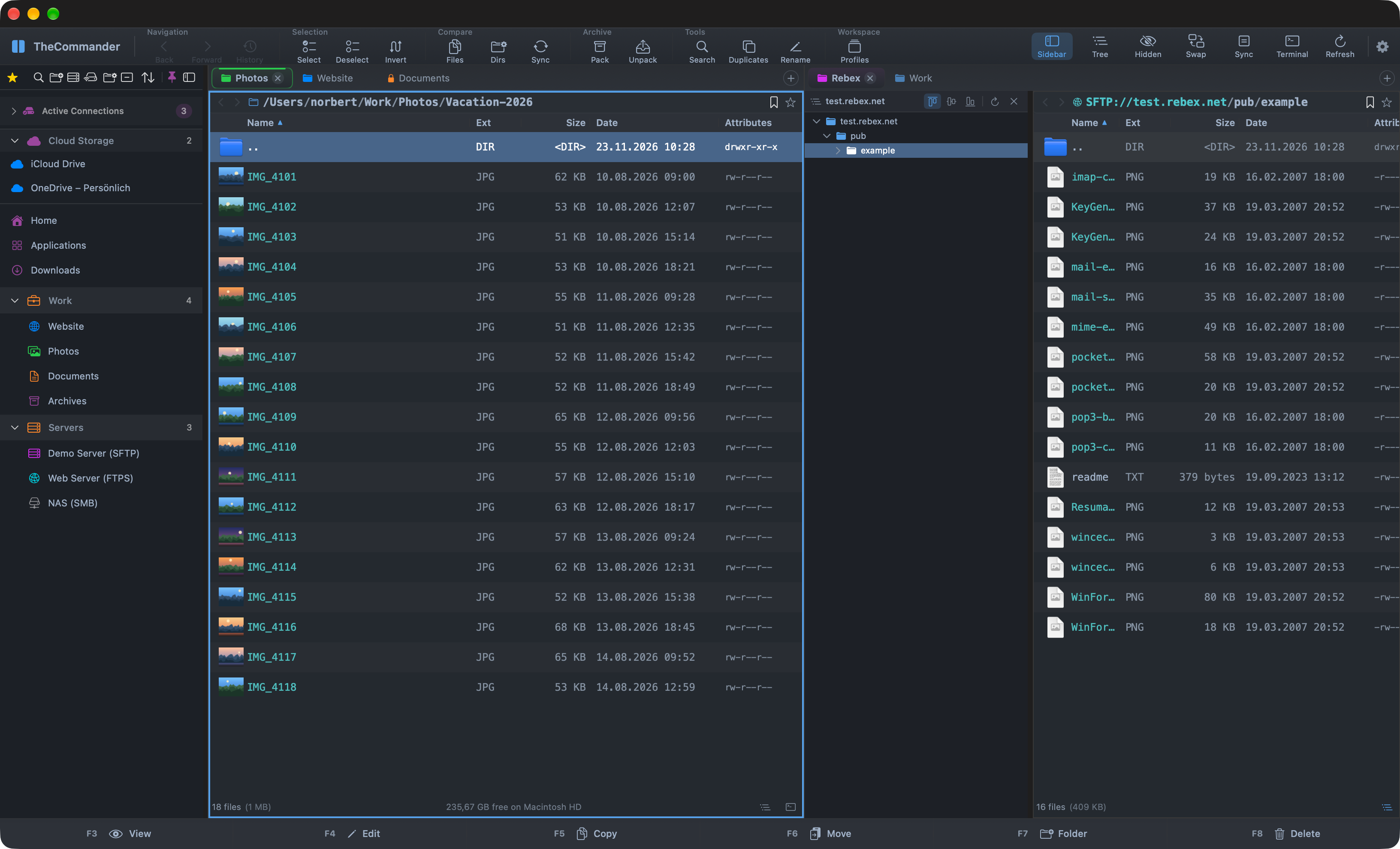
- File icons show the content: photos, PDFs and videos as thumbnails
- Thumbnails always, local only or never – so large network folders stay quick
- Space bar for marking or for Quick Look, as you prefer
- Quick filter: filter while typing
Baumansicht Tree View
- Baum je Panel als Seitenspalte (Cmd+Shift+T)
- Auch auf SFTP-, FTP- und SMB-Servern
- Baum-Schnellnavigation (Ctrl+Shift+T) blendet den Baum nur kurz ein
- Komplett per Tastatur bedienbar, Tippen filtert
- Sichtbarkeit, Breite und aufgeklappte Zweige je Tab
- A tree per panel as a side column (Cmd+Shift+T)
- On SFTP, FTP and SMB servers too
- Tree quick navigation (Ctrl+Shift+T) shows the tree only briefly
- Fully keyboard-driven, typing filters
- Visibility, width and expanded branches per tab
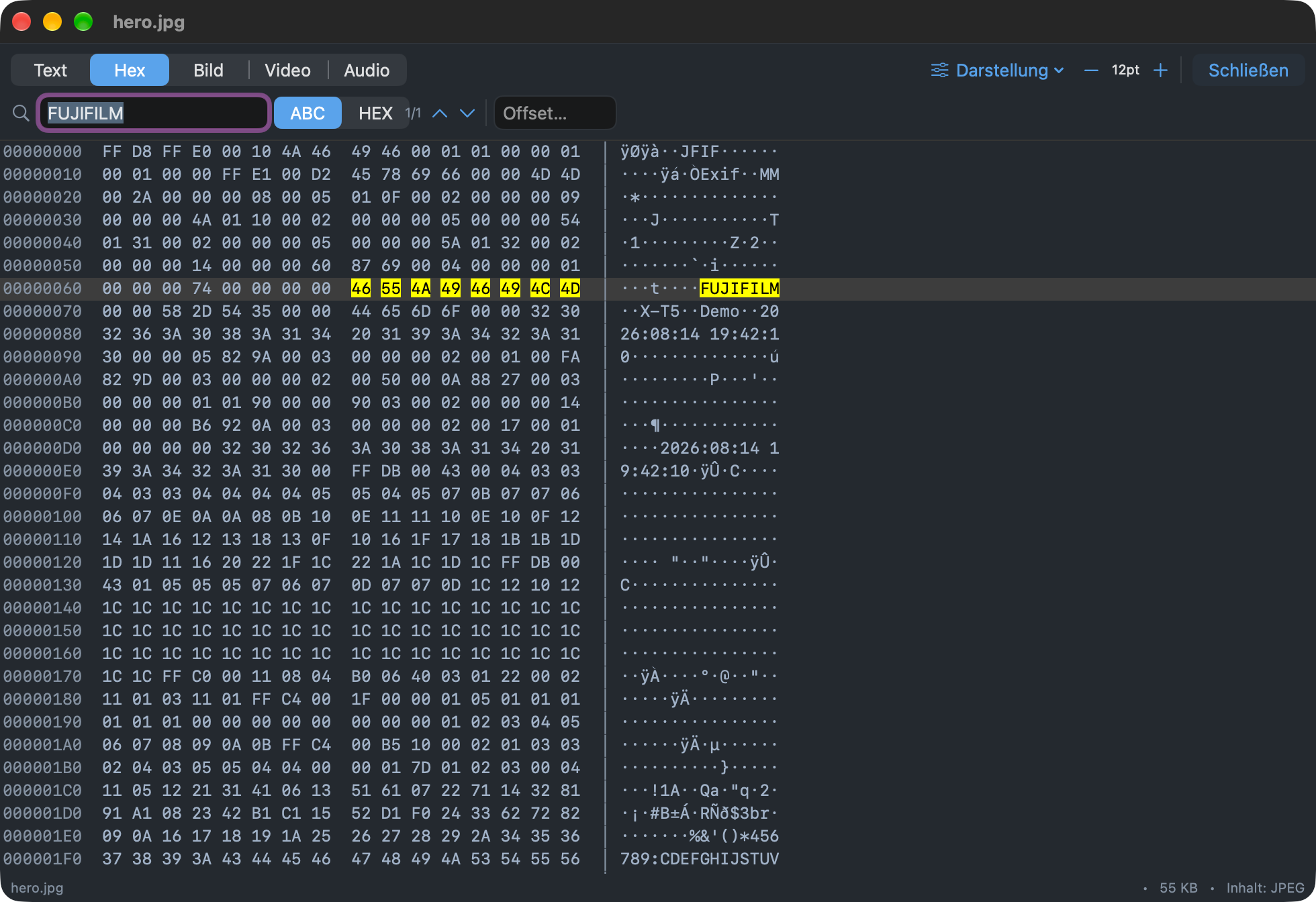
Hex-Ansicht mit Suche
Hex View with Search
Treffer hervorgehoben, Dateityp am Inhalt erkannt (unten rechts)
Matches highlighted, file type detected from the content (bottom right)
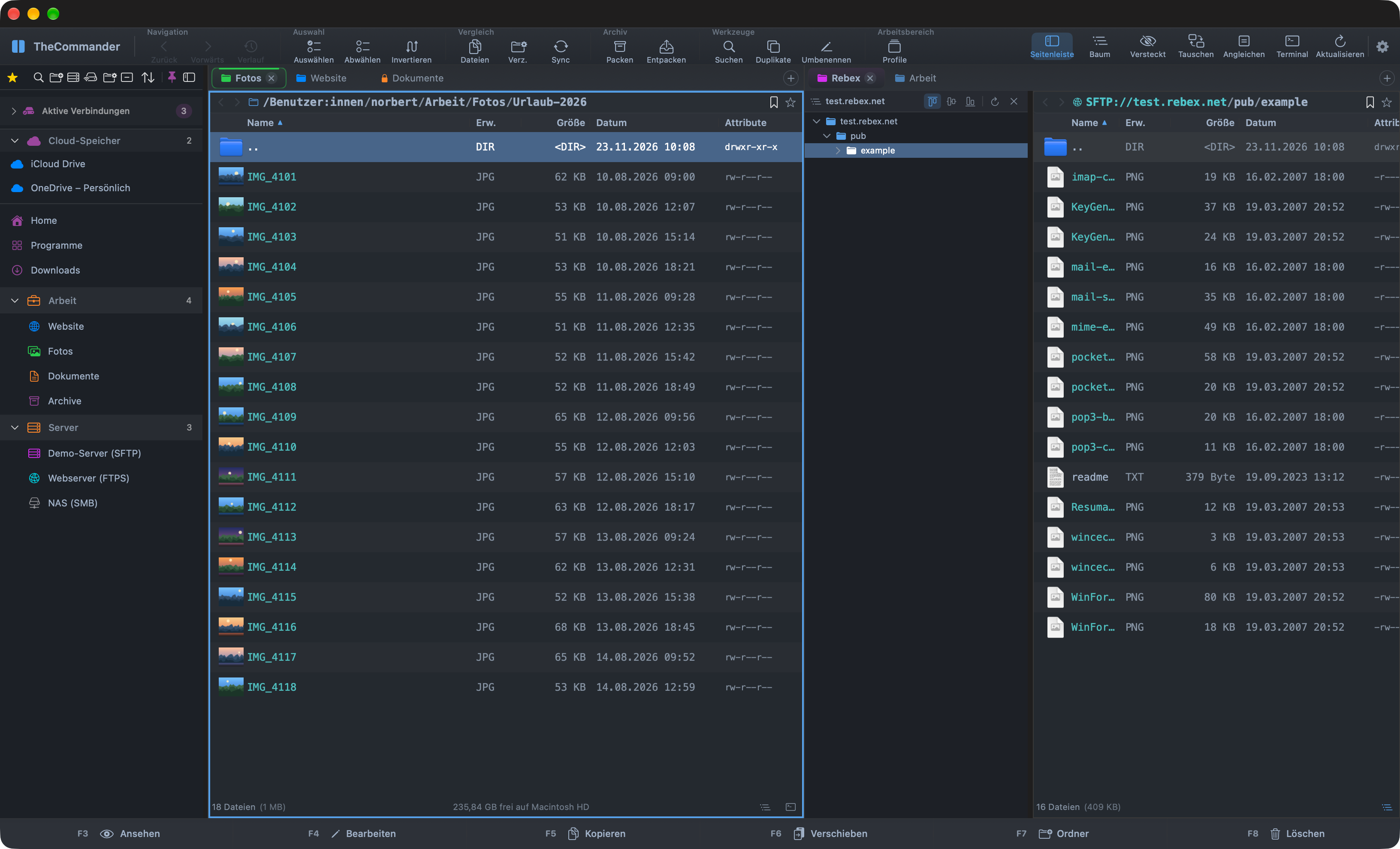
Vorschaubilder & Baum auf dem Server
Thumbnails & Tree on the Server
Links Fotos mit Inhaltsvorschau, rechts die Baumansicht auf einem SFTP-Server
Photos with content thumbnails on the left, the tree view on an SFTP server on the right
Suche, Vergleich & Synchronisation
Search, Compare & Synchronization
Finde Dateien, vergleiche Inhalte und synchronisiere Verzeichnisse.
Find files, compare content and synchronize directories.
Suche Search
- Suche nach Dateinamen mit Mustern (Alt+F7) in eigenem Fenster
- Inhaltssuche in Dateien
- Filter nach Größe und Datum, rekursiv in Unterverzeichnissen
- Ergebnisse als Liste ins Panel übernehmen
- Daneben in den Panels weiterarbeiten
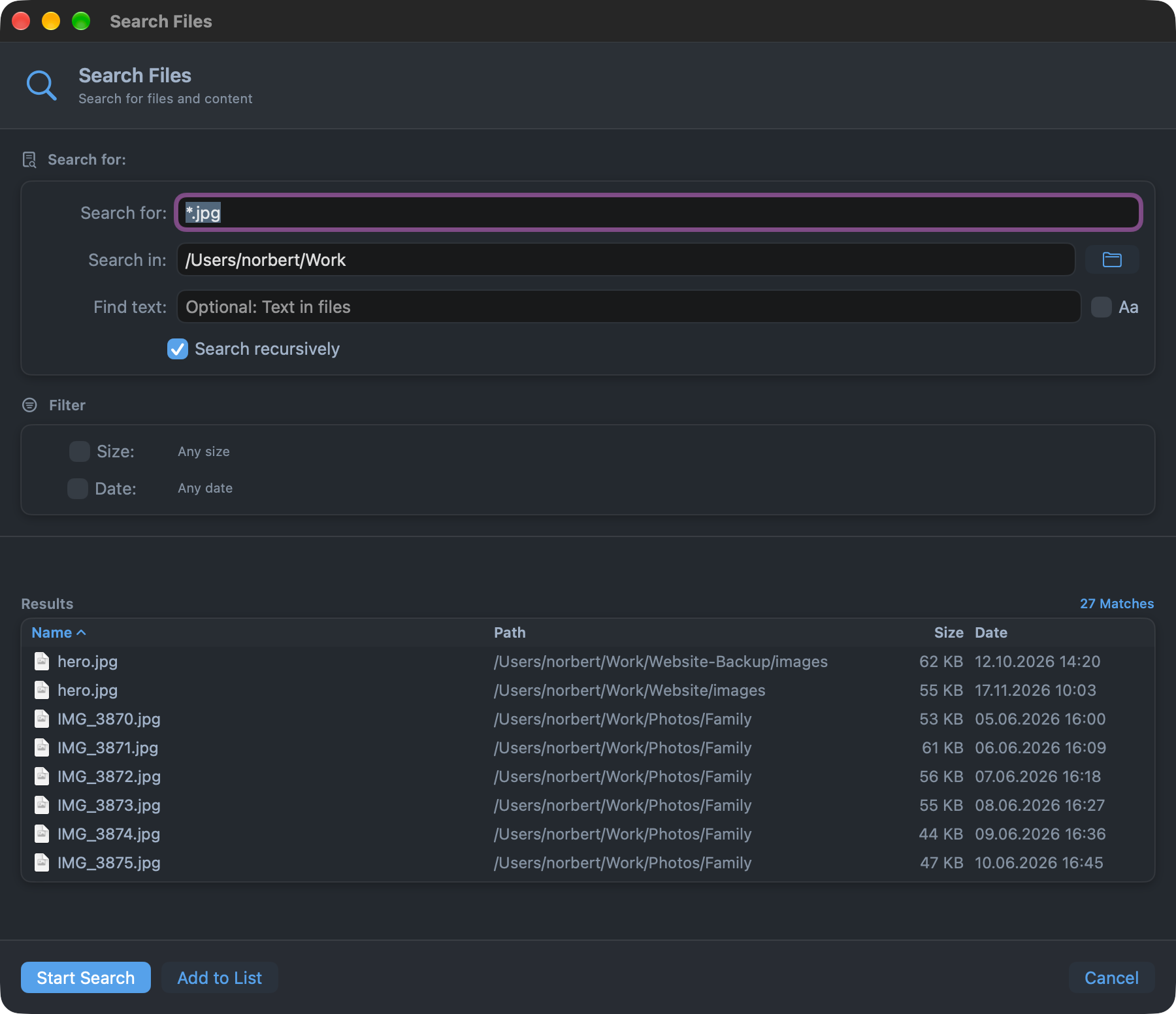
- Search by filename with patterns (Alt+F7) in a window of its own
- Content search in files
- Filter by size and date, recursively in subdirectories
- Take the results into the panel as a list
- Keep working in the panels alongside
Dateivergleich File Comparison
- Dateien Zeile für Zeile vergleichen (Cmd+=) – auch auf Servern
- Text- und Binärmodus, Leerzeichen und Groß-/Kleinschreibung ignorieren
- Wahlweise in Kaleidoscope, FileMerge, BBEdit, Beyond Compare u. a.
- Verzeichnisvergleich (Shift+F2)
- Duplikat-Finder (Cmd+Shift+F) nach Inhalt, Größe oder Hash
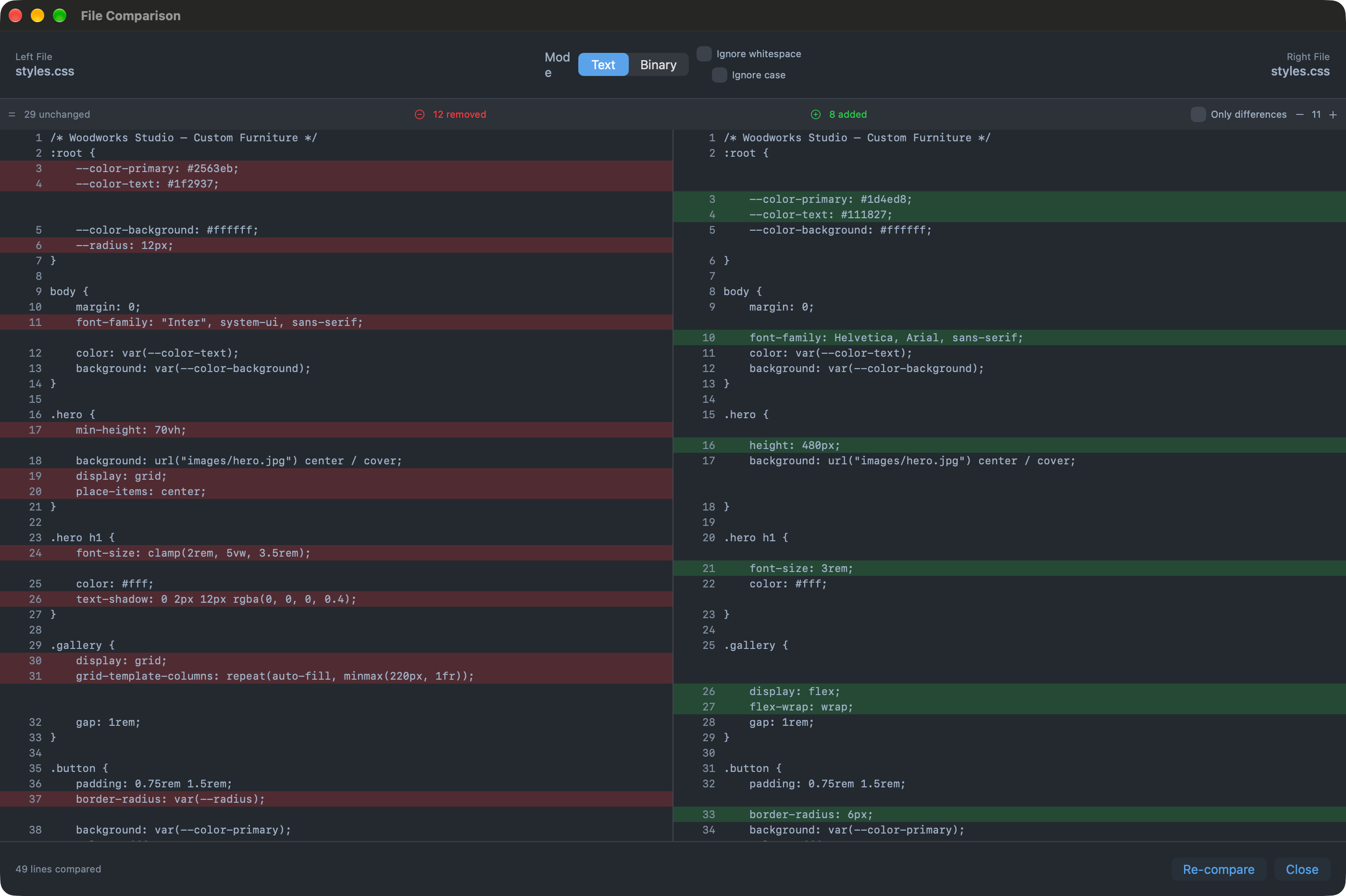
- Line-by-line file comparison (Cmd+=) – on servers too
- Text and binary mode, ignore whitespace and case
- Or in Kaleidoscope, FileMerge, BBEdit, Beyond Compare and others
- Directory comparison (Shift+F2)
- Duplicate finder (Cmd+Shift+F) by content, size or hash
Synchronisation Synchronization
- Verzeichnisse synchronisieren (Cmd+Y)
- Vergleich nach Inhalt (Hash), Datum & Größe, nur Datum oder nur Größe
- Nach rechts, nach links oder beidseitig kopieren, auf Wunsch löschen
- Anzahl und Datenmenge je Kategorie und für die Auswahl
- macOS-Hilfsdateien (
.DS_Store,._*) auf Wunsch ignorieren
- Synchronize directories (Cmd+Y)
- Compare by content (hash), date & size, date only or size only
- Copy to the right, to the left or both ways, delete if needed
- Number of files and data volume per category and for the selection
- Ignore macOS helper files (
.DS_Store,._*) if you like
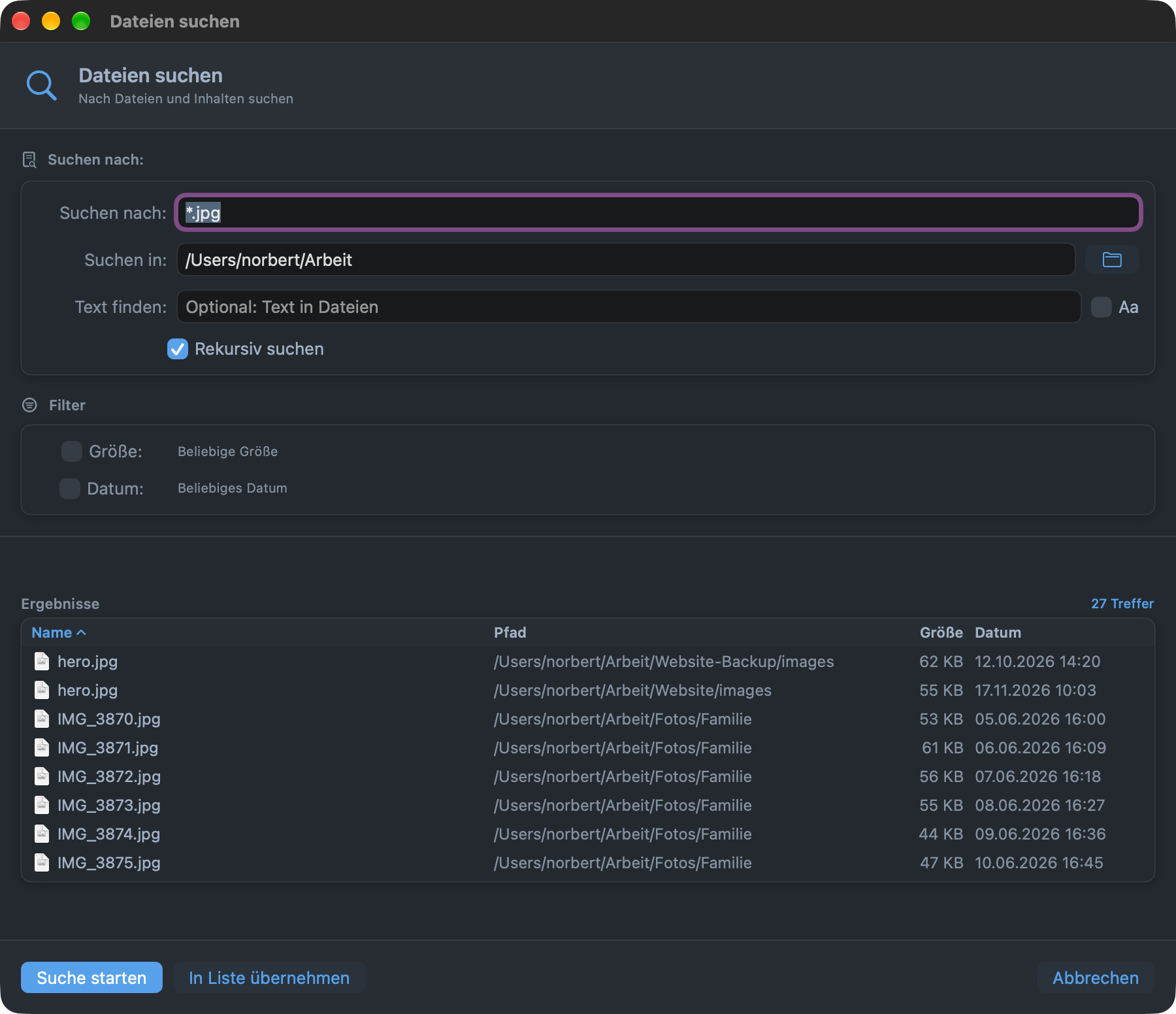
Dateisuche
File Search
Alle Fotos im Projekt – in eigenem Fenster
All photos in the project – in a window of its own
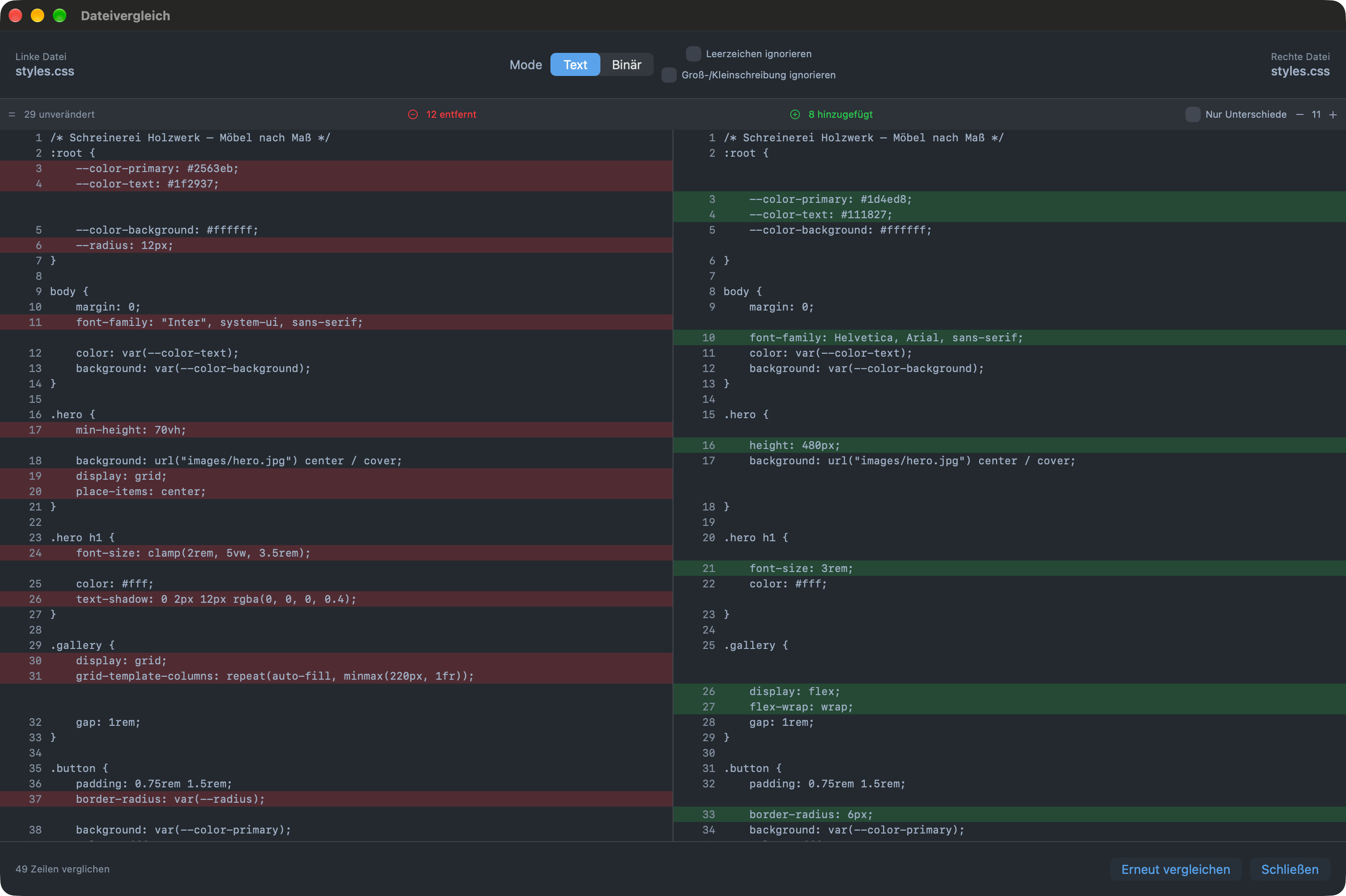
Integriertes Diff-Tool
Integrated Diff Tool
Dateien Zeile für Zeile vergleichen mit farblicher Hervorhebung
Compare files line by line with color highlighting
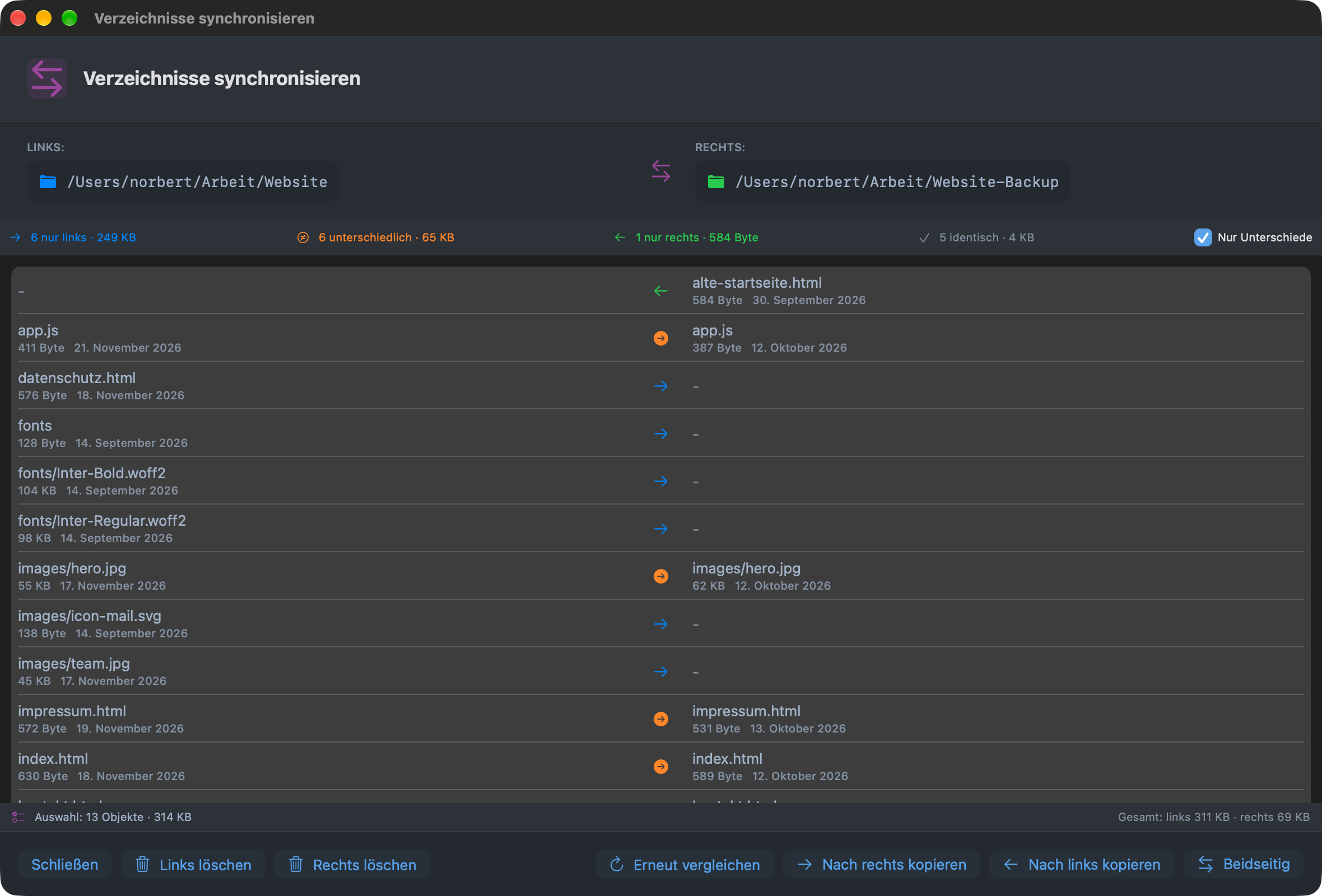
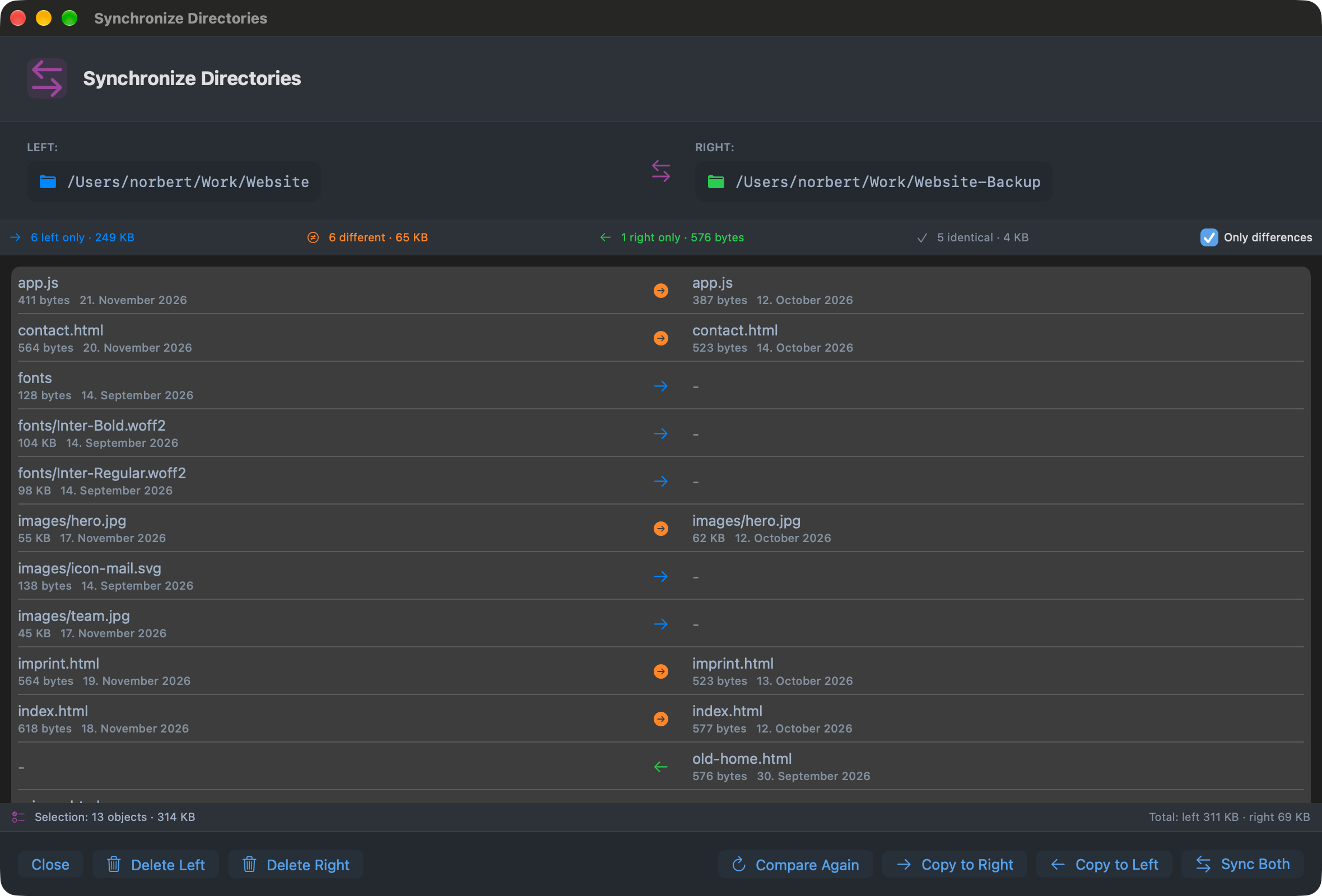
Verzeichnis-Synchronisation
Directory Synchronization
Website und Backup vergleichen und abgleichen
Compare a website with its backup and bring them in line
Dateiinformationen
File Information
Attribute, Metadaten und Prüfsummen jeder Datei (Alt+Enter) – und wo der Platz bleibt (Alt+Shift+Enter).
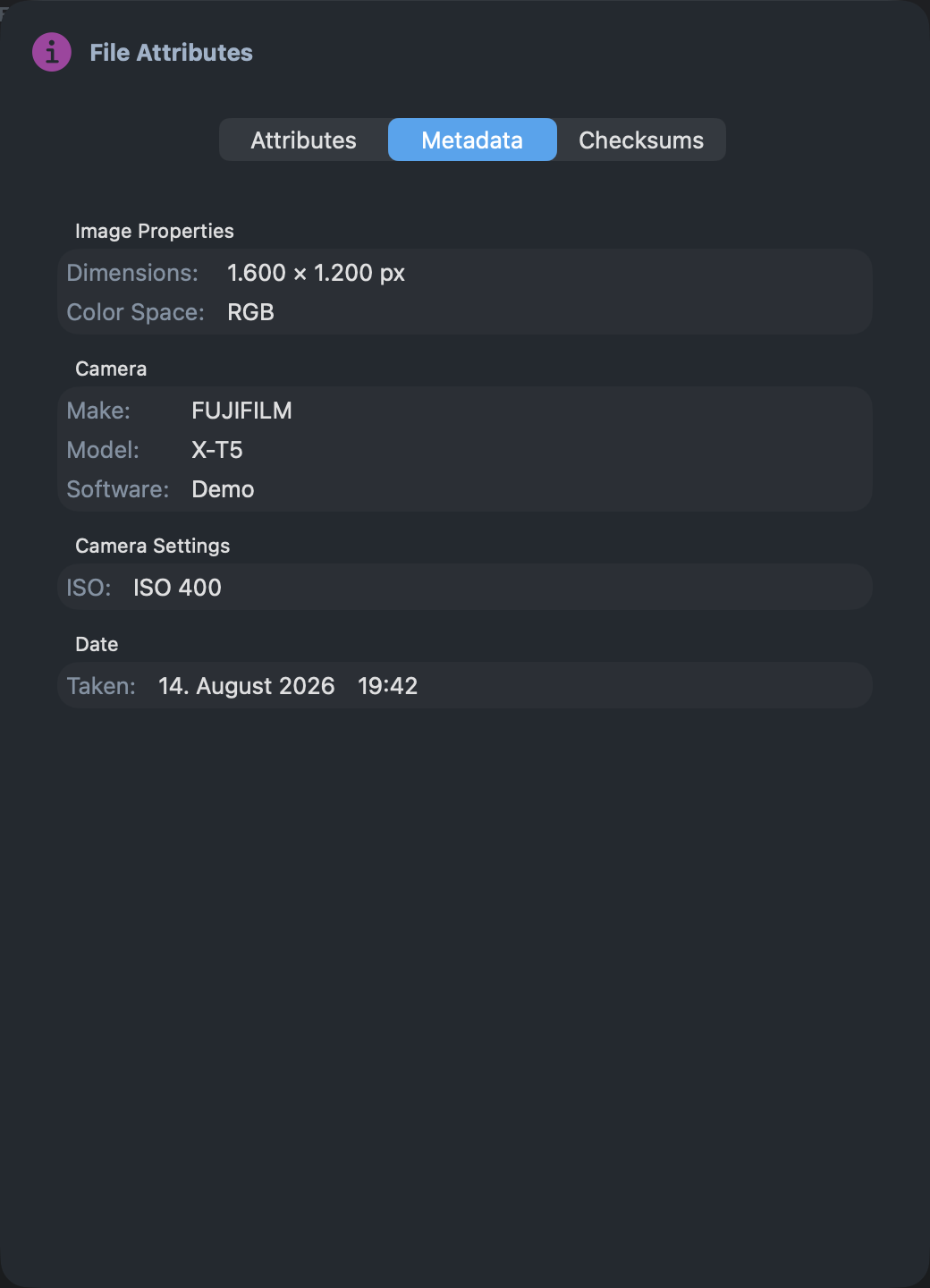
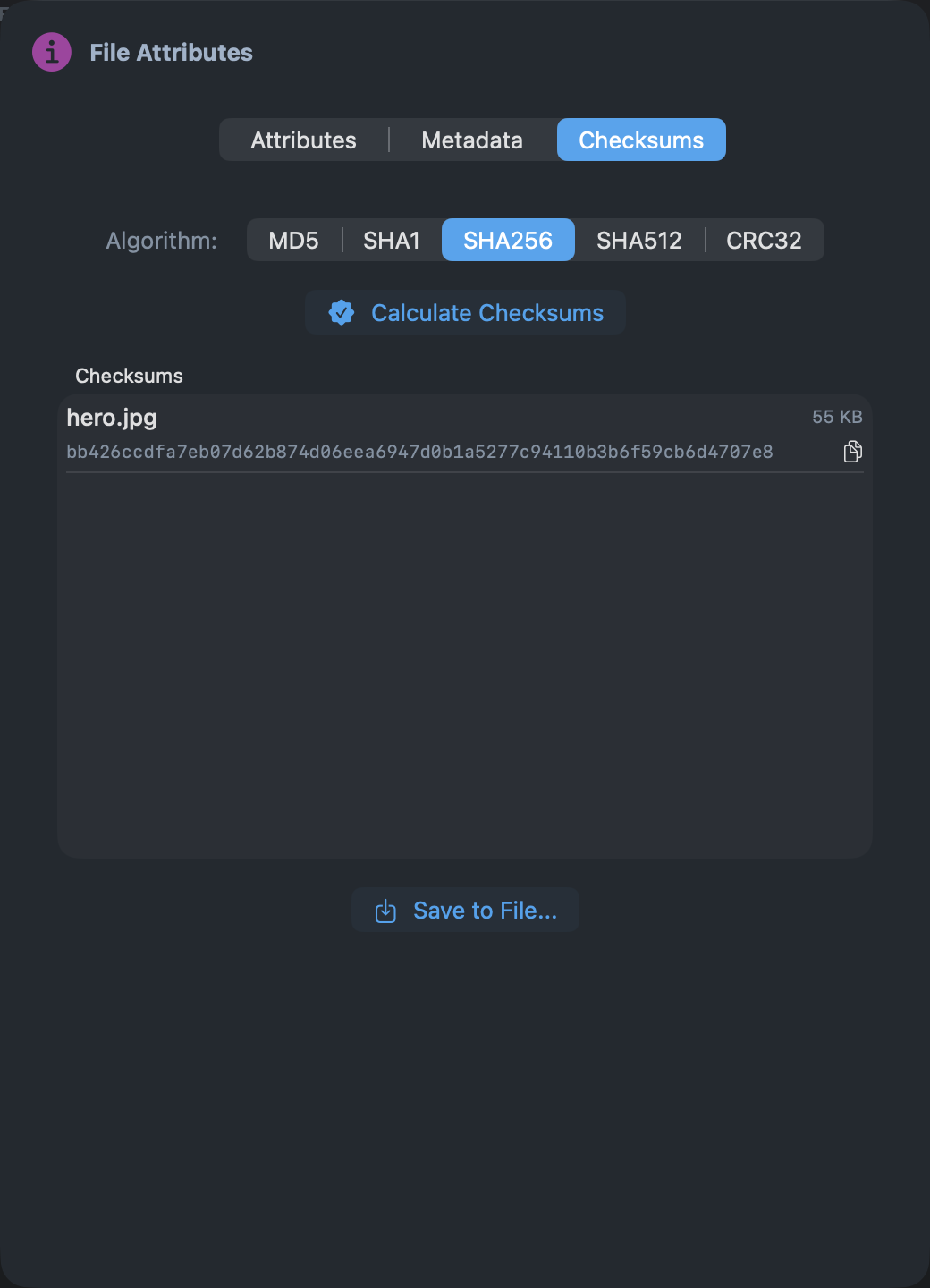
Attributes, metadata and checksums of every file (Alt+Enter) – and where the space goes (Alt+Shift+Enter).
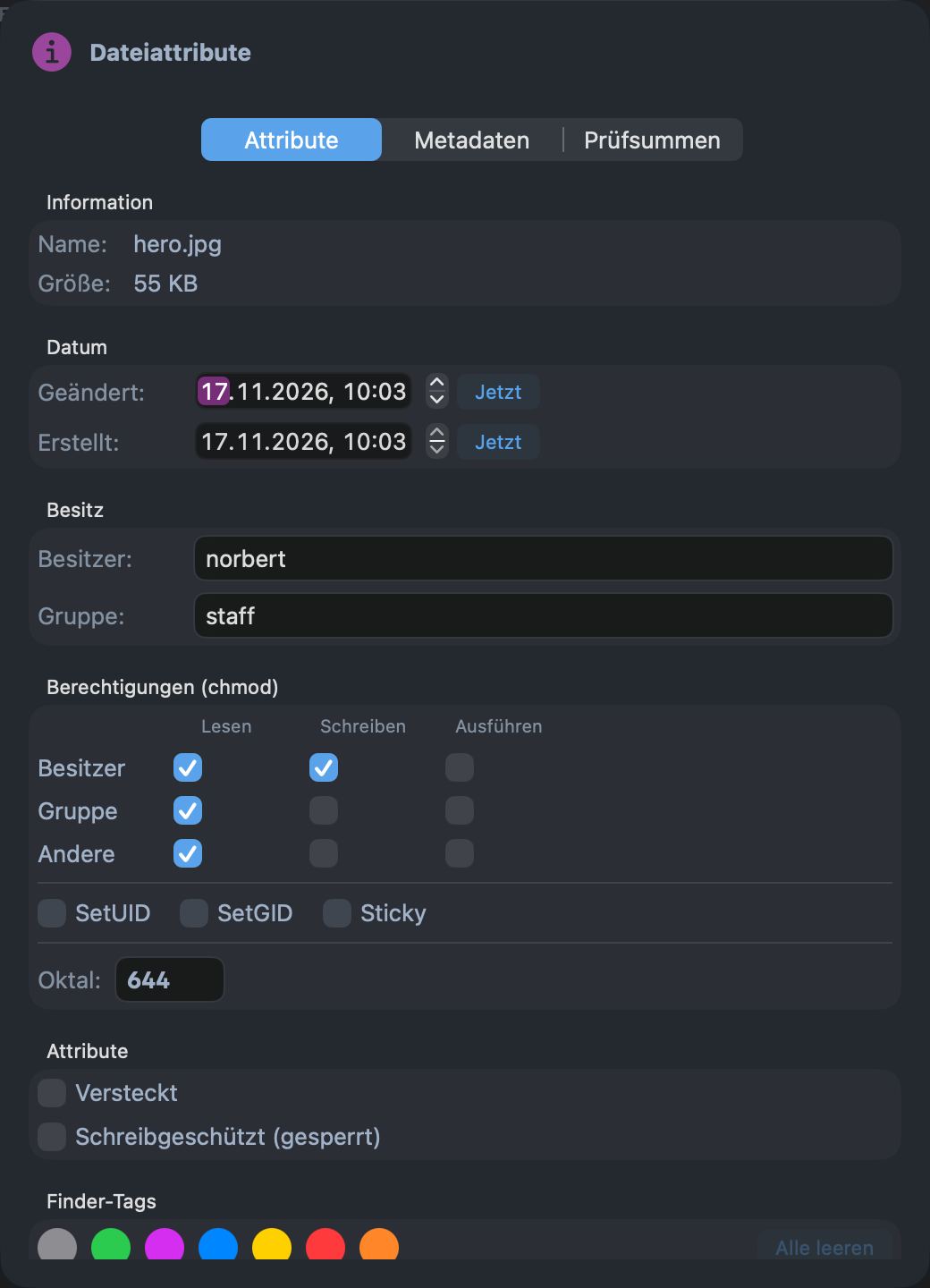
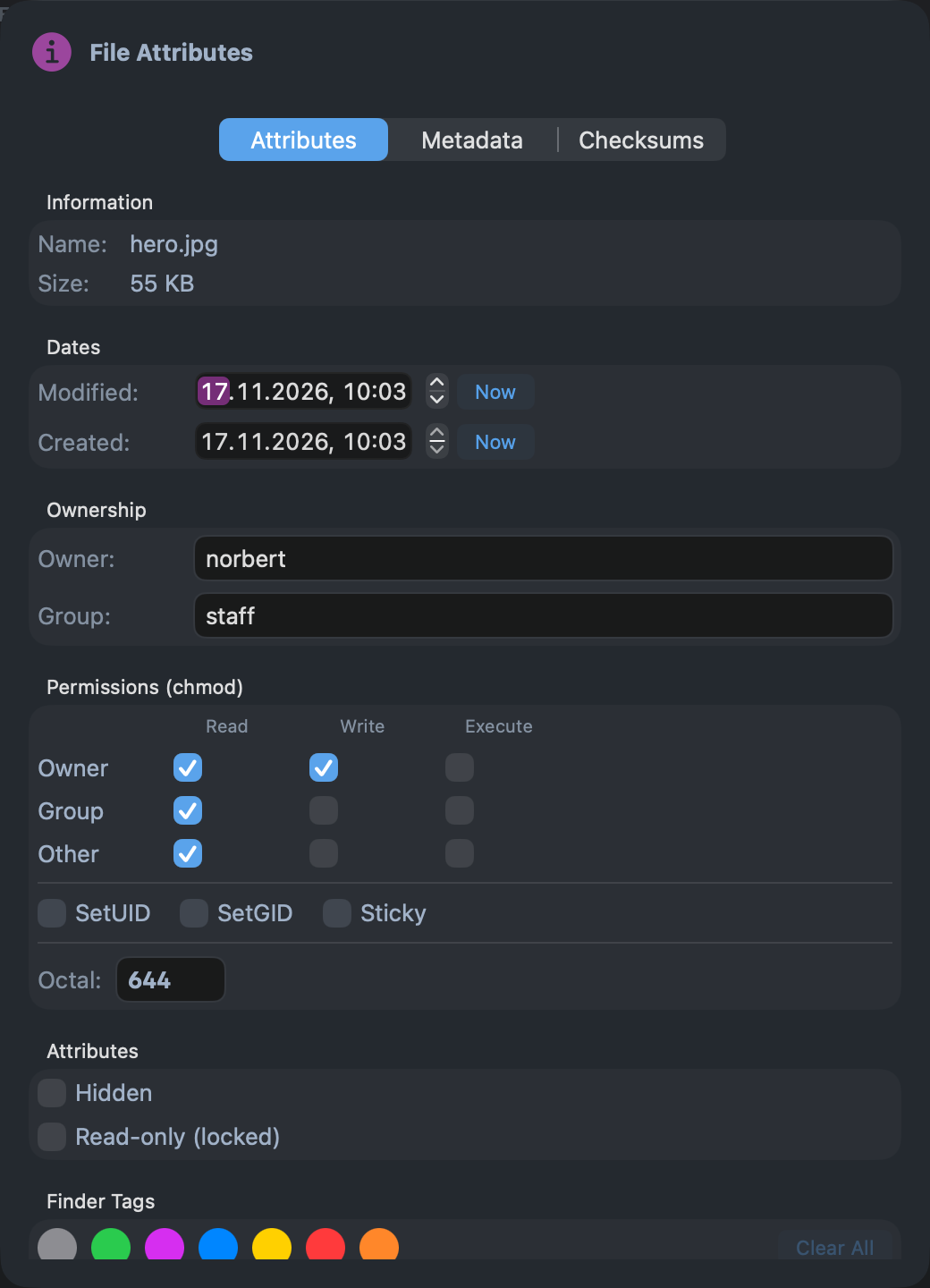
Attribute & Berechtigungen
Attributes & Permissions
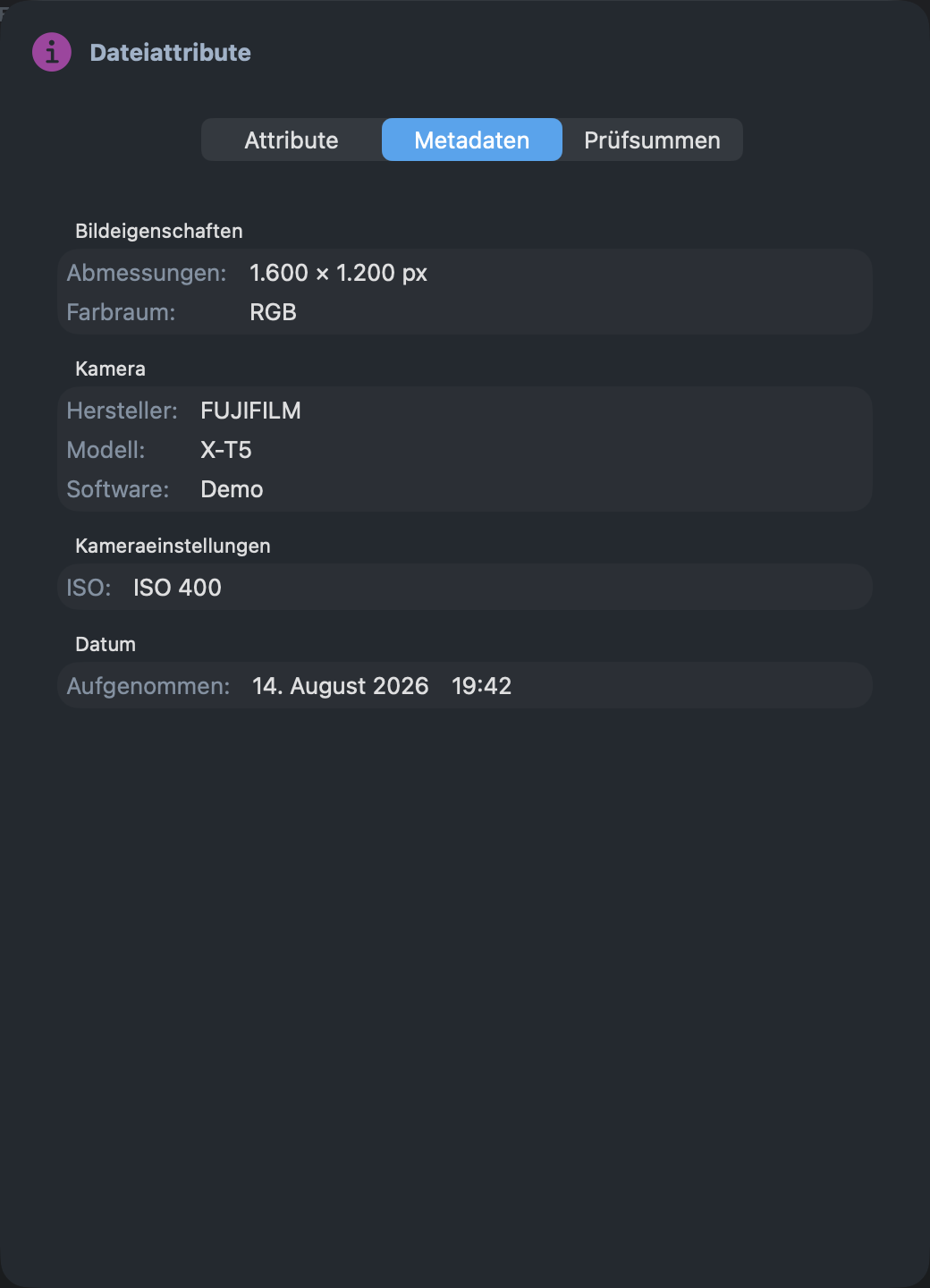
Metadaten (EXIF u. a.)
Metadata (EXIF etc.)
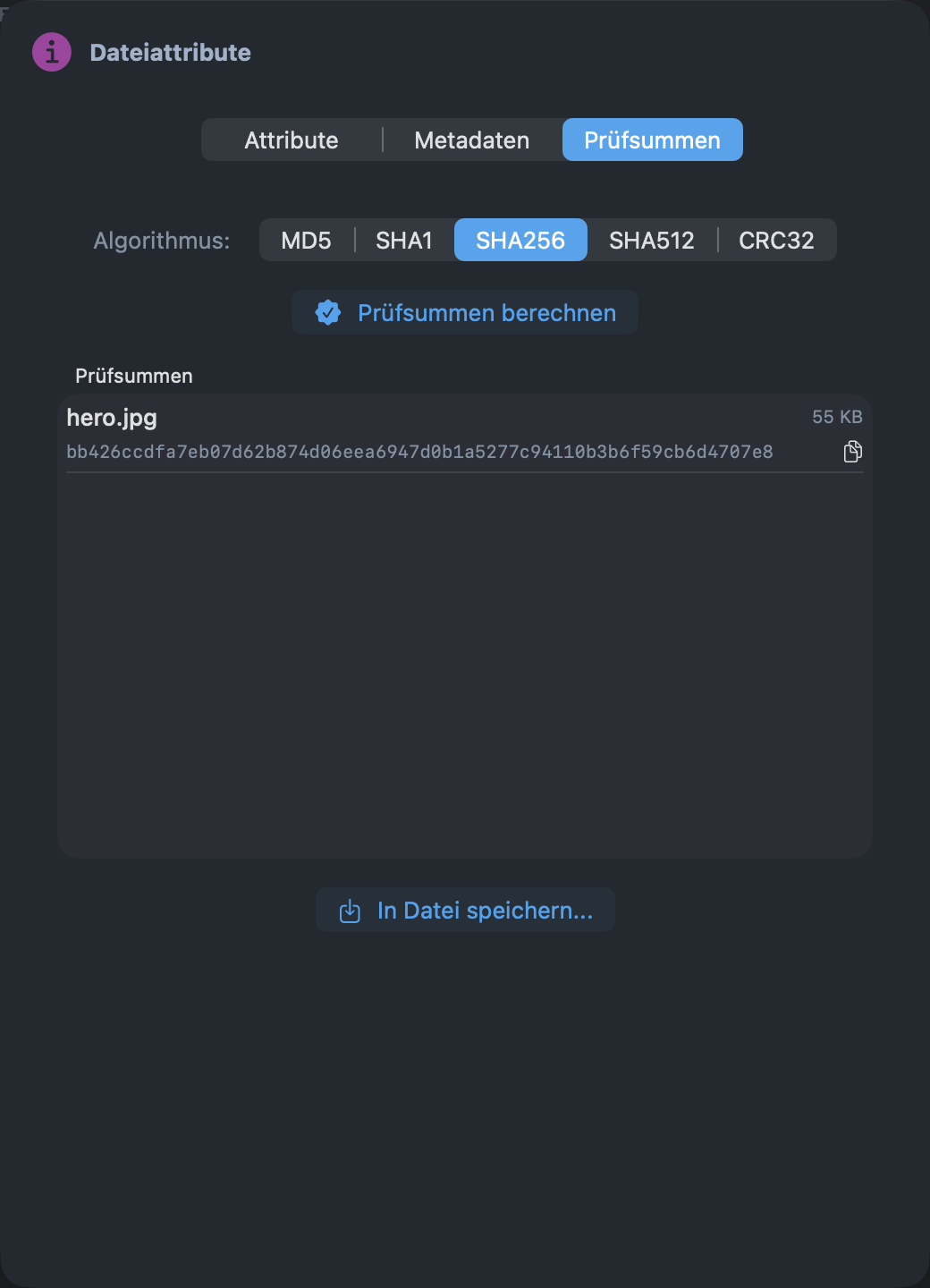
Prüfsummen (MD5 bis SHA512, CRC32)
Checksums (MD5 to SHA512, CRC32)
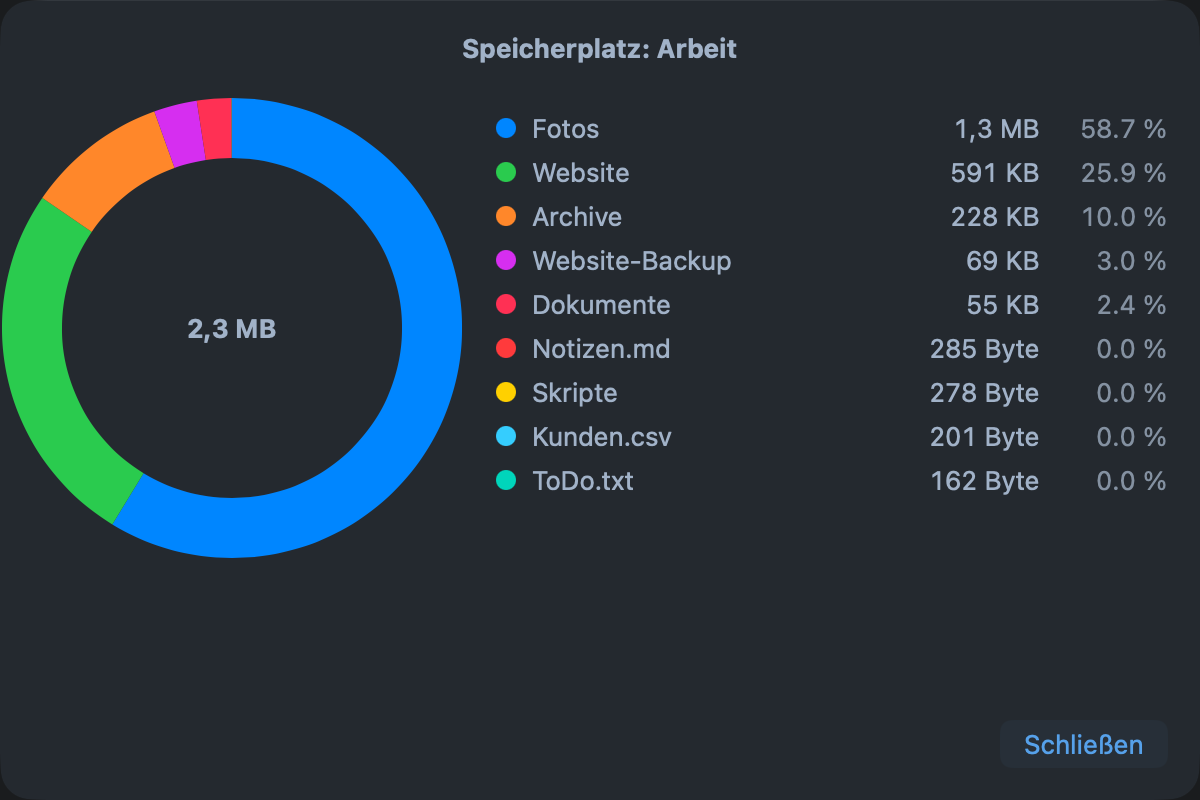
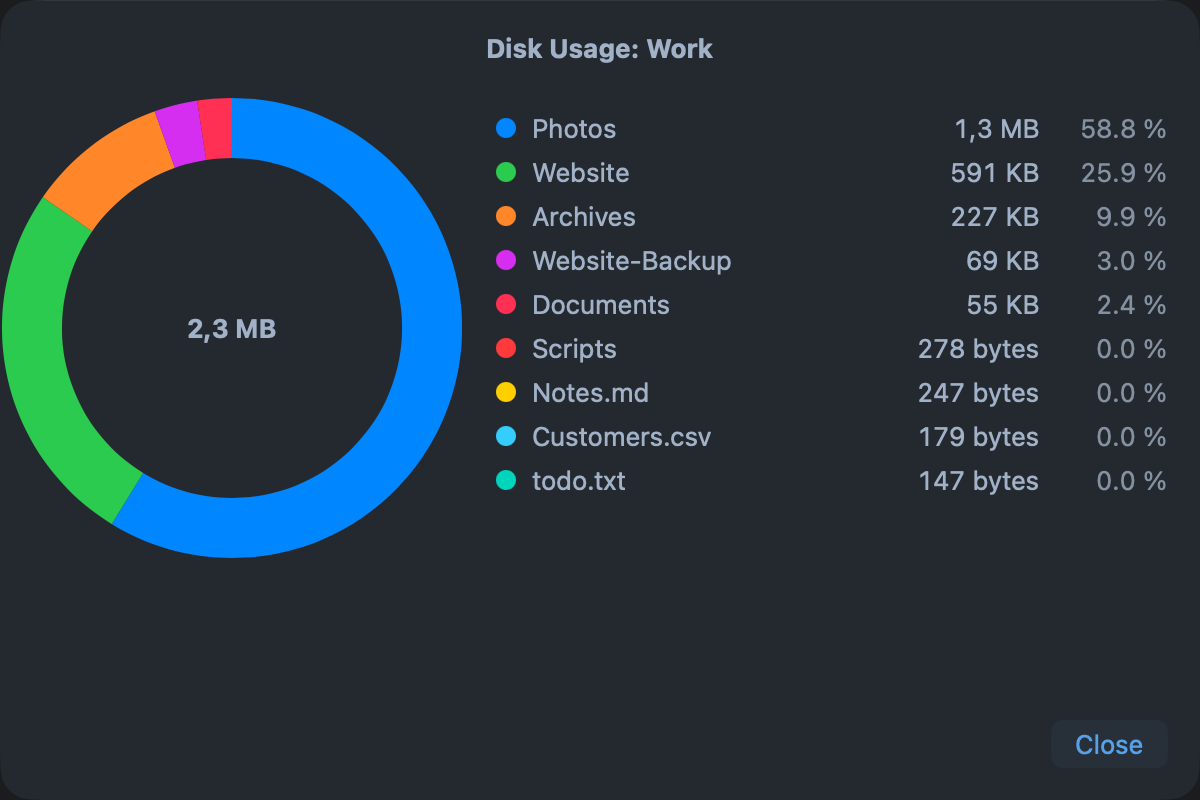
Speicherplatzanalyse
Disk Usage
Ansicht & Darstellung
View & Display
Passe die Darstellung an deinen Geschmack an – mit Themes, Farbkodierung und konfigurierbaren Spalten.
Customize the display to your taste – with themes, color coding and configurable columns.
Themes & Farben Themes & Colors
- 20 mitgelieferte Themes, je 10 helle und dunkle
- Folgt auf Wunsch automatisch dem hellen oder dunklen Erscheinungsbild von macOS
- Theme-Editor für eigene Themes
- Farbkodierung nach Dateityp, Finder-Tags als Farbstreifen
- Mehr zu Themes & Theme-Editor →
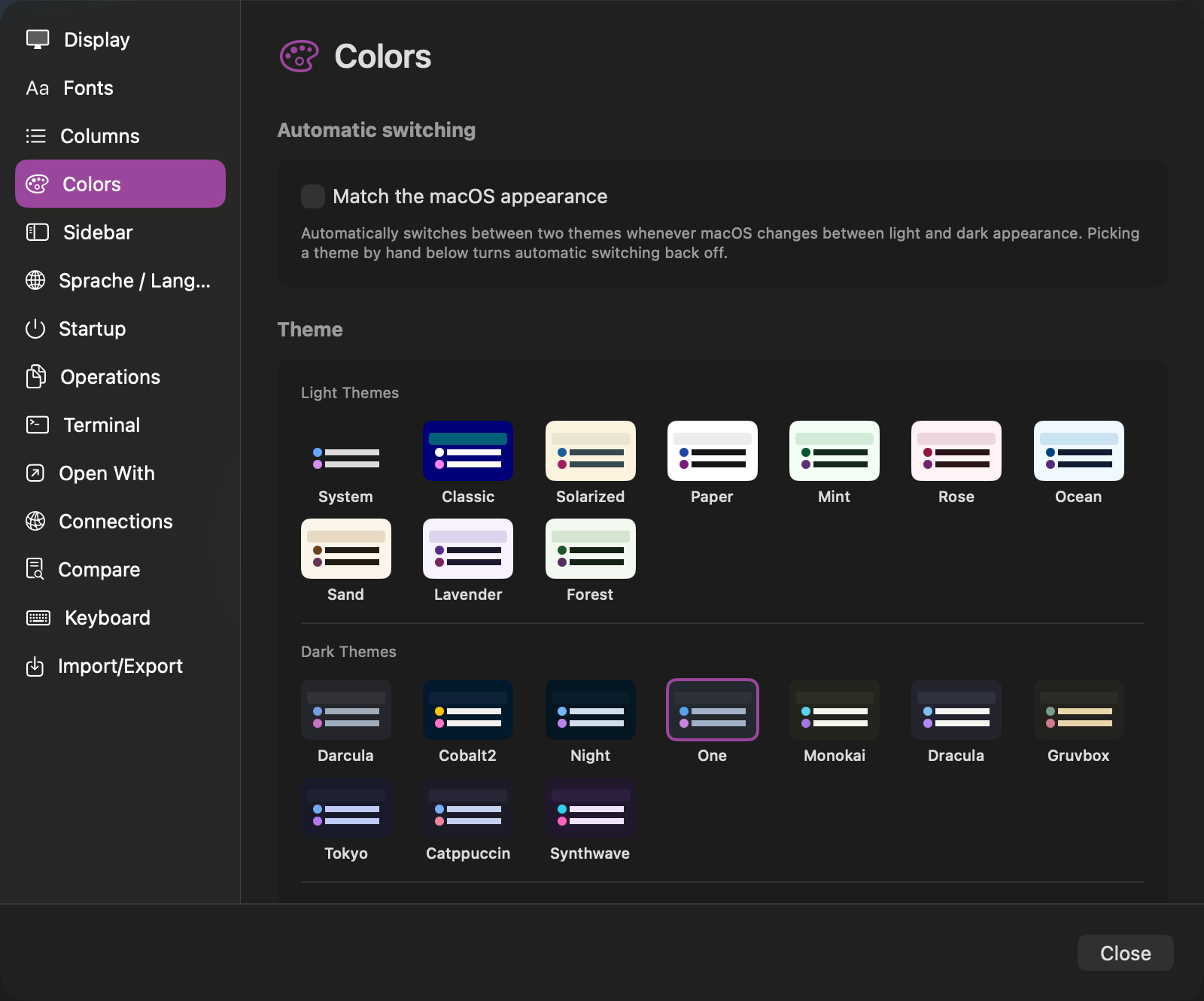
- 20 included themes, 10 light and 10 dark
- Follows the light or dark macOS appearance automatically if you like
- Theme editor for your own themes
- Color coding by file type, Finder tags as color stripes
- More about Themes & Theme Editor →
Spalten & Sortierung Columns & Sorting
- Spalten: Name, Erweiterung, Größe, Datum, Attribute
- Spaltenbreiten für alle Tabs oder je Tab; Trennstriche wie im Norton Commander
- Sortierung nach Name, Erweiterung, Größe, Datum oder Attribut (Ctrl+F3–F7)
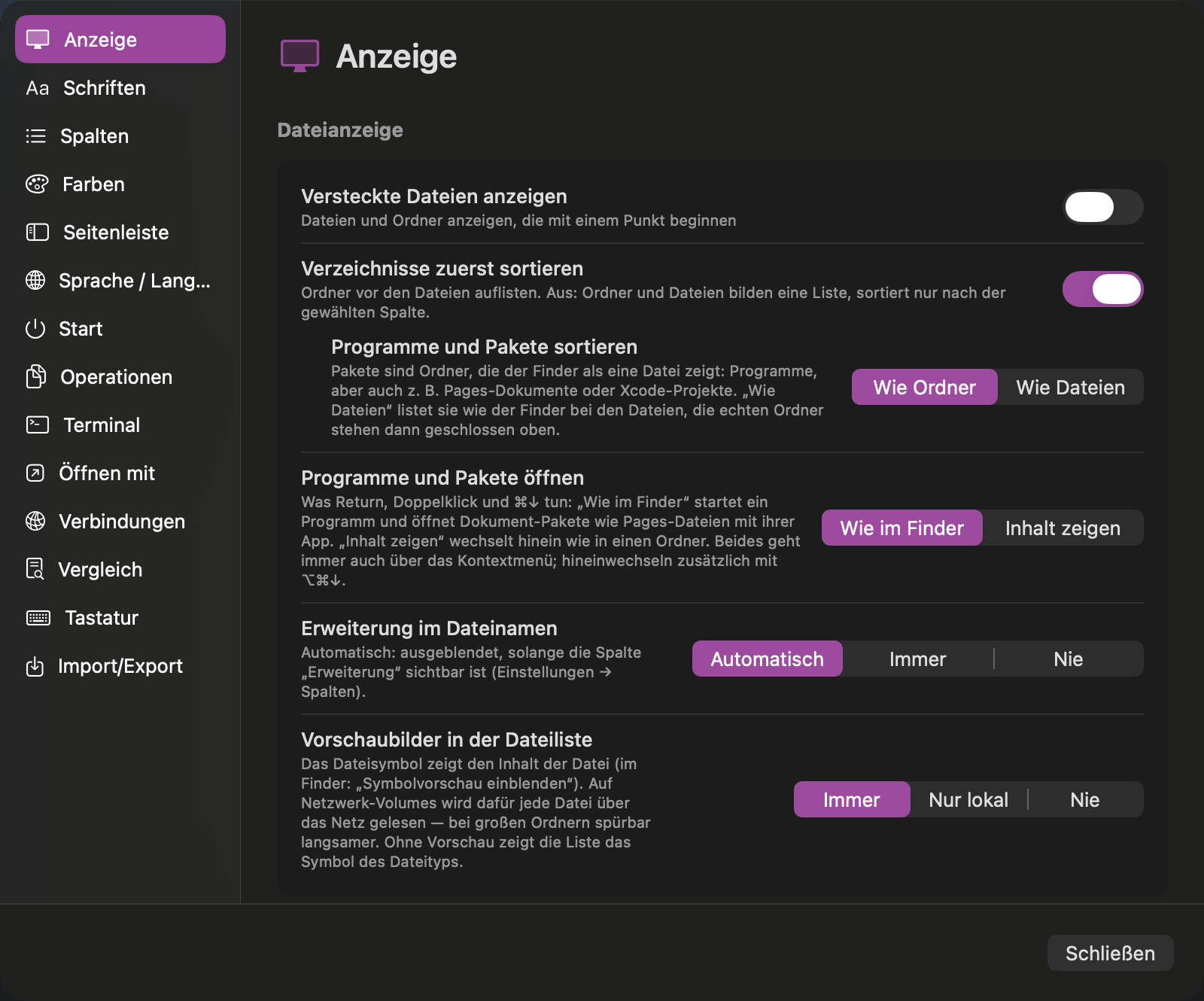
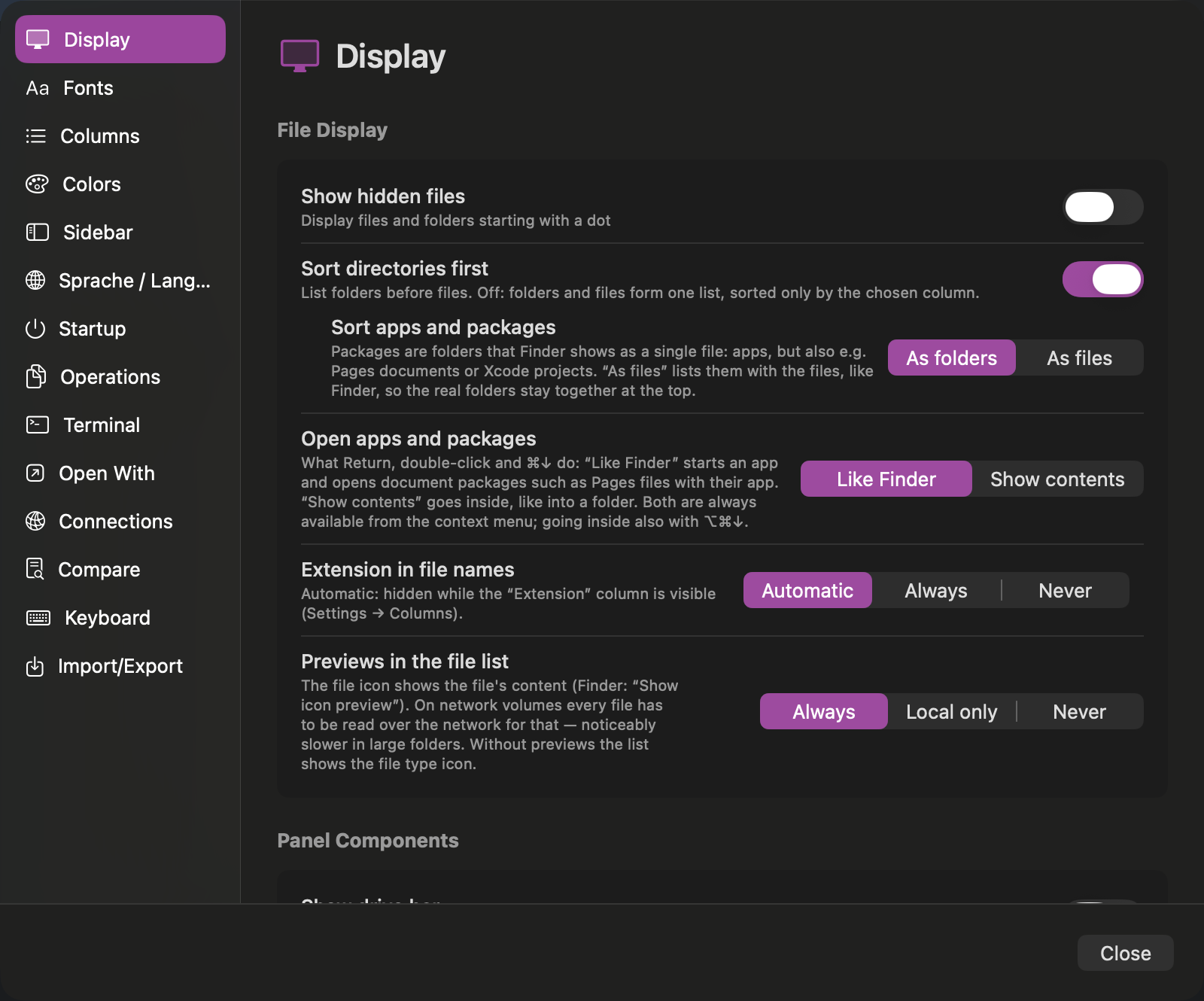
- Verzeichnisse zuerst; Programme wie Ordner oder wie Dateien einsortieren
- Versteckte Dateien ein-/ausblenden (Cmd+Shift+.)
- Columns: name, extension, size, date, attributes
- Column widths for all tabs or per tab; separator lines as in Norton Commander
- Sort by name, extension, size, date or attribute (Ctrl+F3–F7)
- Directories first; sort apps in like folders or like files
- Show/hide hidden files (Cmd+Shift+.)
Oberfläche Interface
- Seitenleiste mit Favoriten, Gruppen, Cloud-Speicher und aktiven Verbindungen (Cmd+B)
- Klickbare Pfadleiste mit Vor/Zurück und Verlauf
- Laufwerksleiste mit Auswerfen und Trennen (optional)
- Symbolleiste in vier Größen, Zeilenhöhe bis zum Dreifachen
- Programme starten per Doppelklick wie im Finder, Paketinhalt mit Alt+Cmd+↓
- Sidebar with favorites, groups, cloud storage and active connections (Cmd+B)
- Clickable path bar with back/forward and history
- Drive bar with eject and disconnect (optional)
- Toolbar in four sizes, row height up to three times the default
- Apps launch on double-click as in Finder, package contents with Alt+Cmd+↓
Themes & Farbgestaltung
Themes & Color Customization
Gestalte TheCommander ganz nach deinem Geschmack – mit vorkonfigurierten Themes oder einem vollständig anpassbaren Theme-Editor.
Customize TheCommander to your taste – with pre-configured themes or a fully customizable theme editor.
Vorkonfigurierte Themes Pre-configured Themes
- 20 sofort einsatzbereite Themes
- Classic Commander, Solarized, Cobalt2, Dracula, Tokyo Night, Catppuccin, Synthwave '84 u. v. m.
- Automatischer Wechsel zwischen hellem und dunklem Theme
- Ein Klick zum Wechseln, auch über das Menü Darstellung
- 20 ready-to-use themes
- Classic Commander, Solarized, Cobalt2, Dracula, Tokyo Night, Catppuccin, Synthwave '84 and more
- Automatic switching between a light and a dark theme
- One click to switch, from the View menu too
Theme-Editor Theme Editor
- Schnell-Erstellen: hell oder dunkel, Hintergrund, Akzentfarbe, Stil – fertig
- Feinabstimmung von Kontrast, Sättigung, Wärme und Farbvielfalt
- Erweiterter Editor: jede Farbe einzeln – Panels, Dateitypen, Auswahl, Cursor, UI-Elemente
- Live-Vorschau aller Änderungen
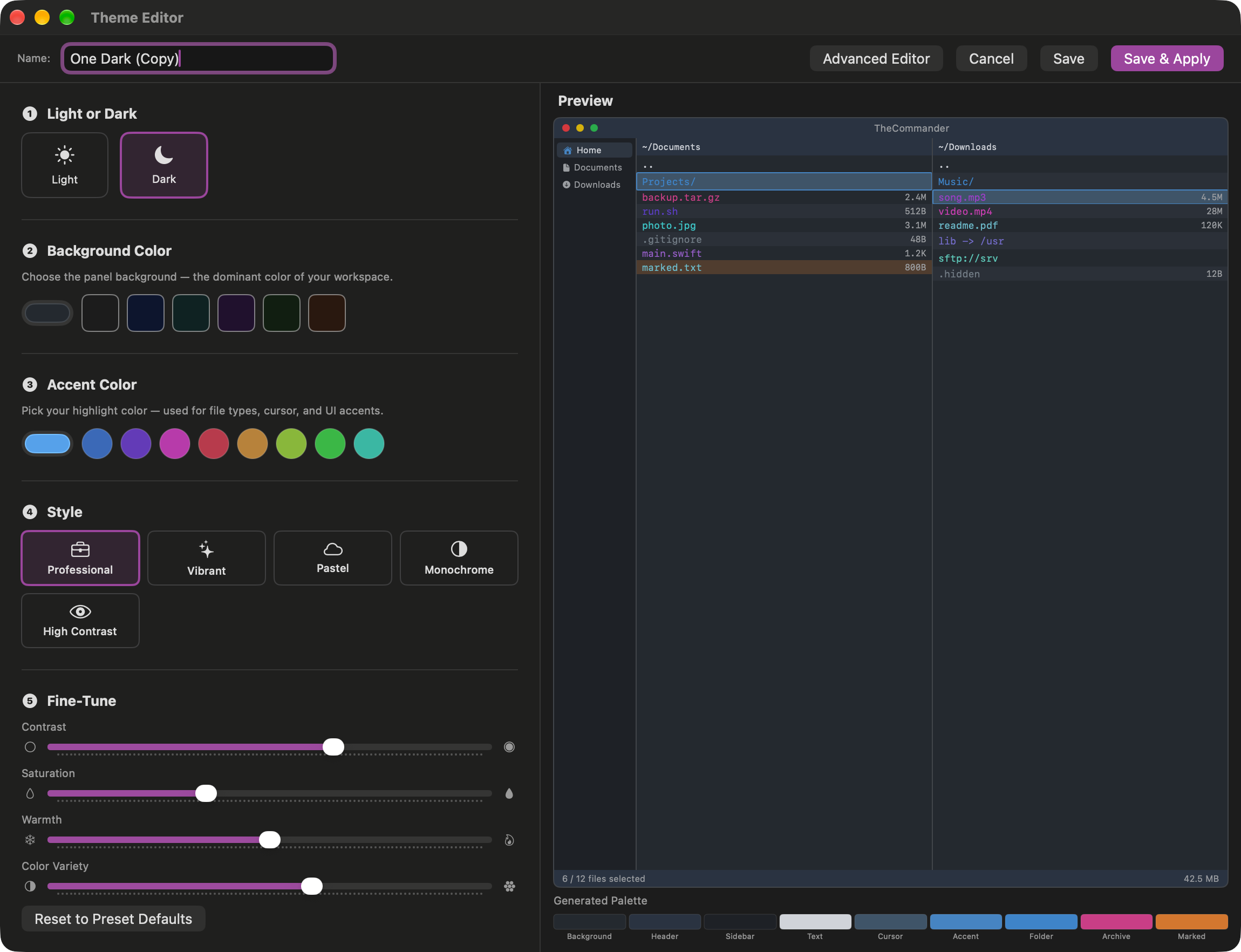
- Quick create: light or dark, background, accent color, style – done
- Fine-tune contrast, saturation, warmth and color variety
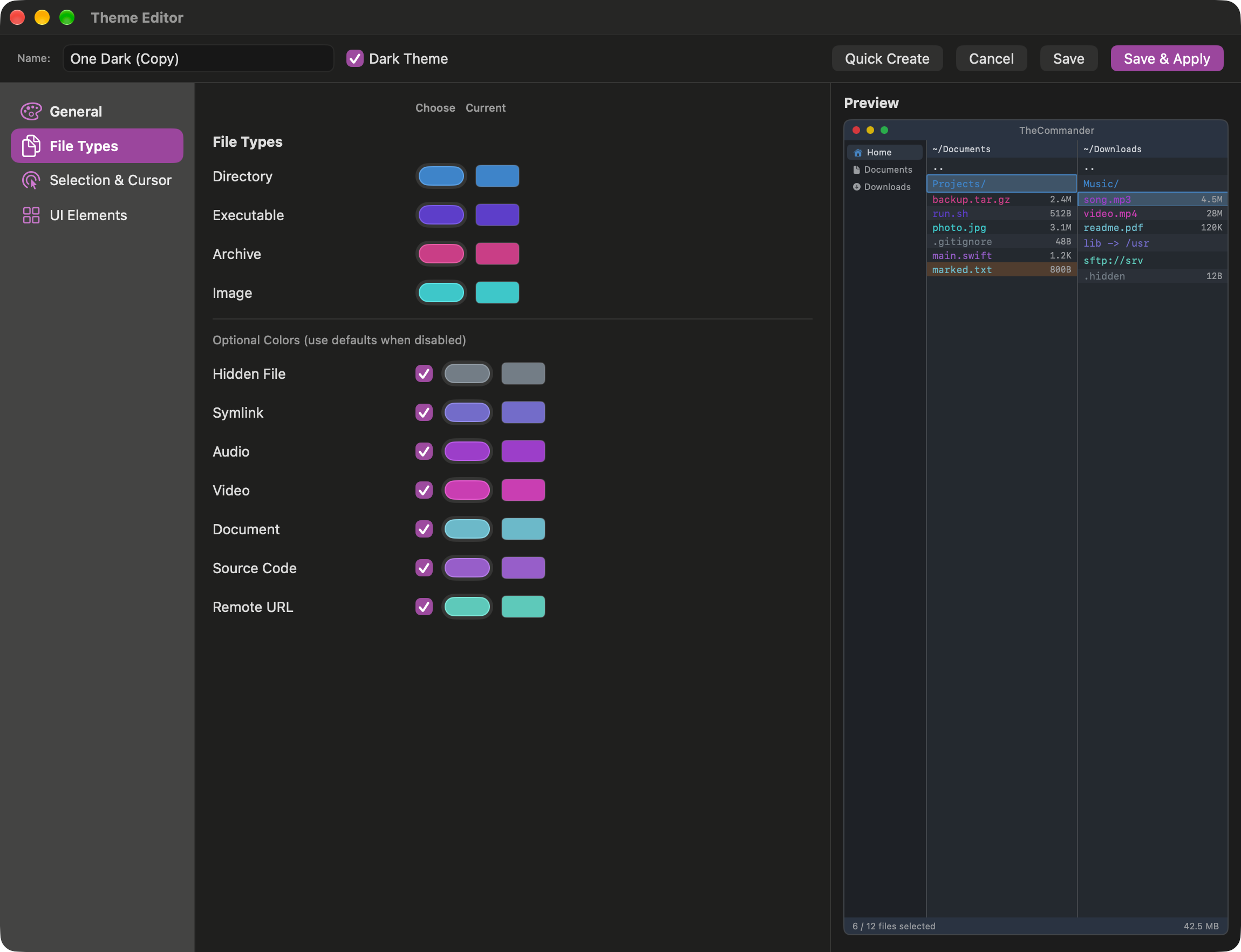
- Advanced editor: every color on its own – panels, file types, selection, cursor, UI elements
- Live preview of all changes
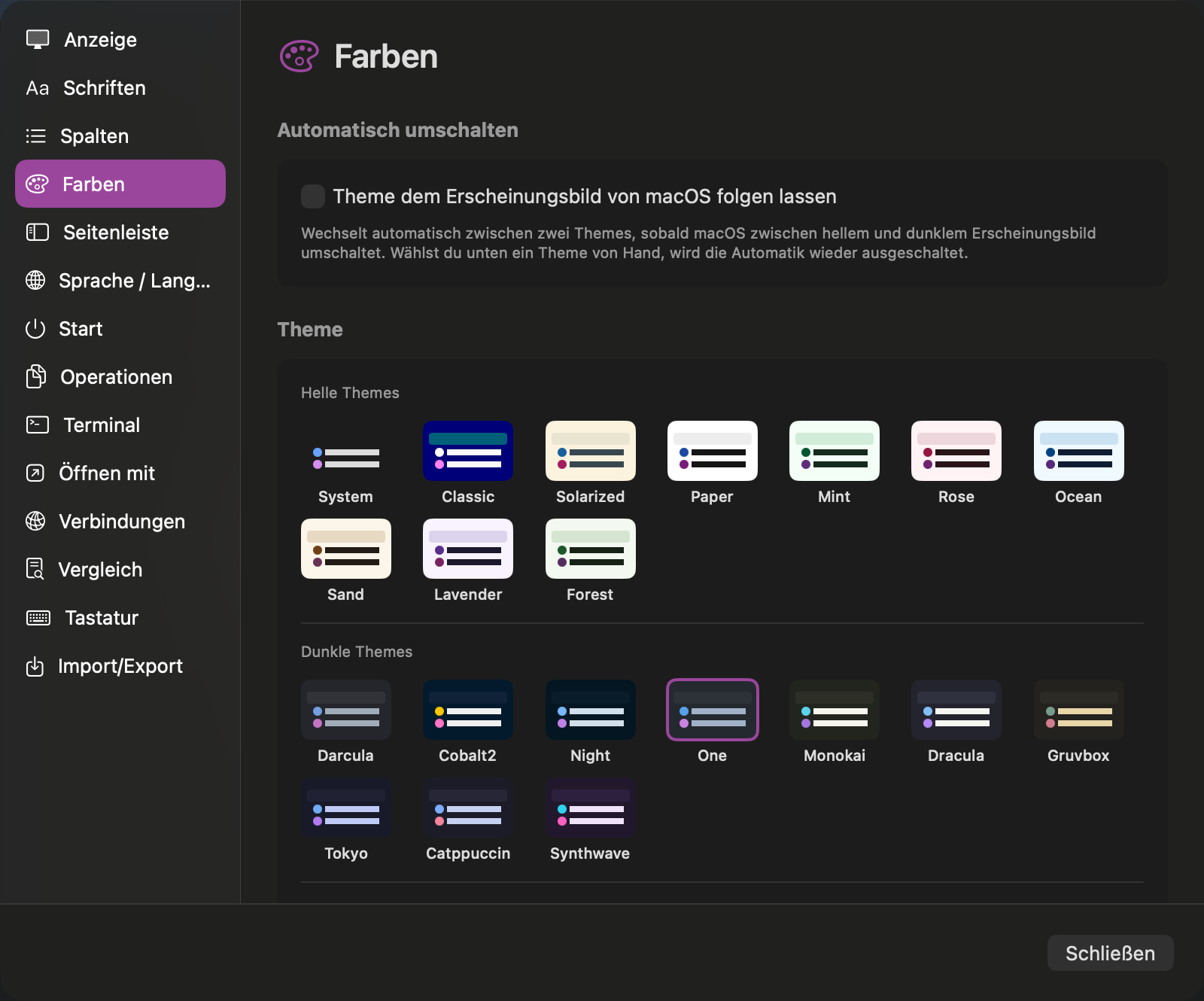
Themes & automatischer Wechsel
Themes & Automatic Switching
Theme-Auswahl und Hell/Dunkel nach macOS
Theme selection and light/dark following macOS
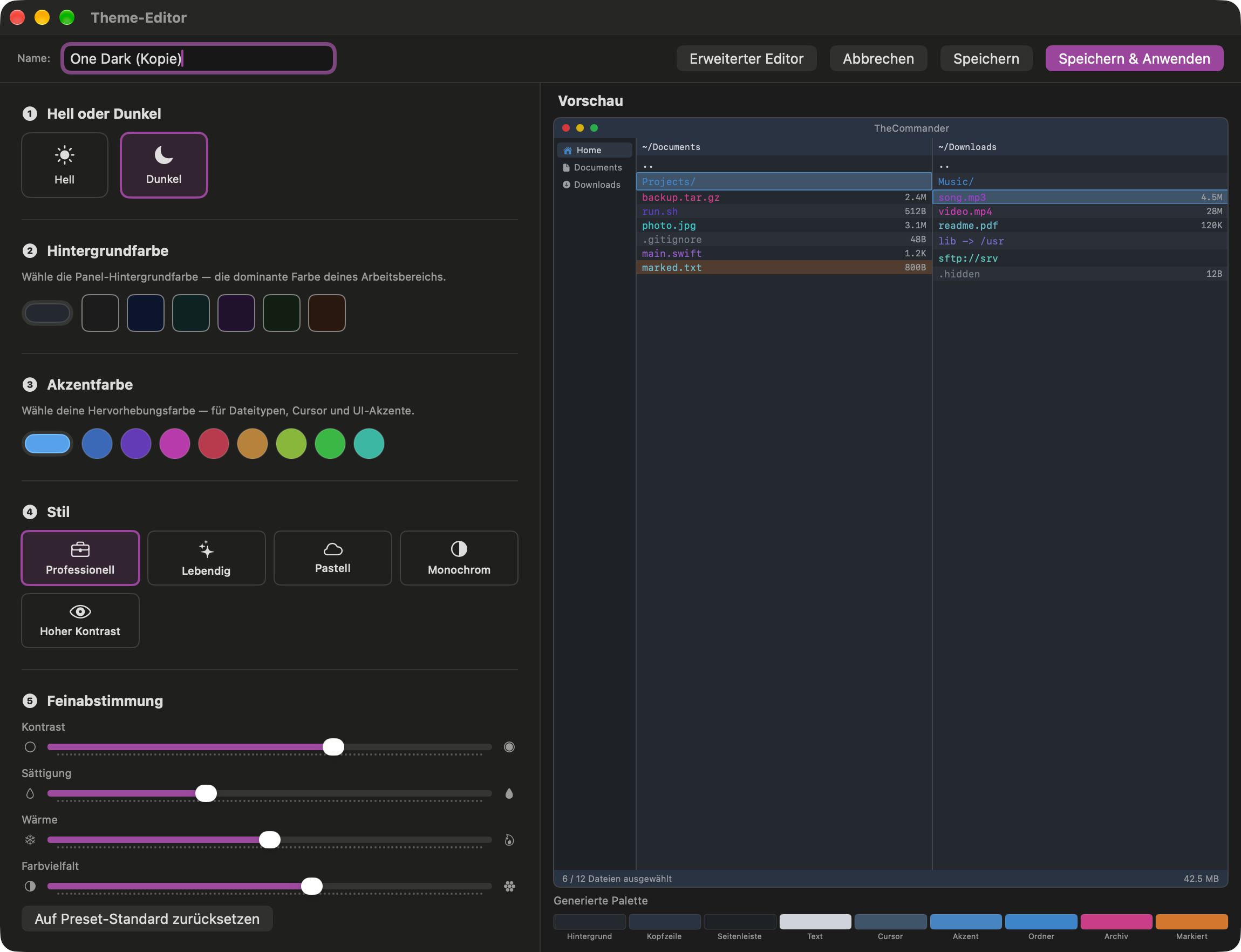
Theme-Editor – Schnell-Erstellen
Theme Editor – Quick Create
Ein eigenes Theme in wenigen Schritten, mit Live-Vorschau
Your own theme in a few steps, with live preview
Erweiterter Editor
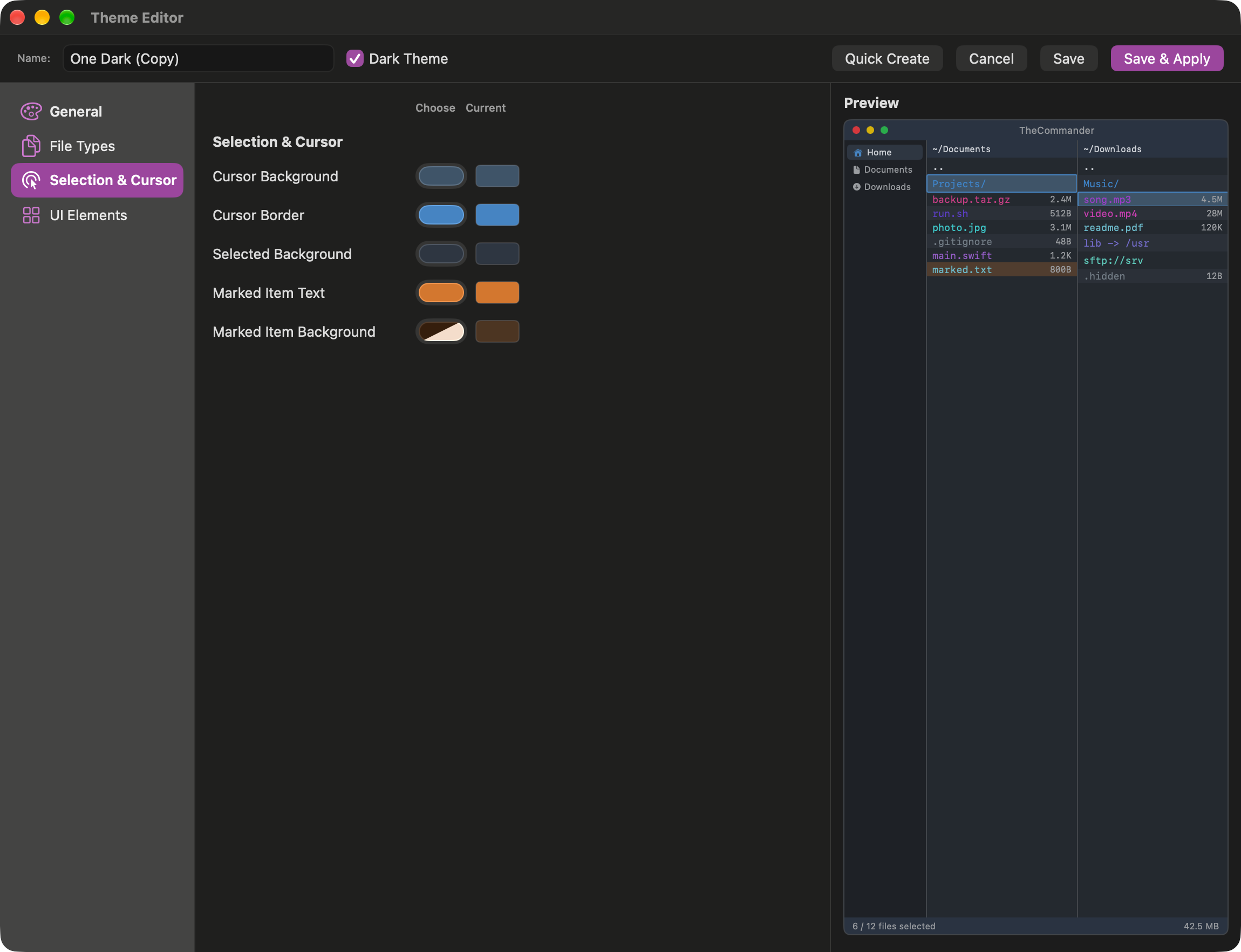
Advanced Editor
Jeder Aspekt der Darstellung lässt sich einzeln anpassen.
Every aspect of the display can be adjusted individually.
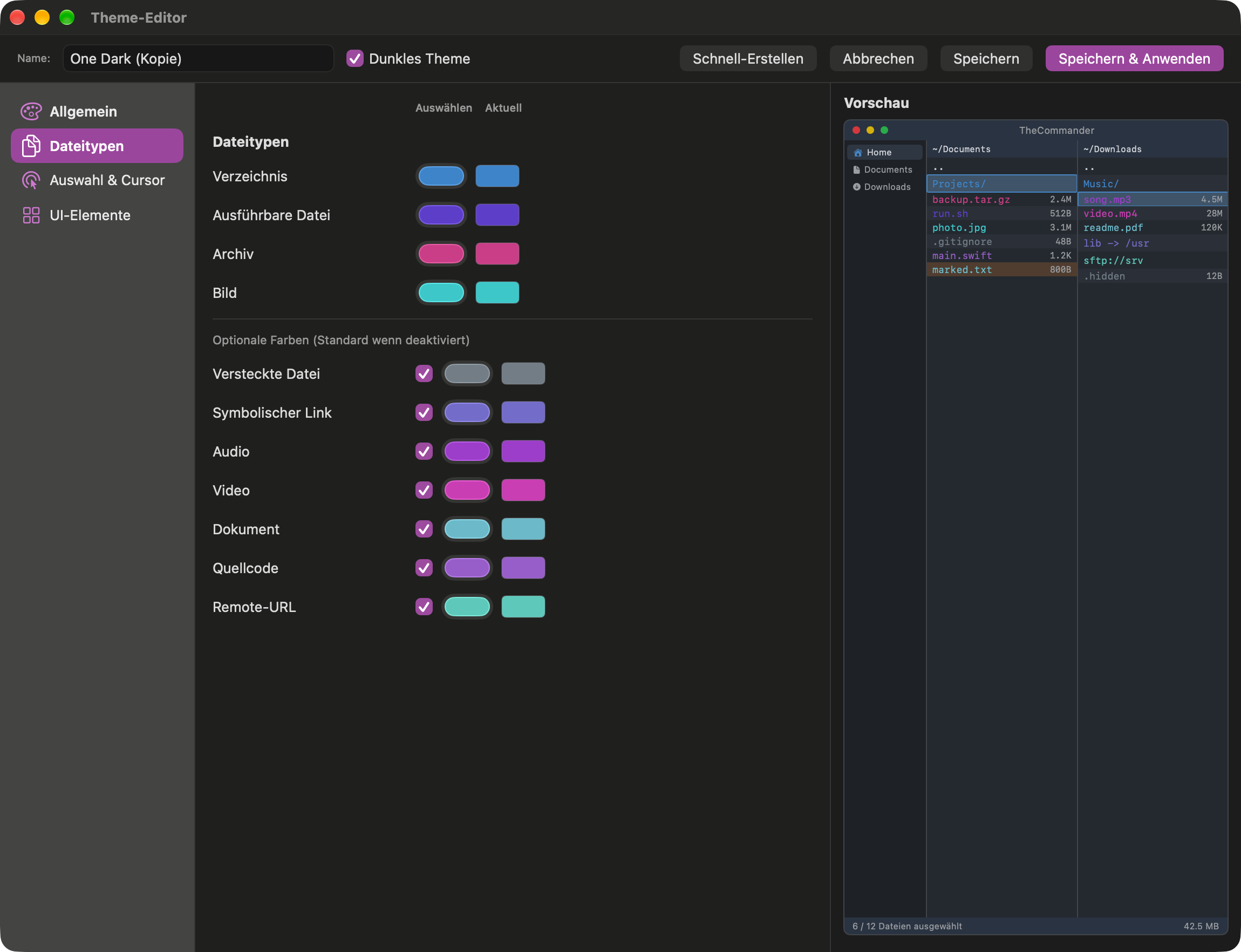
Dateityp-Farben
File Type Colors
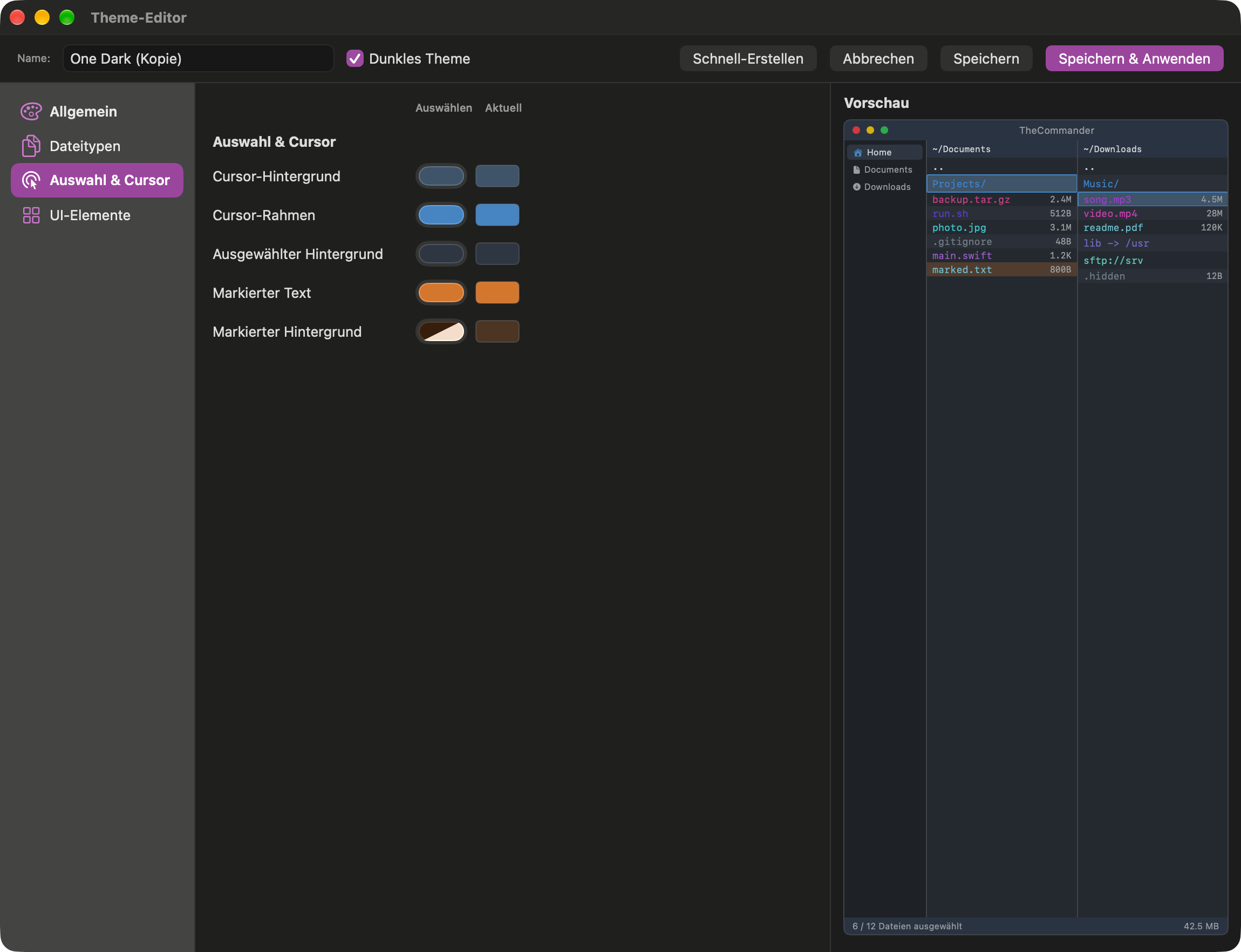
Auswahl & Cursor
Selection & Cursor
Theme-Galerie
Theme Gallery
Einige der mitgelieferten Themes in Aktion.
Some of the included themes in action.
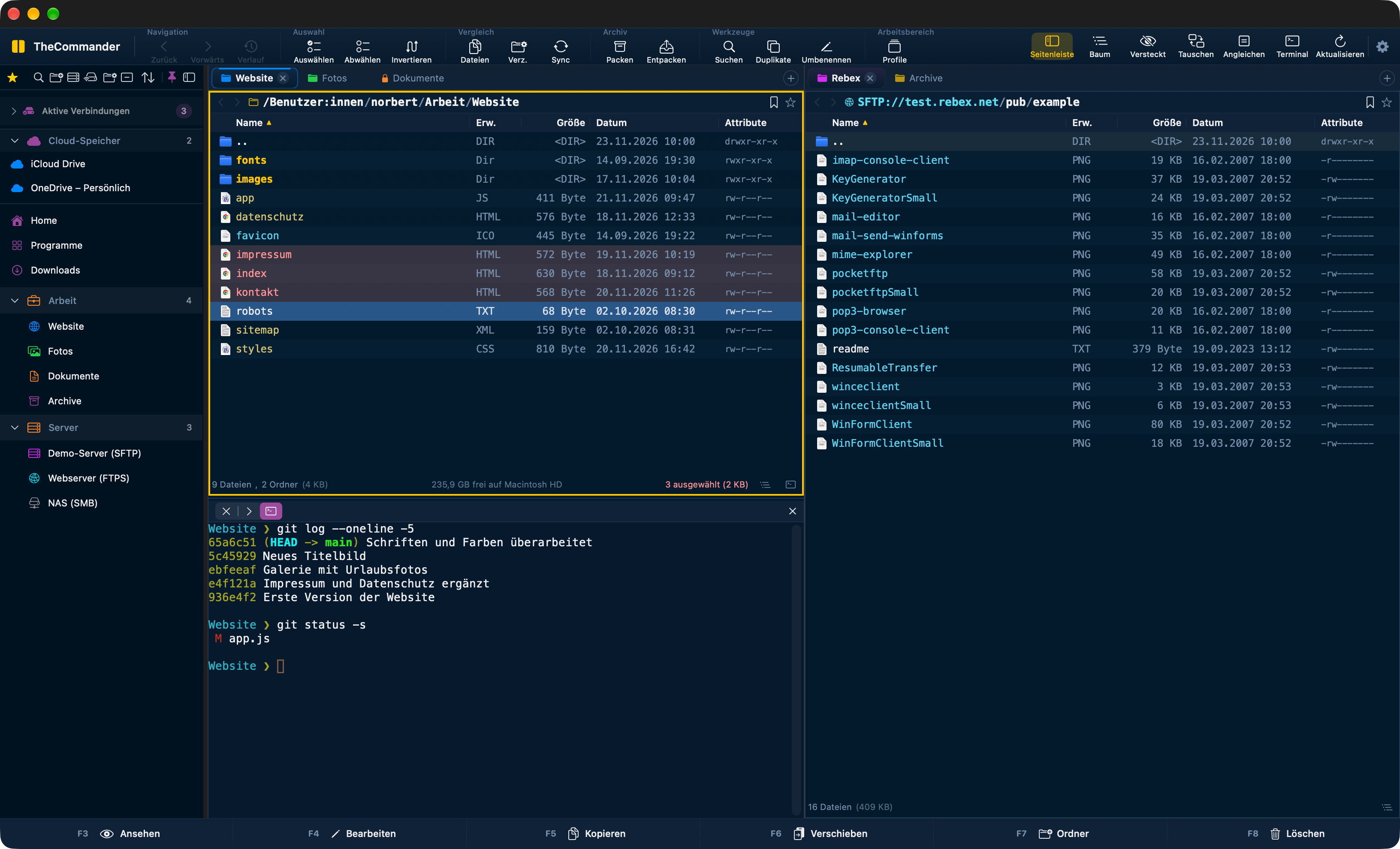
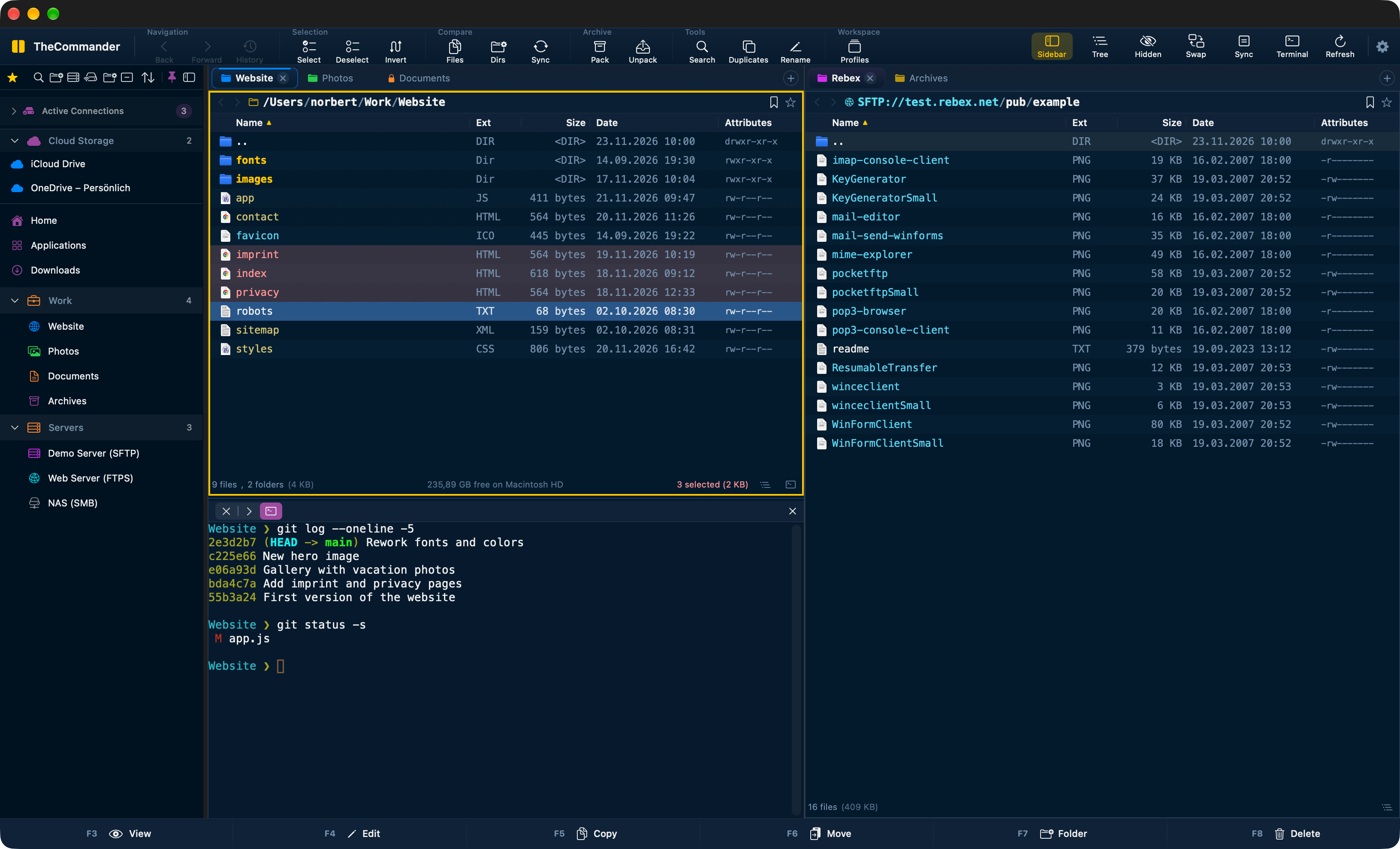
Cobalt2
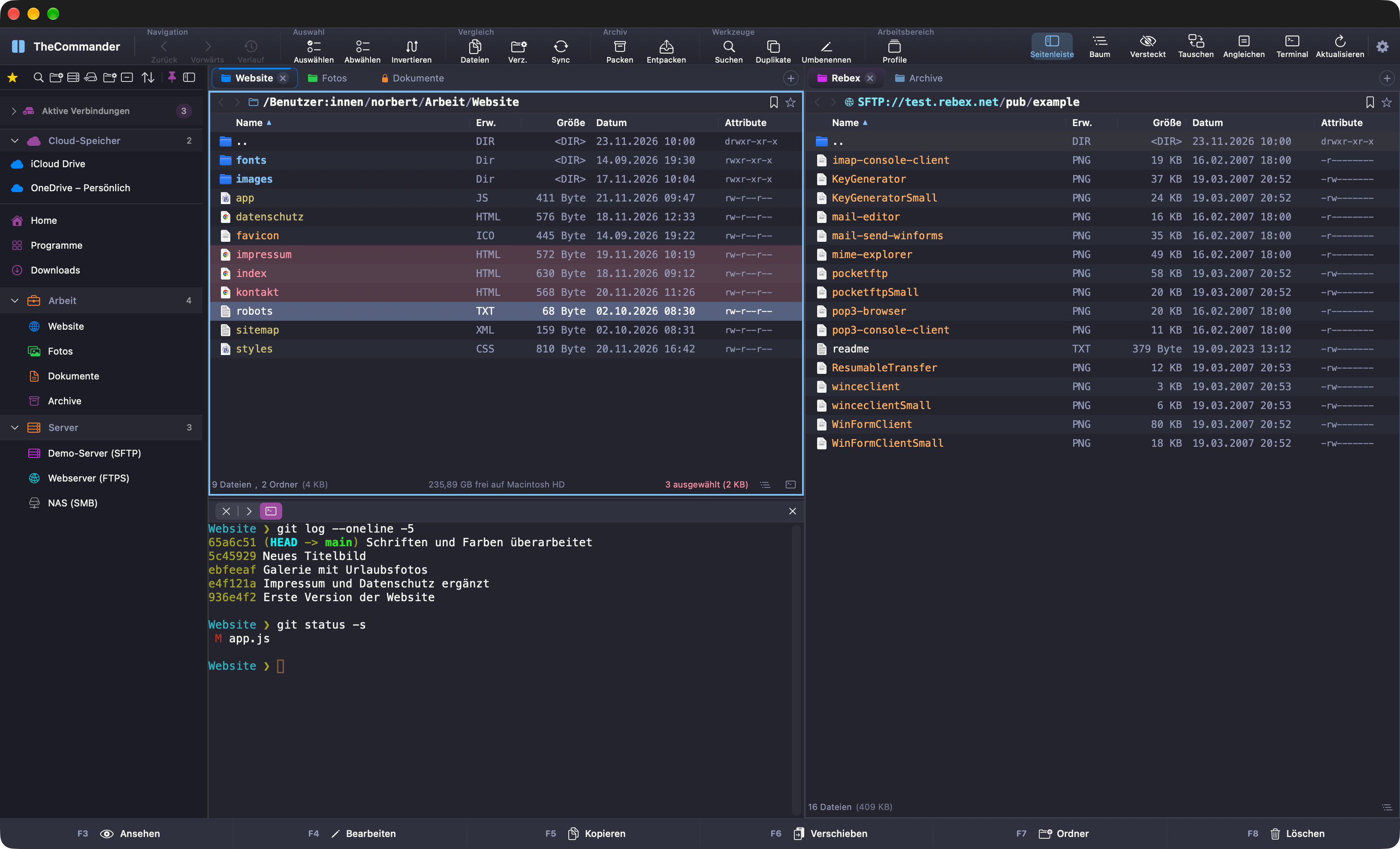
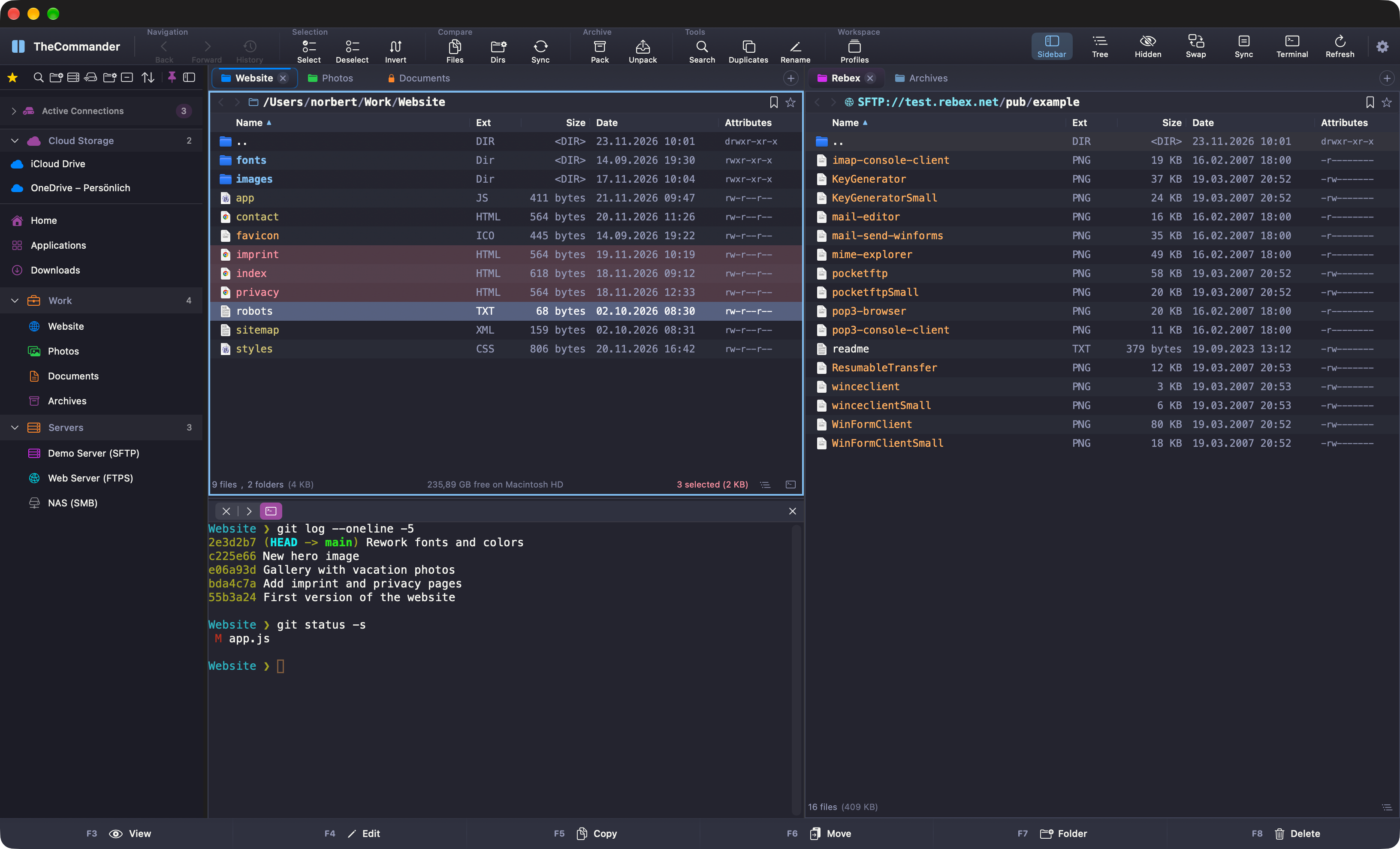
Dracula
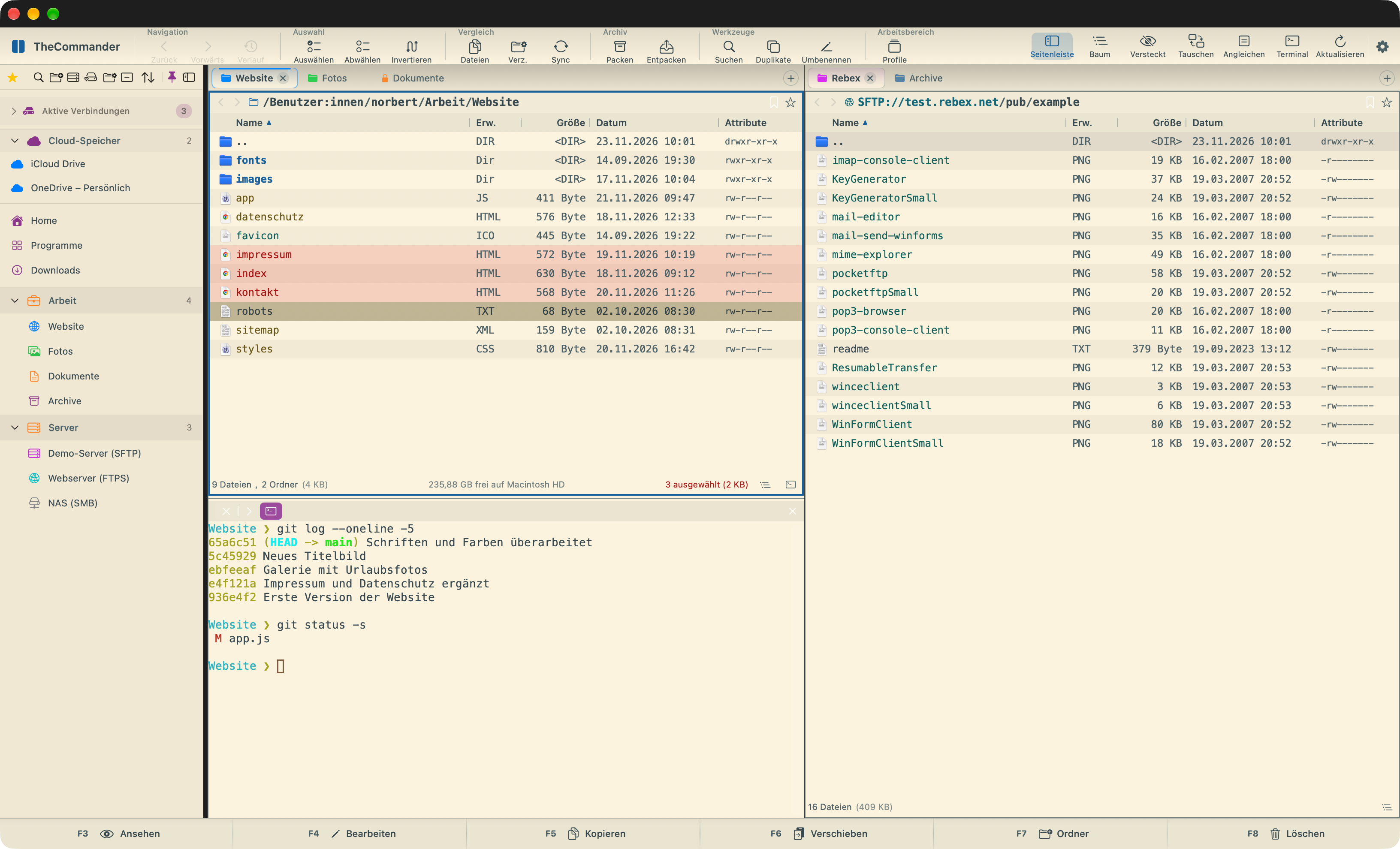
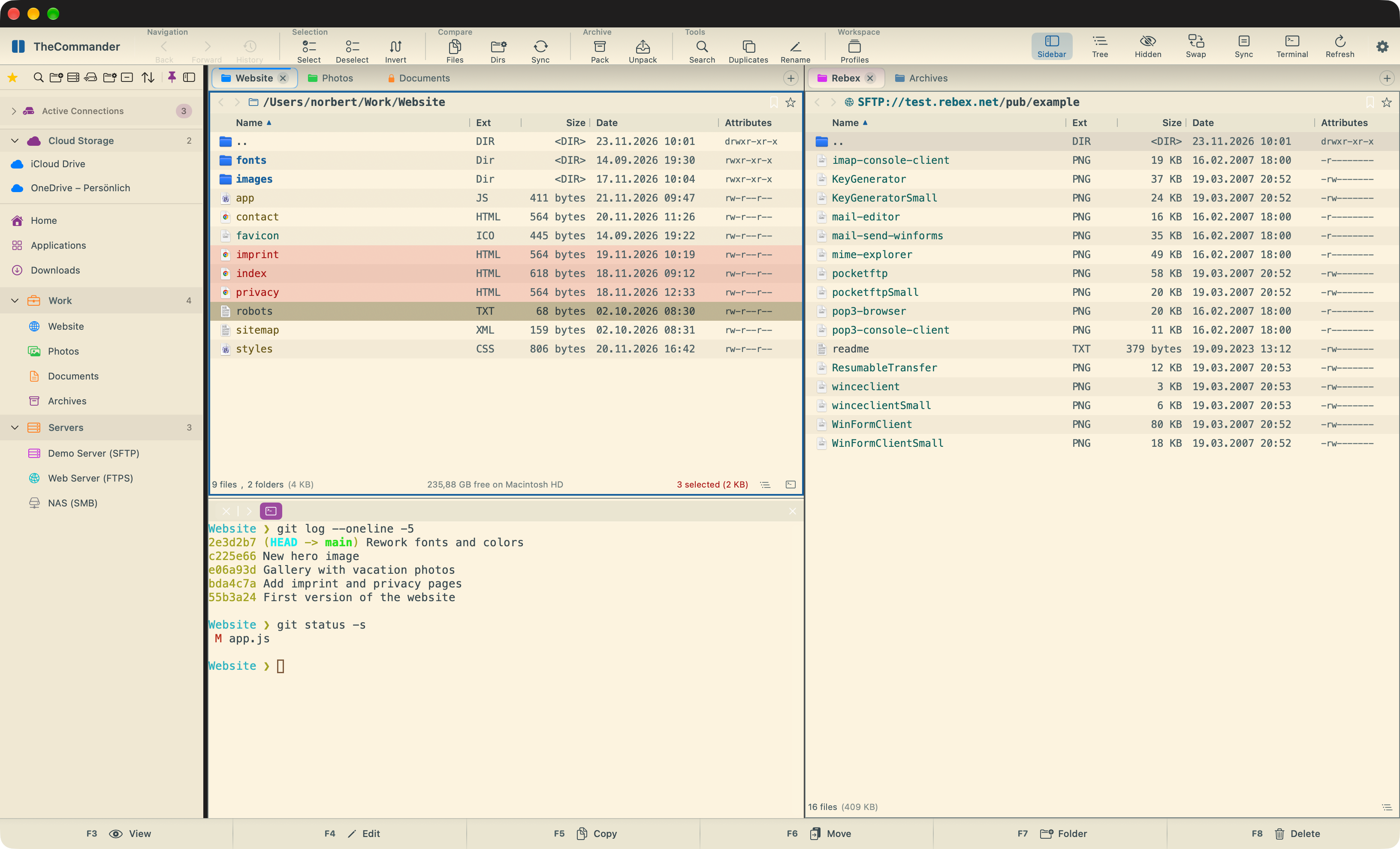
Solarized Light
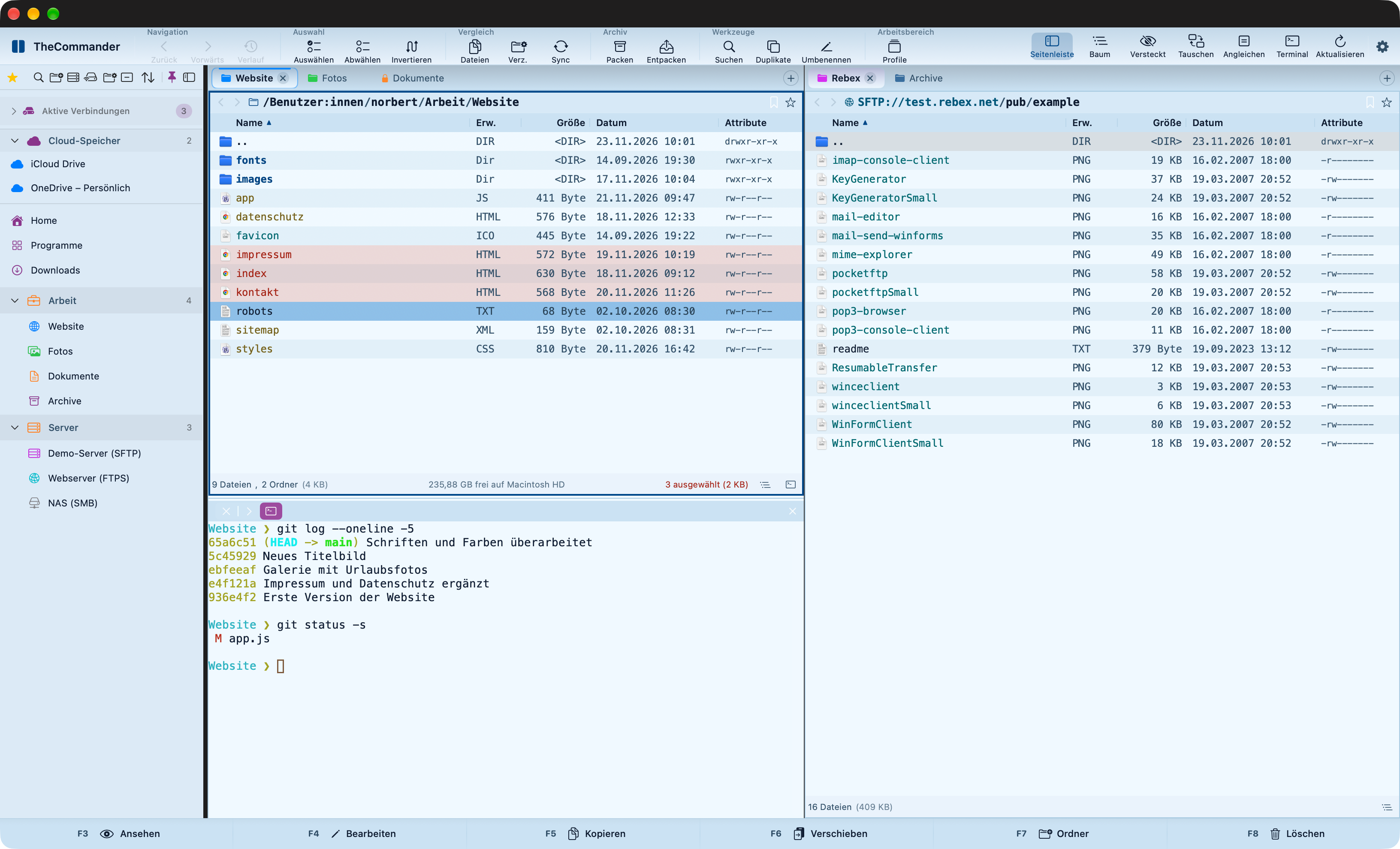
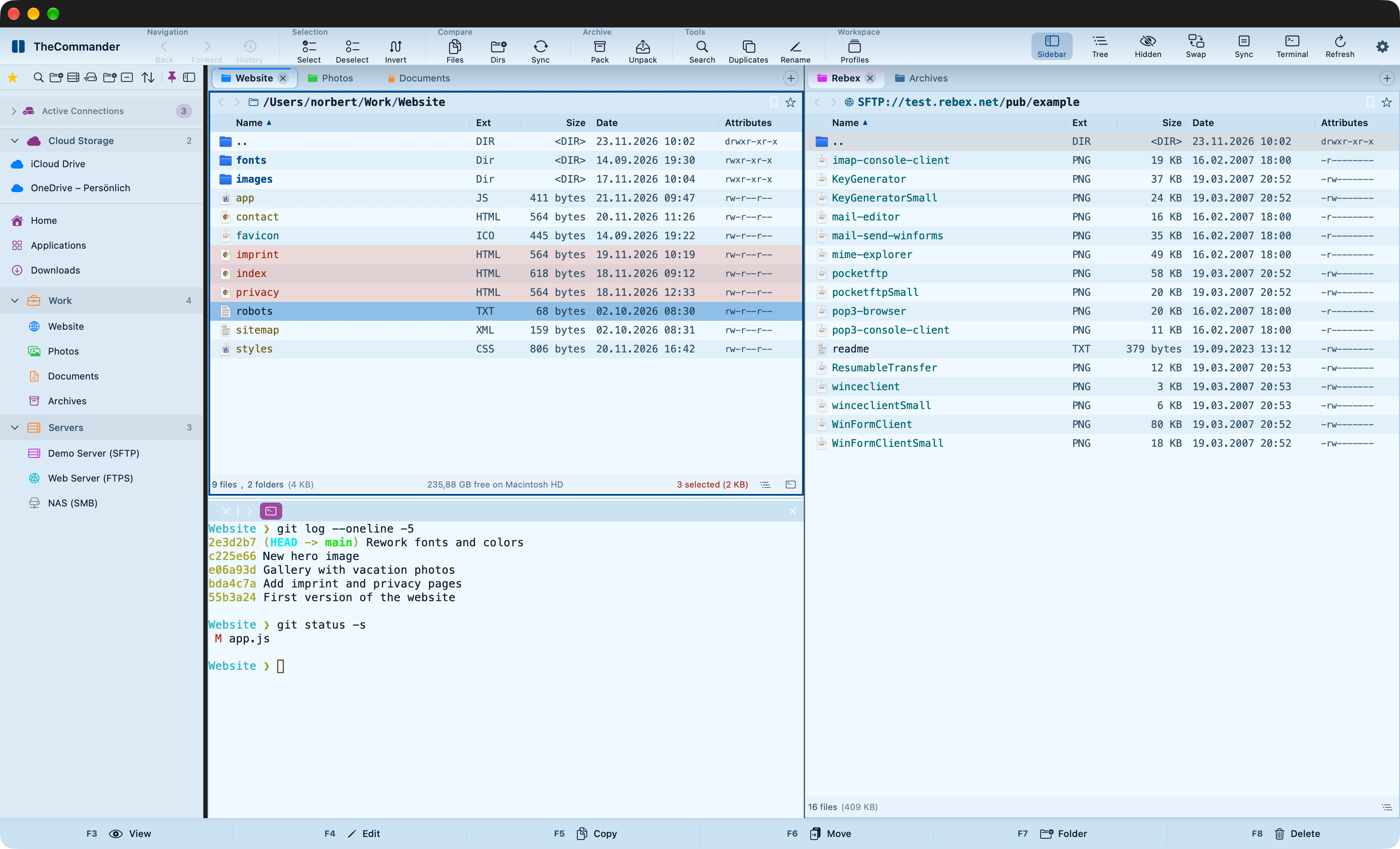
Ocean Breeze
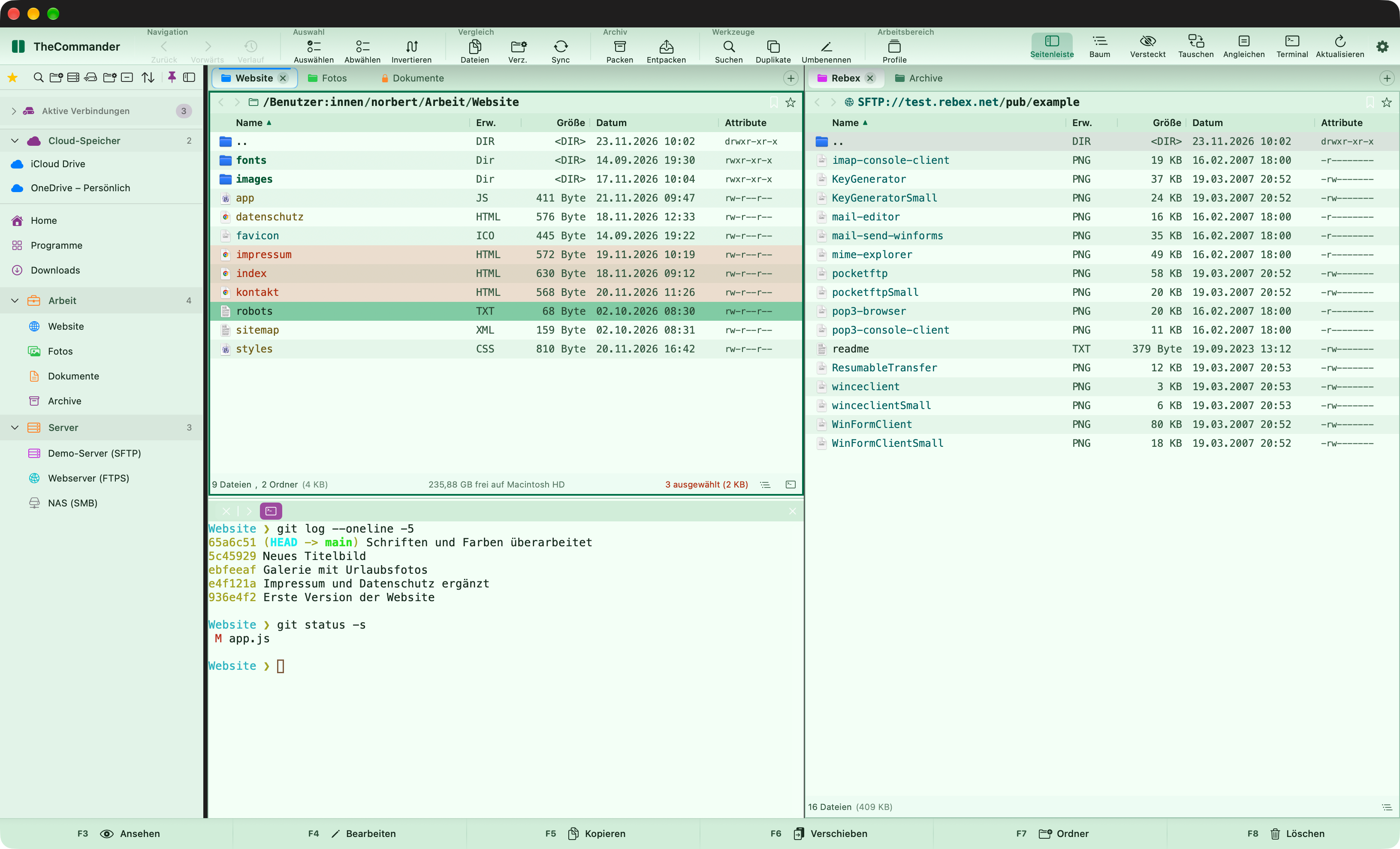
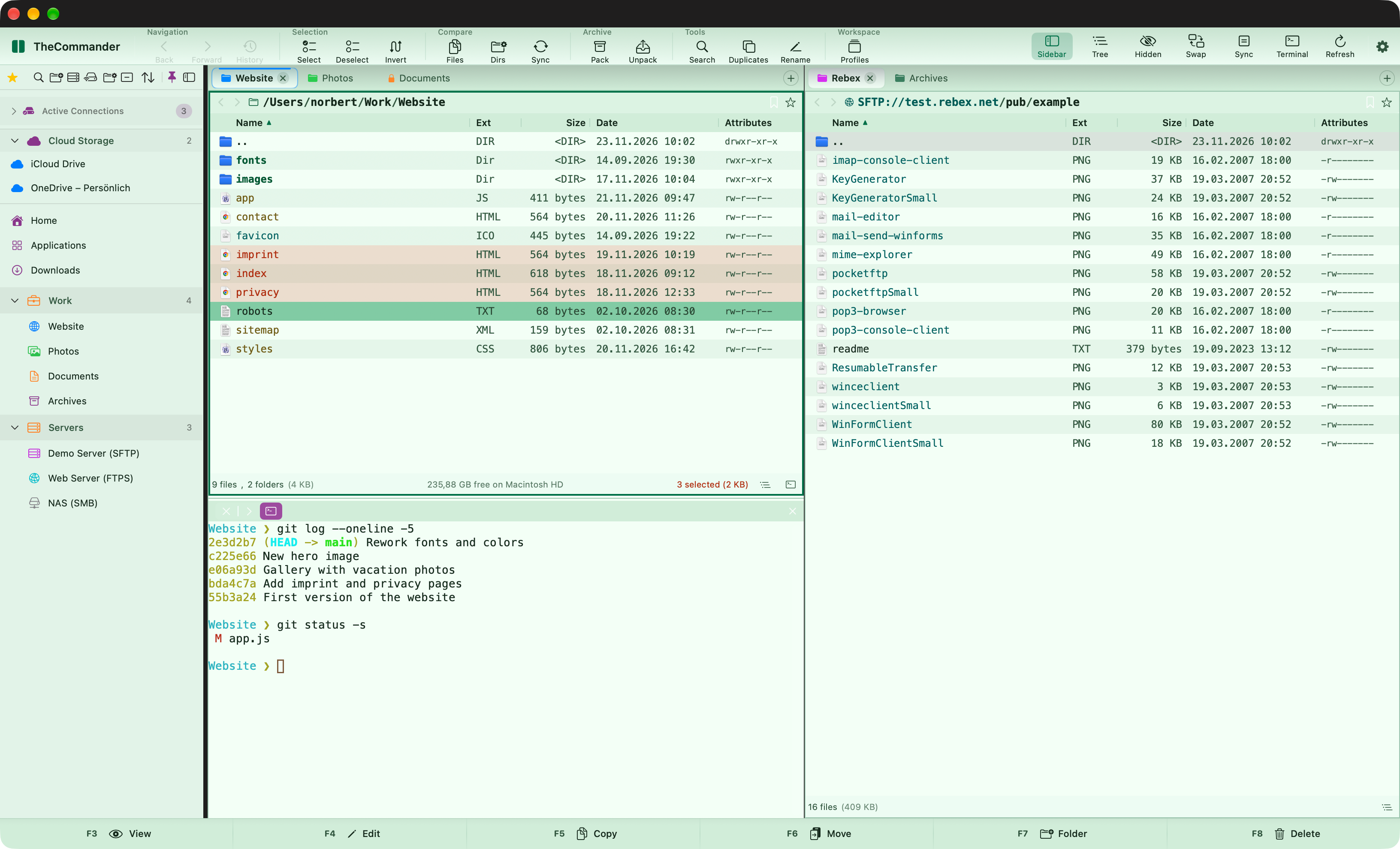
Mint Fresh
Synthwave '84
Konfiguration
Configuration
Passe TheCommander bis ins Detail an deine Arbeitsweise an.
Customize TheCommander down to the last detail to match your workflow.
Allgemeine Einstellungen General Settings
- Start mit dem letzten Zustand, festen Pfaden oder einem Profil
- Sprache wählbar (Deutsch & Englisch)
- Papierkorb oder endgültig löschen, Sicherheitsabfragen in drei Stufen
- „Was ist neu“ nach Updates (abschaltbar)
- Symbol in der Menüleiste (optional)
- Start with the last state, fixed paths or a profile
- Language selectable (German & English)
- Trash or permanent deletion, safety prompts in three levels
- “What’s New” after updates (can be switched off)
- Menu bar icon (optional)
Schrift & Darstellung Font & Display
- Jede installierte Schrift – Festbreitenschriften stehen oben
- Eigene Schrift für Pfadleiste und Terminal
- Schriftgröße und Zeilenhöhe anpassbar
- Vorschaubilder immer, nur lokal oder nie
- Datumsformat anpassbar
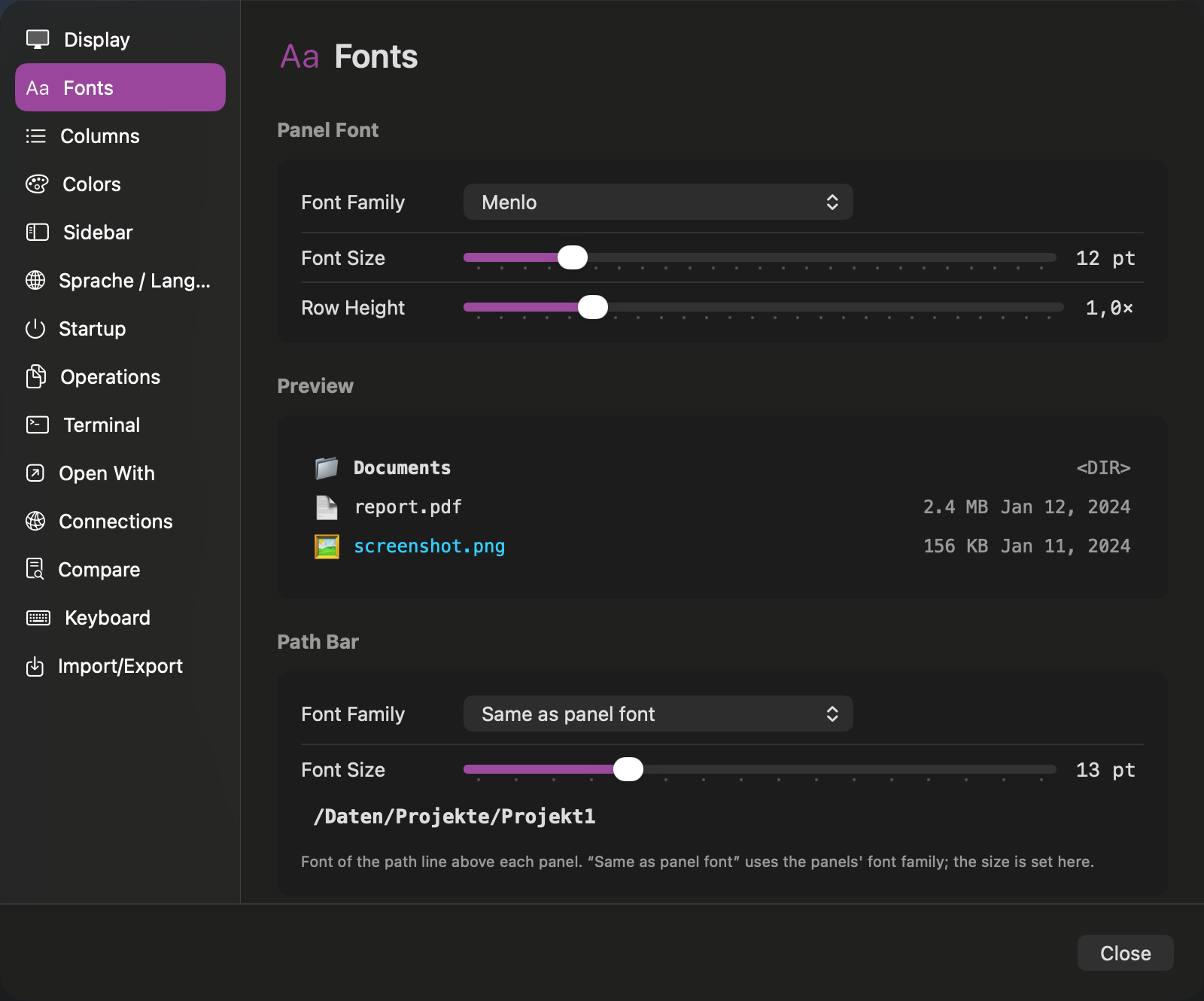
- Any installed font – fixed-width fonts are listed first
- Separate fonts for the path bar and the terminal
- Adjustable font size and row height
- Thumbnails always, local only or never
- Customizable date format
Erweitert Advanced
- Alle Tastaturkürzel frei belegbar, mit Vorlagen für Total Commander, Norton Commander, ForkLift und Midnight Commander
- „Öffnen mit“ wie im Finder, ergänzt um deine eigenen Apps
- Externes Terminal und externes Diff-Tool frei wählbar
- Konfiguration exportieren und auf einem anderen Mac importieren – verschlüsselt
- Favoriten aus ForkLift übernehmen
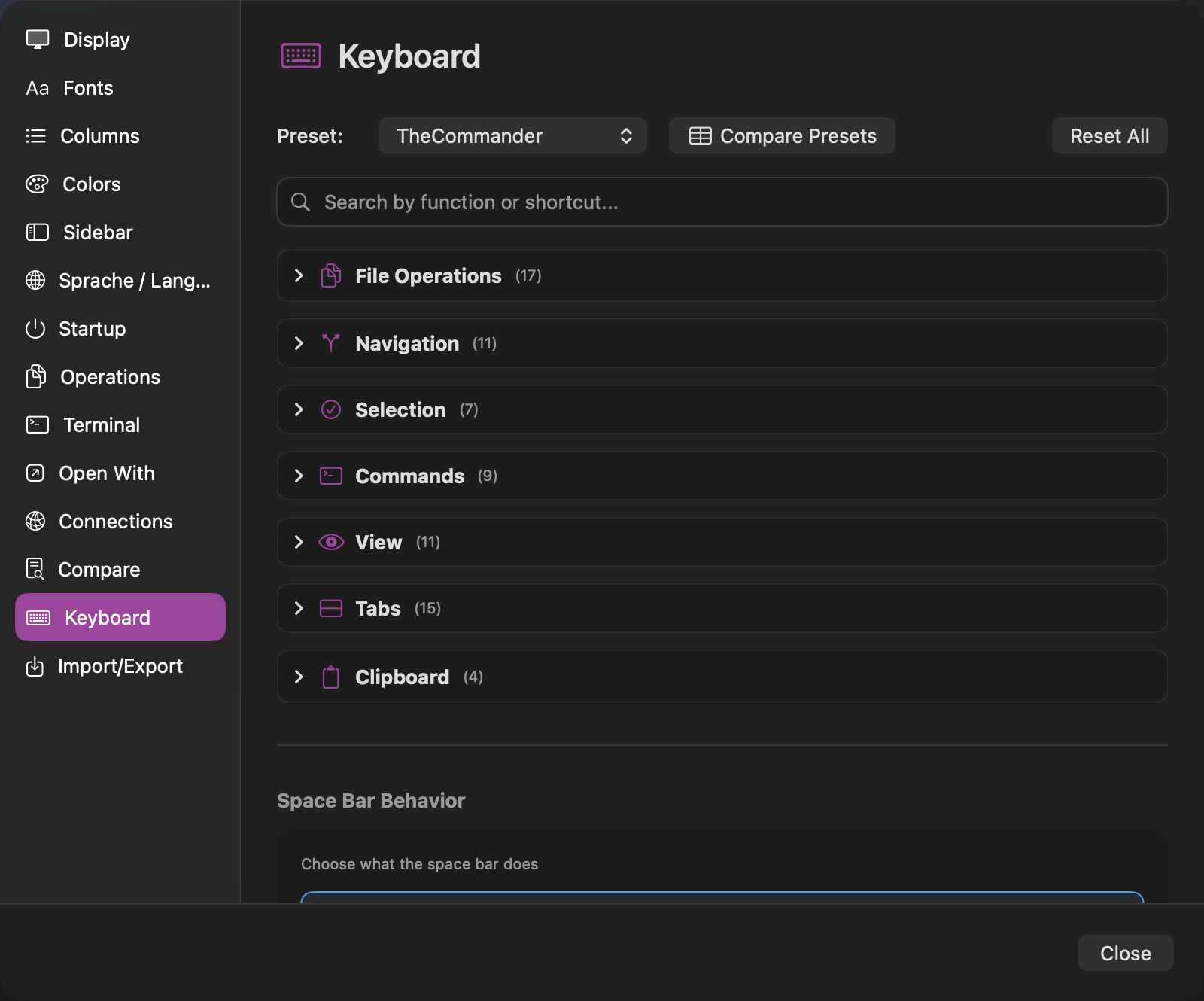
- Every keyboard shortcut can be changed, with presets for Total Commander, Norton Commander, ForkLift and Midnight Commander
- “Open With” as in Finder, plus your own apps
- Freely choose the external terminal and diff tool
- Export your configuration and import it on another Mac – encrypted
- Take over favorites from ForkLift
Anzeige
Display
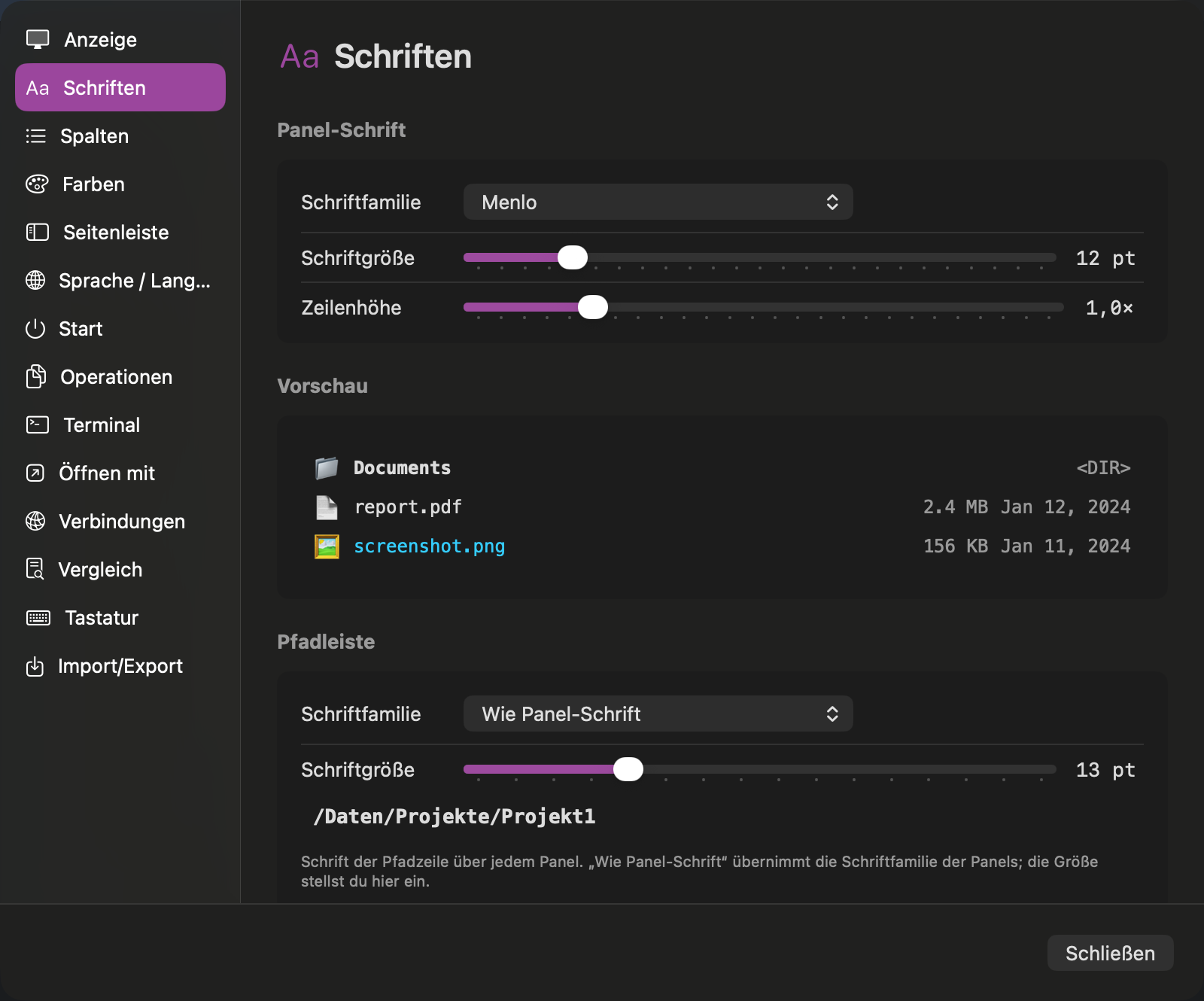
Schriften
Fonts
Tastaturkürzel
Keyboard Shortcuts
Effizientes Arbeiten mit der Tastatur – inspiriert von Total Commander. Alle Kürzel lassen sich ändern, Vorlagen für andere Dateimanager inklusive.
Efficient keyboard-driven workflow – inspired by Total Commander. Every shortcut can be changed, with presets for other file managers included.
Dateioperationen
File Operations
| Kürzel | Funktion | Shortcut | Function |
|---|---|---|---|
| F2 | Umbenennen | Rename | |
| F3 | Quick View / Dateivorschau | Quick View / File Preview | |
| Shift+F3 | Interner Betrachter | Internal Viewer | |
| F4 | Bearbeiten | Edit | |
| F5 | Kopieren | Copy | |
| F6 | Verschieben | Move | |
| F7 | Neuer Ordner | New Folder | |
| F8 / Entf | Löschen (Papierkorb) | F8 / Del | Delete (Trash) |
| Shift+F8 | Endgültig löschen | Delete Permanently | |
| Alt+F5 | Archiv packen | Pack Archive | |
| Alt+F9 | Archiv entpacken | Extract Archive | |
| Ctrl+M | Mehrfachumbenennung | Batch Rename |
Navigation & Ansicht
Navigation & View
| Kürzel | Funktion | Shortcut | Function |
|---|---|---|---|
| Tab | Panel wechseln | Switch Panel | |
| Enter | Öffnen / In Ordner wechseln | Open / Enter Folder | |
| Backspace | Übergeordneter Ordner | Parent Folder | |
| Cmd+T | Neuer Tab | New Tab | |
| Ctrl+Tab | Nächster Tab | Next Tab | |
| Cmd+U | Panels tauschen | Swap Panels | |
| Ctrl+D | Hotlist | Hotlist | |
| Ctrl+P | Profile | Profiles | |
| Cmd+B | Seitenleiste ein-/ausblenden | Toggle Sidebar | |
| Cmd+Shift+T | Baumansicht | Tree View | |
| Ctrl+T | Terminal im Panel | Terminal in the Panel | |
| Alt+F7 | Suchen | Search |
Auswahl & Vergleich
Selection & Comparison
| Kürzel | Funktion | Shortcut | Function |
|---|---|---|---|
| Leertaste / Einfg | Datei markieren / abwählen | Space / Ins | Select / Deselect File |
| Cmd+A | Alle auswählen | Select All | |
| + (Num) | Auswahl nach Muster | Select by Pattern | |
| - (Num) | Abwahl nach Muster | Deselect by Pattern | |
| * | Auswahl invertieren | Invert Selection | |
| Cmd+Shift+. | Versteckte Dateien | Hidden Files | |
| Alt+Cmd+C | Vollständigen Pfad kopieren | Copy Full Path | |
| Cmd+= | Dateien vergleichen | Compare Files | |
| Shift+F2 | Verzeichnisse vergleichen | Compare Directories | |
| Cmd+Y | Verzeichnisse synchronisieren | Synchronize Directories |
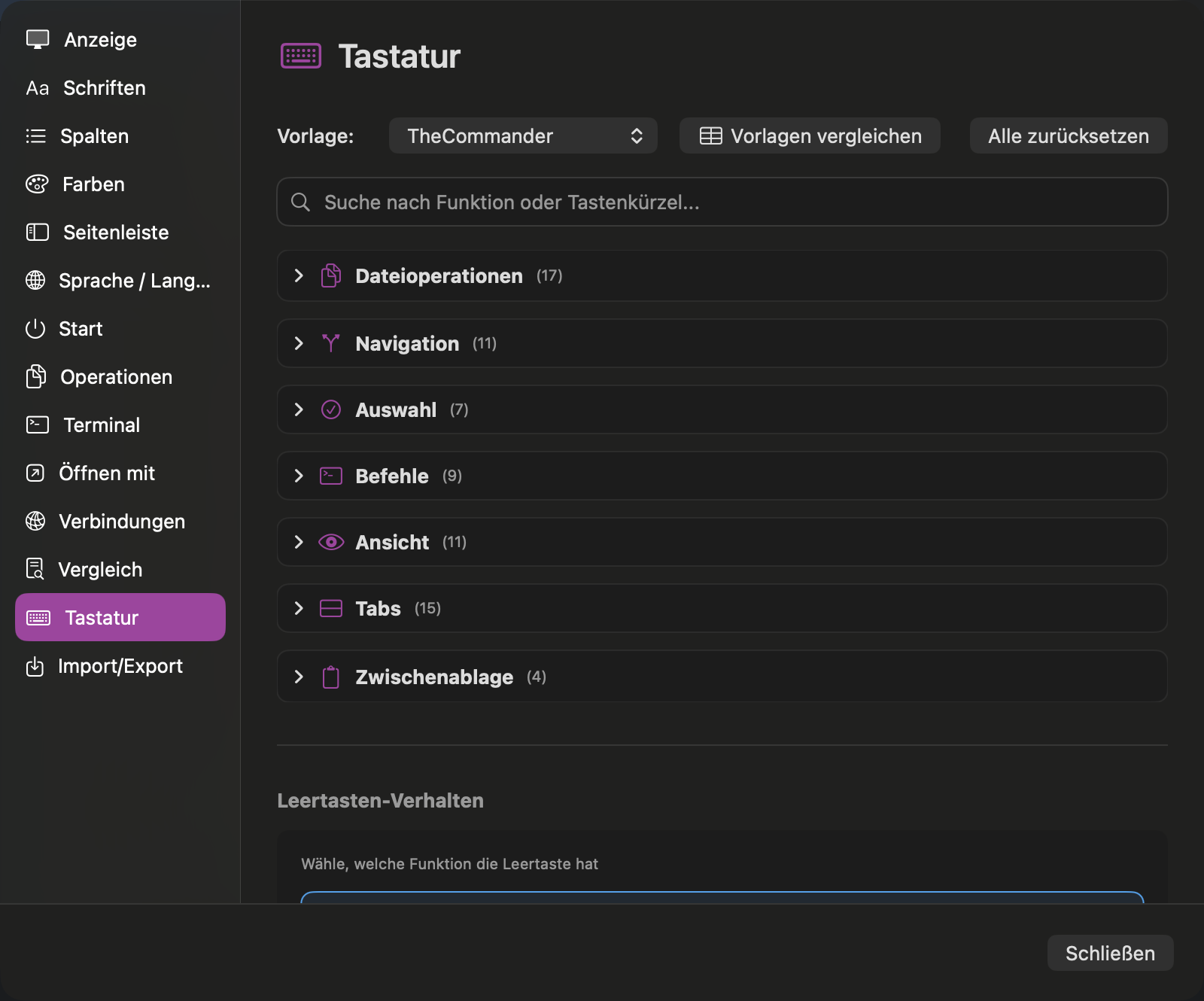
Tastaturkürzel & Vorlagen
Keyboard Shortcuts & Presets
Jedes Kürzel änderbar – Vorlagen für TheCommander, Total Commander, Norton Commander, ForkLift und Midnight Commander
Change any shortcut – presets for TheCommander, Total Commander, Norton Commander, ForkLift and Midnight Commander
Integrierte Hilfe
Built-in Help
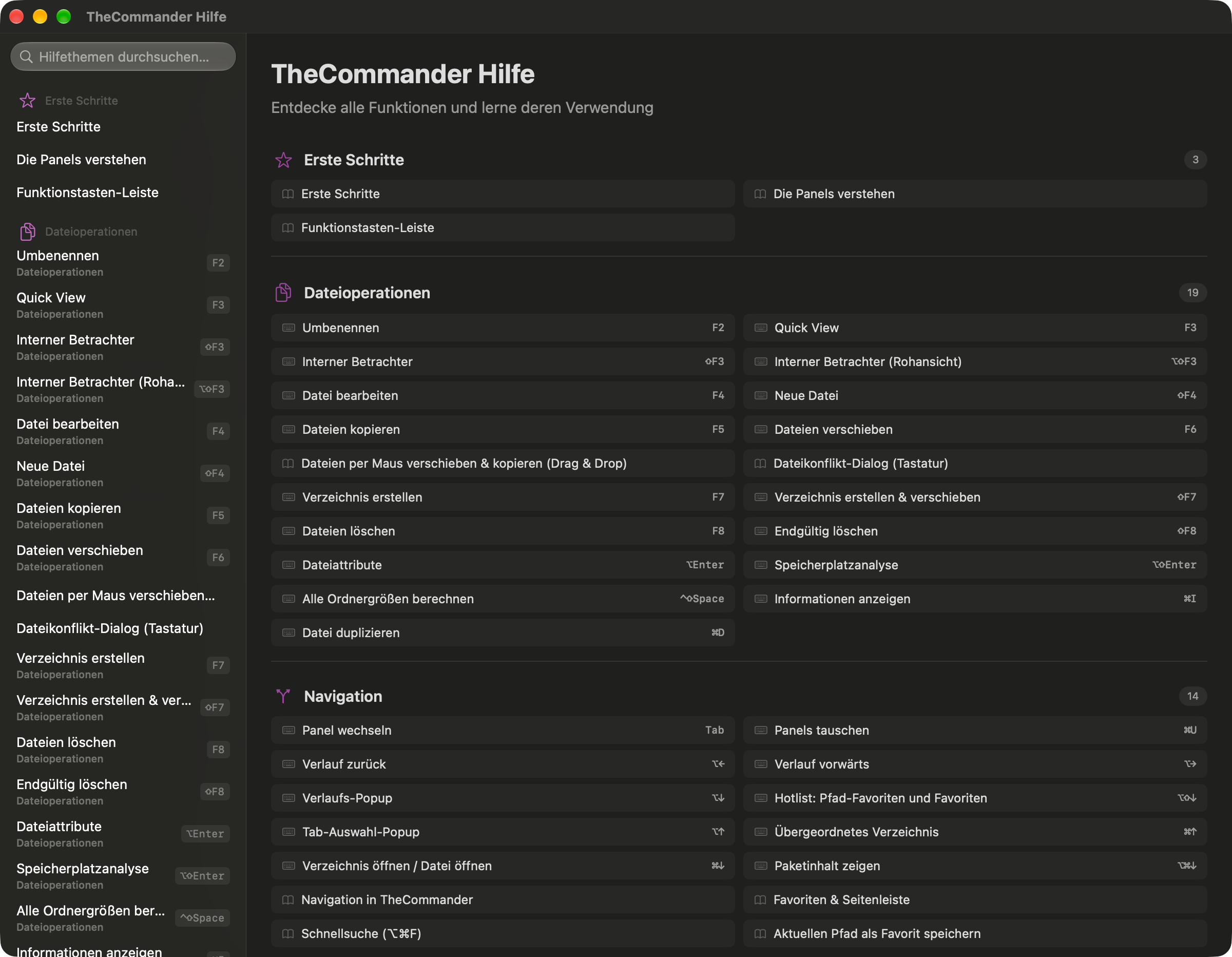
Durchsuchbare Hilfe direkt in der App – alle Funktionen, Konzepte und die aktuell zugewiesenen Tastaturkürzel auf einen Blick.
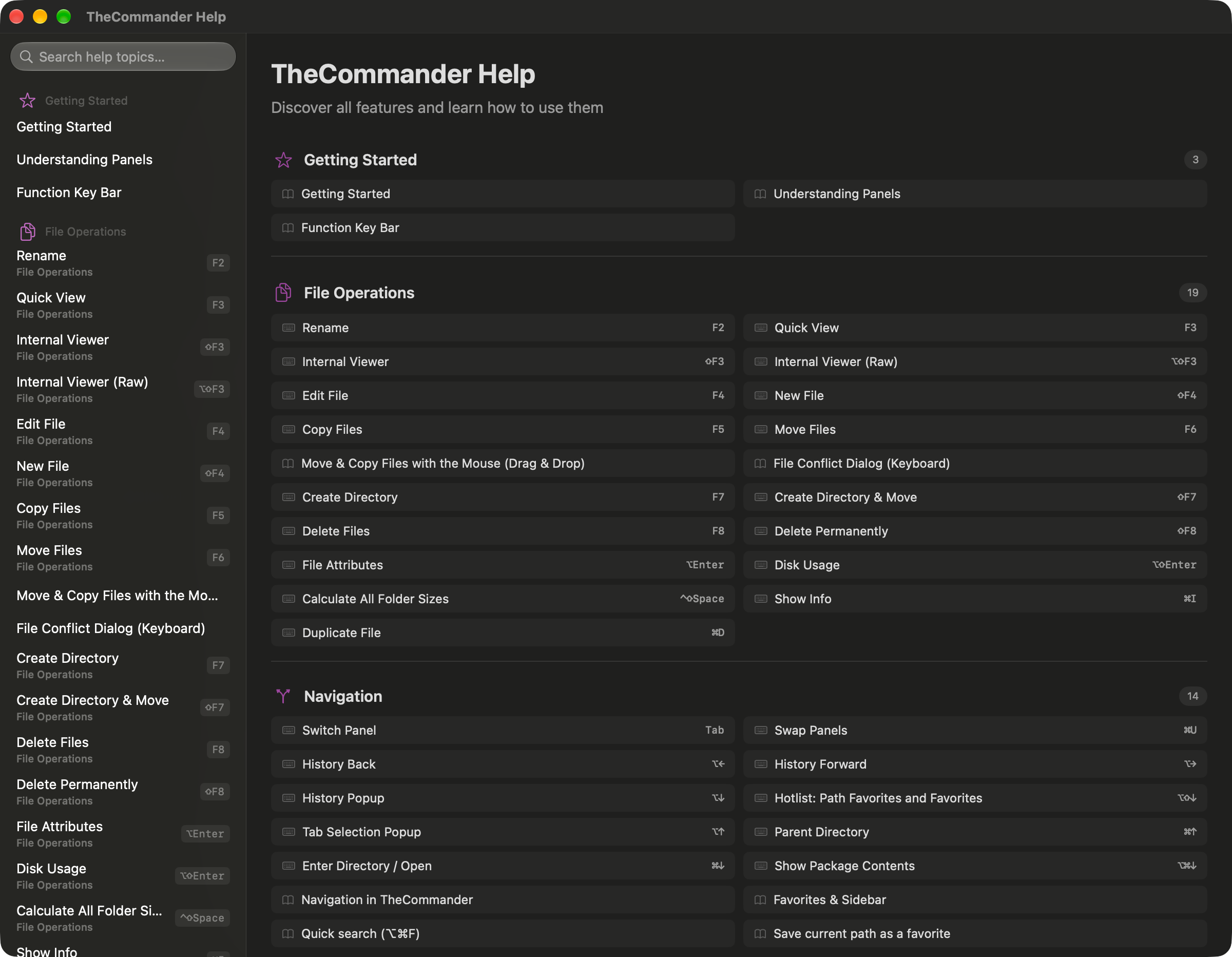
Searchable help right inside the app – all functions, concepts and your currently assigned keyboard shortcuts at a glance.
Hilfe & Dokumentation
Help & Documentation
Nach Themen geordnet und durchsuchbar – mit live angezeigten Tastaturkürzeln
Organized by topic and searchable – with live-updated keyboard shortcuts
Weitere Features
More Features
Noch mehr Funktionen für den professionellen Einsatz.
Even more features for professional use.
Symbol in der Menüleiste
Menu Bar Icon
Favoriten, zuletzt besuchte Ordner und Laufwerke direkt aus der Menüleiste – laufende Kopiervorgänge als Fortschrittsbalken, auch bei geschlossenem Fenster.
Favorites, recent folders and volumes straight from the menu bar – running copy operations as a progress bar, even with the window closed.
Import & Export
Import & Export
Favoriten mit Zugangsdaten, eigene Themes und alle Einstellungen in einer verschlüsselten Datei – ideal für den Umzug auf einen neuen Mac.
Favorites with credentials, custom themes and all settings in one encrypted file – ideal for moving to a new Mac.
Administratorrechte
Administrator Rights
Kopieren, Verschieben, Synchronisieren und Löschen in geschützten Ordnern – nach Rückfrage mit dem Administrator-Passwort, wie im Finder.
Copy, move, synchronize and delete in protected folders – after asking, with the administrator password, as in Finder.
Pfad kopieren
Copy Path
Alt+Cmd+C kopiert den vollständigen Pfad. Außerdem: file://-URL, Pfad mit Tilde, nur Dateiname oder nur Verzeichnis.
Alt+Cmd+C copies the full path. Also: file:// URL, path with tilde, filename only or directory only.
Protokollierung
Logging
Alle Dateioperationen werden protokolliert. Log-Viewer mit Export-Funktion, dazu ein optionales Diagnoseprotokoll für SFTP und FTP.
All file operations are logged. Log viewer with export, plus an optional diagnostic log for SFTP and FTP.
Integrierte Hilfe
Built-in Help
Durchsuchbare Hilfe in der App mit allen Funktionen, Konzepten und live angezeigten Tastaturkürzeln. Nach Updates zeigt „Was ist neu“, was sich geändert hat.
Searchable in-app help with all functions, concepts and live-updated keyboard shortcuts. After updates, “What’s New” shows what has changed.
Jetzt kostenlos laden
Download for Free
TheCommander ist kostenlos. Einfach herunterladen, installieren und loslegen.
TheCommander is free. Just download, install and get started.
Unterstütze TheCommander
Support TheCommander
TheCommander ist kostenlos und soll es auch bleiben. Damit das funktioniert, fallen trotzdem laufende Kosten an: die Apple Developer ID, damit die App signiert und notarisiert ohne Sicherheitswarnung startet, sowie das Hosting für Downloads und Updates. Mit deiner Spende hilfst du mir, diese Kosten zu decken. Was darüber hinaus bleibt, fließt in neue Features und Verbesserungen. Jeder Betrag hilft, ganz egal wie groß. Vielen Dank für deine Unterstützung! 🙌
TheCommander is free and I’d like to keep it that way. Still, there are ongoing costs: the Apple Developer ID, so the app is signed, notarized and launches without security warnings, plus hosting for downloads and updates. Your donation helps cover these costs, and anything beyond that goes into new features and improvements. Every amount helps. Thank you for your support! 🙌
Mit PayPal spenden Donate with PayPal