Weitere Apps: More Apps: TheCommander – Dateimanager– File Manager · WindowDeck – Fenster-Umschalter– Window Switcher · Flowistry – Datei-Automatisierung– File Automation · Markforge – Markdown zu PDF– Markdown to PDF
Vaultarium-Symbol Vaultarium icon
Öffentliche Beta Public Beta

Deine Dateien.
Verschlüsselt und griffbereit.

Your files.
Encrypted and at hand.

Vaultarium verwaltet verschlüsselte Container für deinen Mac – direkt aus der Menüleiste. Ein Master-Passwort oder Touch ID öffnet alle, und auf Wunsch bleibt ein verschlüsselter Ordner genau dort, wo er immer war.

Vaultarium manages encrypted containers on your Mac – right from the menu bar. One master password or Touch ID opens all of them, and if you like, an encrypted folder stays exactly where it has always been.

macOS 14 (Sonoma) oder neuer macOS 14 (Sonoma) or later Apple Silicon und Intel Apple Silicon and Intel Kostenlos Free
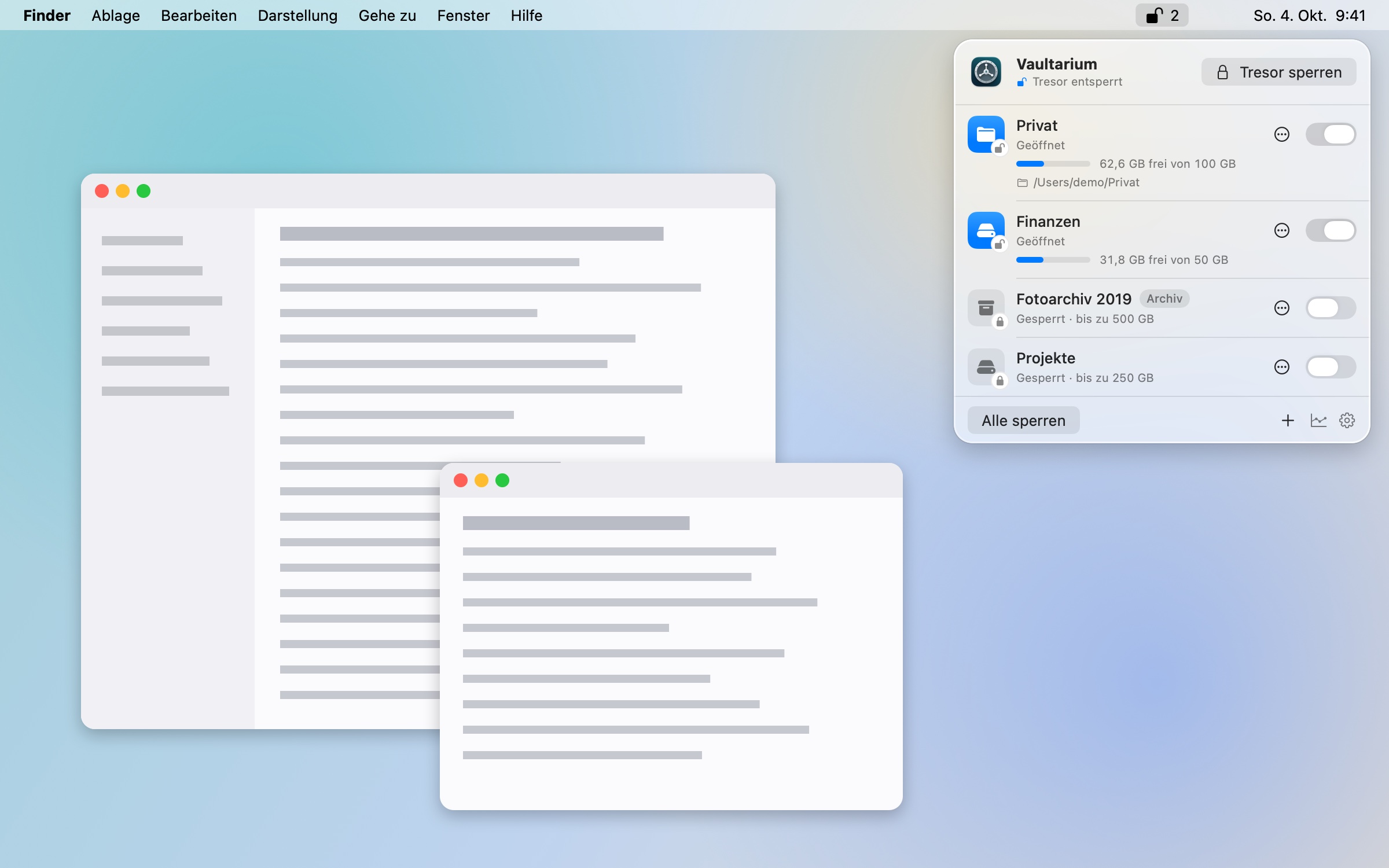
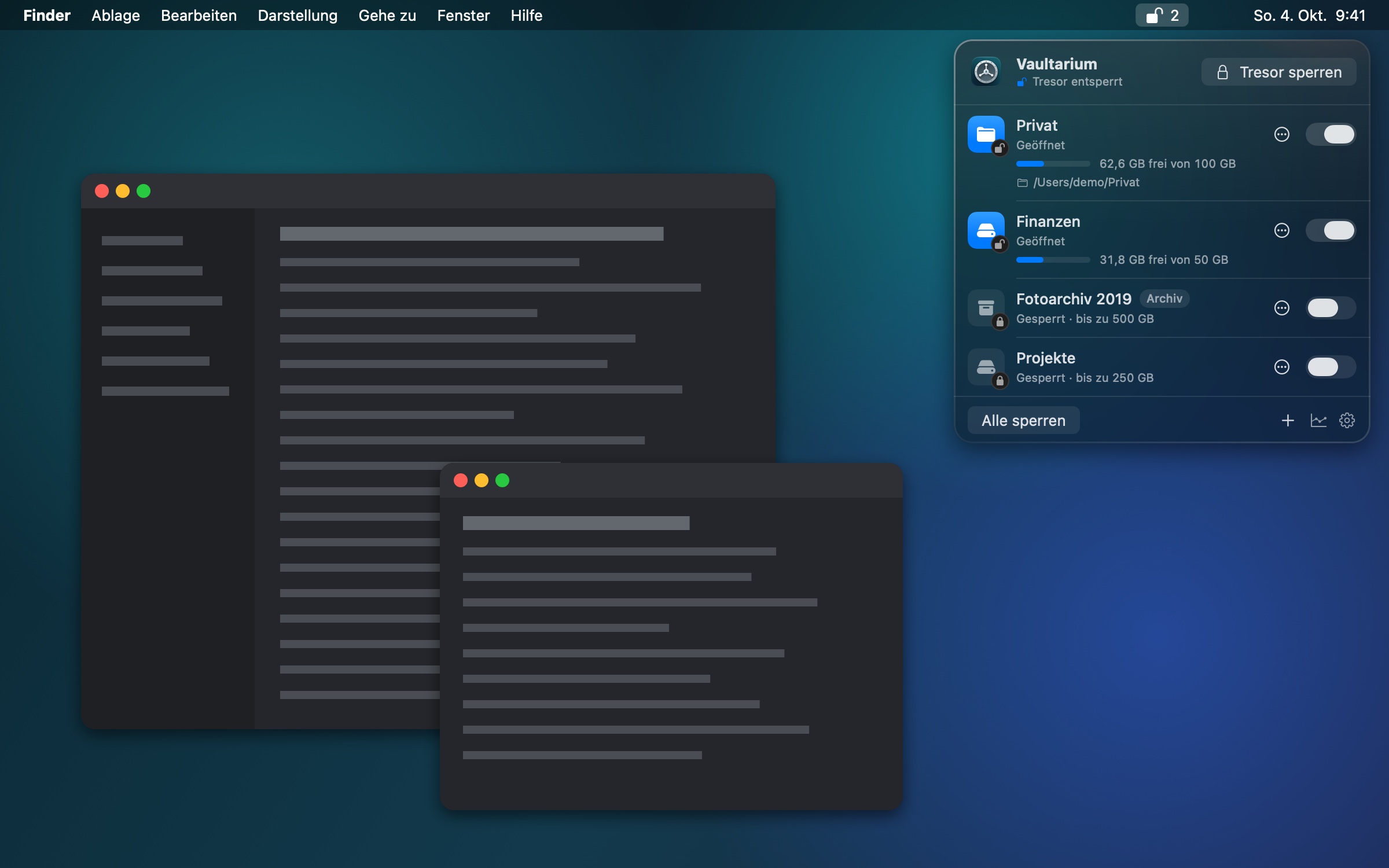
Vaultarium-Popover unter dem Menüleistensymbol mit zwei geöffneten und zwei gesperrten Containern (helles Erscheinungsbild) Vaultarium popover below the menu bar icon with two open and two locked containers (light appearance) Vaultarium-Popover unter dem Menüleistensymbol mit zwei geöffneten und zwei gesperrten Containern (dunkles Erscheinungsbild) Vaultarium popover below the menu bar icon with two open and two locked containers (dark appearance)

Warum Vaultarium?

Why Vaultarium?

macOS kann längst verschlüsselte Disk-Images – nur der Umgang damit ist umständlich: Passwörter verwalten, Images öffnen, ans Sperren denken. Vaultarium nimmt dir genau das ab.

macOS has long been able to encrypt disk images – it's just cumbersome to work with them: managing passwords, opening images, remembering to lock them. Vaultarium takes care of exactly that.

Standard statt Eigenbau

Standard, Not Homemade

Container sind gewöhnliche verschlüsselte Disk-Images von macOS mit AES-256. Vaultarium erfindet keine eigene Verschlüsselung – deine Daten bleiben auch ohne Vaultarium zugänglich.

Containers are standard macOS disk images encrypted with AES-256. Vaultarium doesn't invent an encryption of its own – your data stays accessible even without Vaultarium.

Ein Passwort für alle

One Password for All

Jeder Container hat ein eigenes, zufälliges Passwort, das du nie tippen musst. Vaultarium bewahrt sie in einem Tresor auf, den dein Master-Passwort oder Touch ID öffnet.

Every container has its own random password that you never have to type. Vaultarium keeps them in a vault that your master password or Touch ID unlocks.

Sperrt von selbst

Locks by Itself

Vor dem Ruhezustand, bei Bildschirmsperre, nach Nichtbenutzung und beim Abmelden – je Container einstellbar. Geöffnet ist nur, was du gerade brauchst.

Before the Mac sleeps, when the screen locks, after a period of inactivity and when you log out – adjustable per container. Only what you need right now is open.

Funktionen

Features

Vom ersten Container bis zur Wartung – alles in einer schlanken Menüleisten-App.

From the first container to maintenance – all in one lean menu bar app.

ContainerContainers

  • Alle Container im Popover der Menüleiste, Öffnen und Sperren per Schalter
  • „Alle sperren“ und globale Tastenkürzel
  • Neue Container wachsen mit: anfangs wenige Megabyte, bis zur gewählten Maximalgröße
  • Vorhandene verschlüsselte Disk-Images übernehmen – auf Wunsch mit neuem Zufallspasswort
  • Archiv-Container öffnen standardmäßig schreibgeschützt
  • All containers in the menu bar popover, open and lock them with a switch
  • “Lock All” and global keyboard shortcuts
  • New containers grow as needed: a few megabytes at first, up to the maximum size you choose
  • Adopt encrypted disk images you already have – with a new random password if you like
  • Archive containers open read-only by default

Ordner verschlüsselnEncrypt a Folder

  • Der Ordner bleibt an seinem Platz im Finder
  • Gesperrt ist er leer, schreibgeschützt und trägt ein Schloss-Symbol
  • Die Kopie wird geprüft – Anzahl, Größen und Prüfsummen –, das Original kommt in den Papierkorb
  • Der Rückweg „Ordner entschlüsseln“ ist eingebaut
  • Umzug von Espionage mit eigenem Assistenten
  • The folder keeps its place in Finder
  • Locked, it is empty, write-protected and shows a lock icon
  • The copy is verified – file count, sizes and checksums – and the original goes to the Trash
  • The way back, “Decrypt Folder”, is built in
  • Moving over from Espionage with a dedicated assistant

Tresor und SchlüsselVault and Keys

  • Master-Passwort, geschützt mit Argon2id (256 MB Speicher je Versuch)
  • Wiederherstellungsschlüssel zum Ausdrucken für den Notfall
  • Touch ID über die Secure Enclave deines Mac
  • Eine Schlüsseldatei neben jedem Container: Jeder Mac mit Vaultarium öffnet ihn mit deinem Master-Passwort
  • Tresor exportieren und auf einen anderen Mac übertragen
  • Master password, protected with Argon2id (256 MB of memory per guess)
  • A recovery key to print for emergencies
  • Touch ID through your Mac's Secure Enclave
  • A key file next to every container: any Mac with Vaultarium opens it with your master password
  • Export the vault and take it to another Mac

Automatisch sperrenAutomatic Locking

  • Tresor nach Nichtbenutzung, vor dem Ruhezustand und bei Bildschirmsperre
  • Container bei Ruhezustand, Bildschirmsperre, Bildschirmschoner oder Inaktivität – je Container einstellbar
  • Beim Abmelden und Ausschalten immer
  • Sind noch Dateien offen, fragt Vaultarium nach – erzwungen wird nur, wenn du es einstellst
  • Container auf Wunsch beim Start öffnen, sobald du den Tresor entsperrst
  • The vault after inactivity, before sleep and when the screen locks
  • Containers on sleep, screen lock, screen saver or inactivity – adjustable per container
  • Always when you log out or shut down
  • If files are still open, Vaultarium asks – it only forces locking if you set it to
  • Open containers at launch, as soon as you unlock the vault

WartungMaintenance

  • Speicher freigeben: mitwachsende Container schrumpfen nicht von selbst
  • Prüfen und reparieren, Größe ändern
  • Container-Passwort erneuern oder ganz neu verschlüsseln
  • Backup-Kopie mit einem Klick
  • Integritätsprüfung von Tresor, Schlüsseldateien und Container-Liste
  • Reclaim space: growing containers don't shrink by themselves
  • Check and repair, change the size
  • Renew a container's password or re-encrypt it completely
  • A backup copy with one click
  • Integrity check of the vault, the key files and the container list

DashboardDashboard

  • Belegung und Verlauf je Container
  • Prognose: „voll etwa am …“ – für Container und Laufwerk
  • Warnungen mit direkter Aktion, auf Wunsch als Mitteilung
  • Aktivität aller Container mit CSV-Export
  • Usage and history per container
  • Forecast: “full around …” – for the container and its drive
  • Warnings with a direct action, as notifications if you like
  • Activity of all containers with CSV export

Einblicke

Screenshots

Ruhig, übersichtlich und ganz im Stil von macOS. Klick auf ein Bild vergrößert es.

Calm, clear and right at home on macOS. Click any image to enlarge it.

Vaultarium einrichten
Set Up Vaultarium
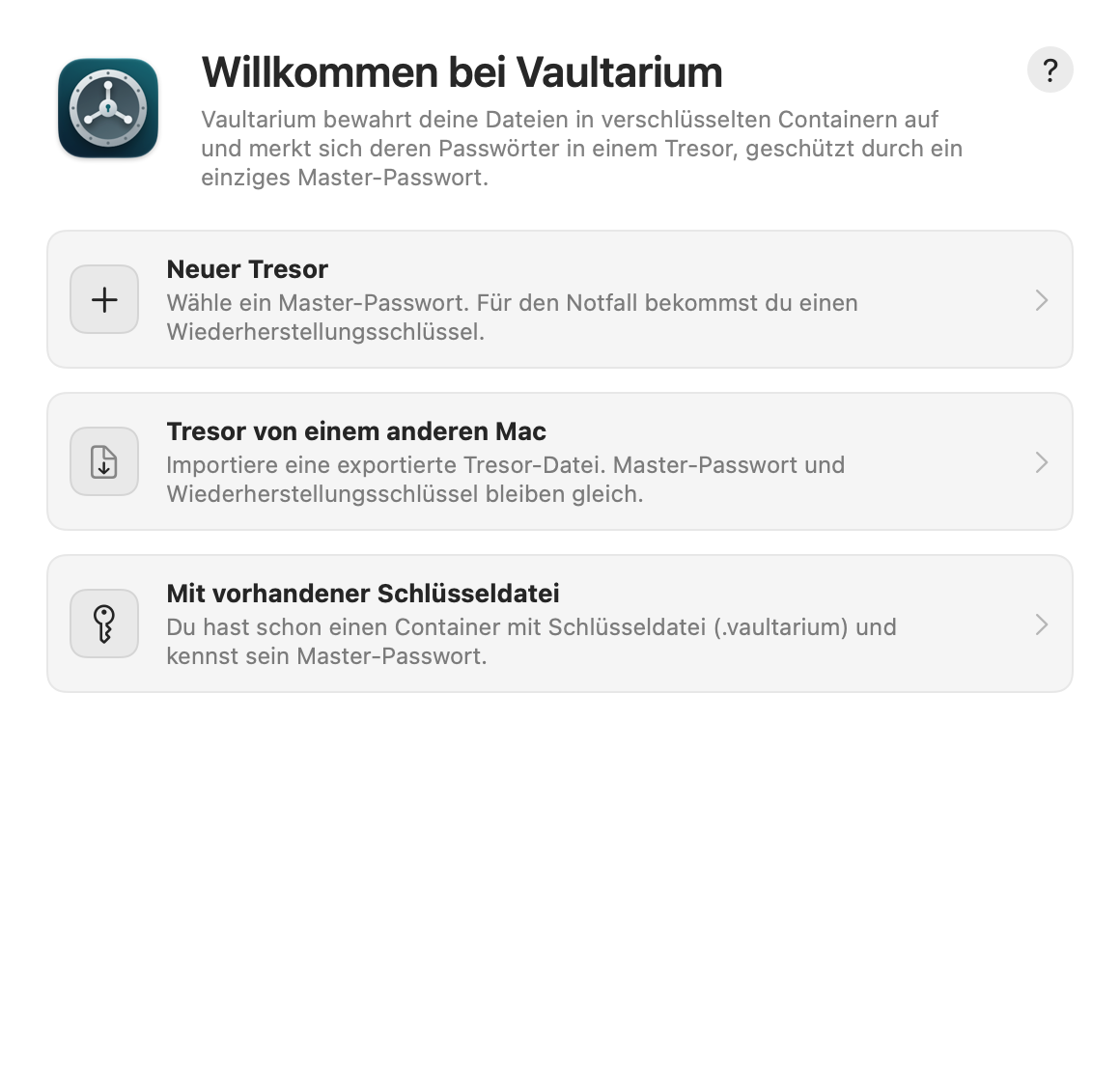
Einrichtung: neuer Tresor, Tresor von einem anderen Mac oder vorhandene Schlüsseldatei Setup: a new vault, a vault from another Mac, or an existing key file

Einrichten in drei Schritten

Set Up in Three Steps

Master-Passwort wählen, Wiederherstellungsschlüssel notieren, bestätigen – oder einen Tresor von einem anderen Mac übernehmen.

Choose a master password, write down the recovery key, confirm – or take over a vault from another Mac.

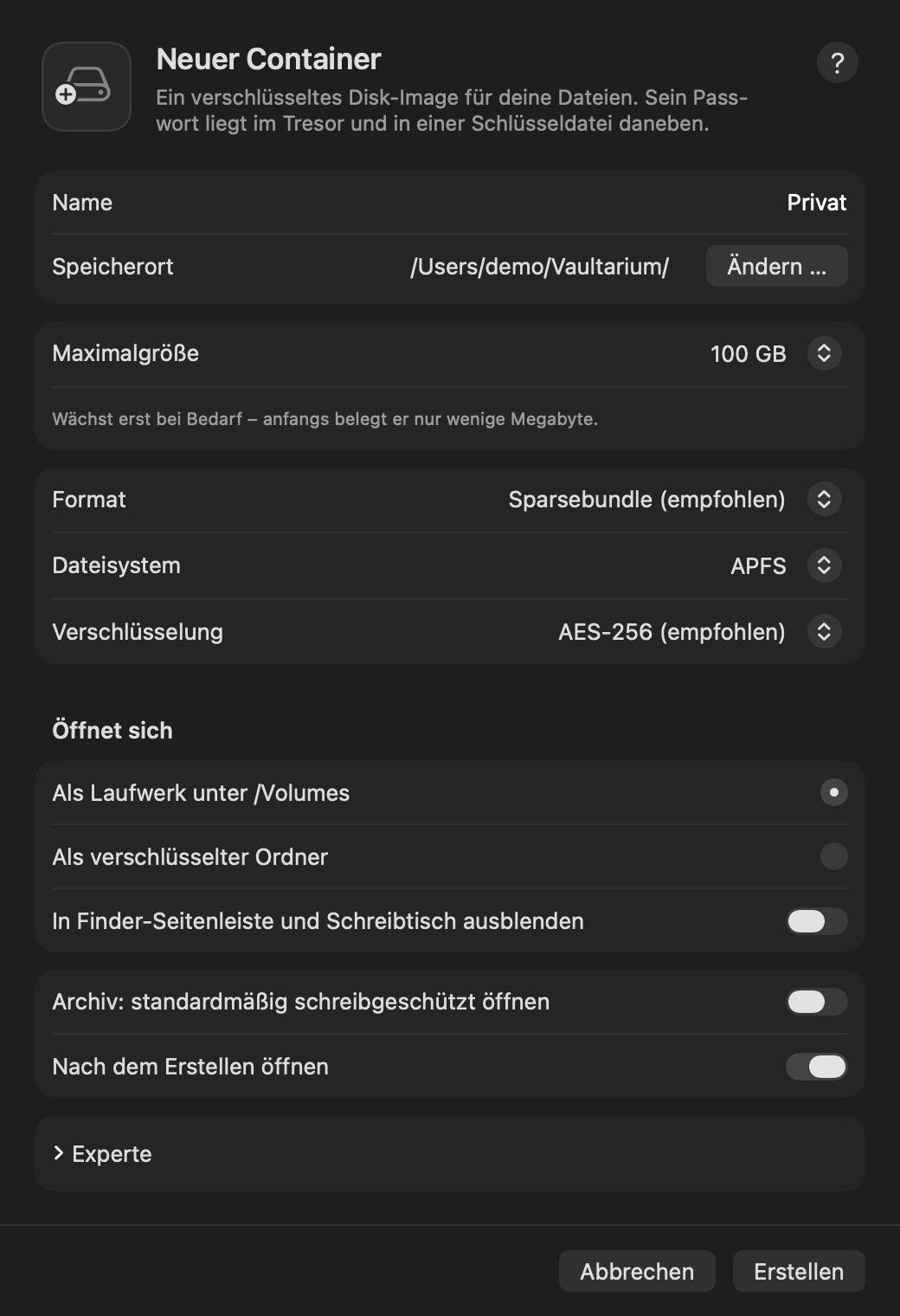
Neuer Container
New Container
Neuer Container mit Name, Speicherort, Maximalgröße, Format und Verschlüsselung New container with name, location, maximum size, format and encryption

Neuer Container

New Container

Sinnvolle Vorgaben: mitwachsendes Sparsebundle, APFS und AES-256. Öffnet sich als Laufwerk oder als verschlüsselter Ordner.

Sensible defaults: a growing sparse bundle, APFS and AES-256. Opens as a drive or as an encrypted folder.

Ordner verschlüsseln
Encrypt Folder
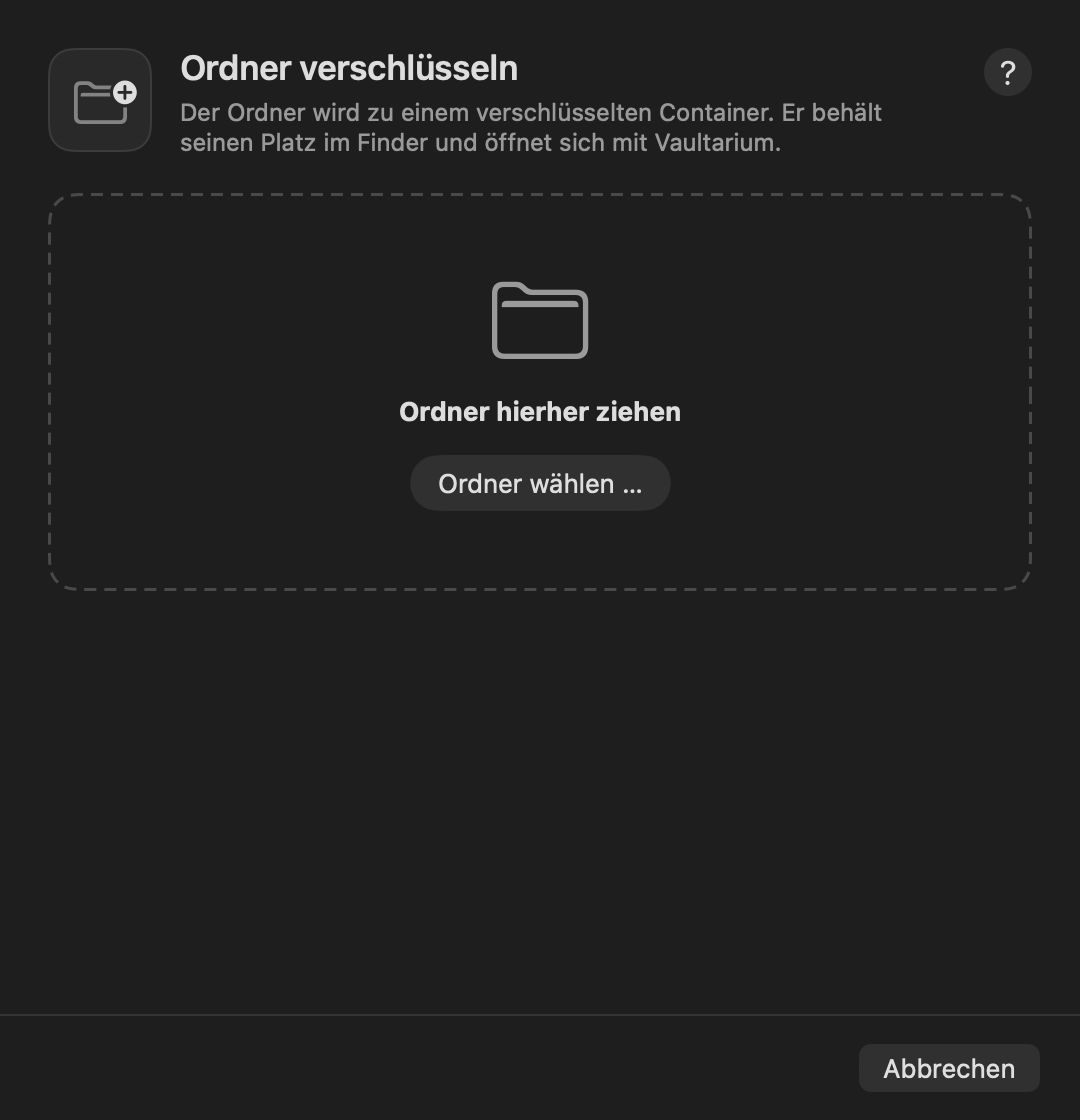
Assistent „Ordner verschlüsseln“ mit Ablagefläche für einen Ordner “Encrypt Folder” assistant with a drop area for a folder

Ordner verschlüsseln

Encrypt a Folder

Ordner hineinziehen – Vaultarium kopiert, prüft und setzt den verschlüsselten Ordner an seine alte Stelle.

Drop a folder – Vaultarium copies, verifies and puts the encrypted folder back in its old place.

Dashboard
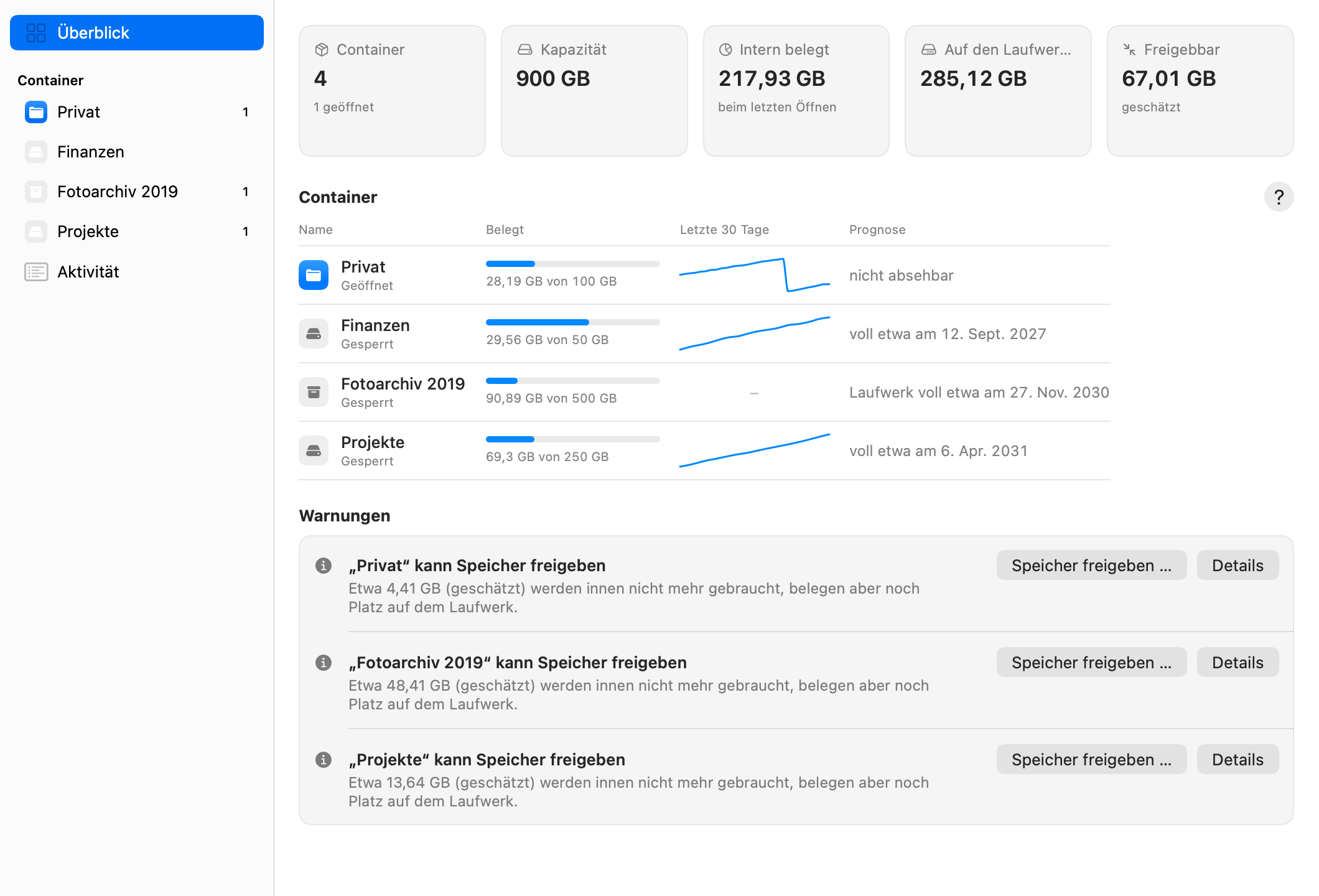
Dashboard-Überblick mit Kennzahlen, Containern, Verlauf der letzten 30 Tage, Prognose und Warnungen Dashboard overview with key figures, containers, the last 30 days, forecast and warnings

Alles im Blick

Everything at a Glance

Belegung, Verlauf und Prognose aller Container – und Warnungen mit der passenden Aktion.

Usage, history and forecast of all containers – and warnings with the matching action.

Dashboard
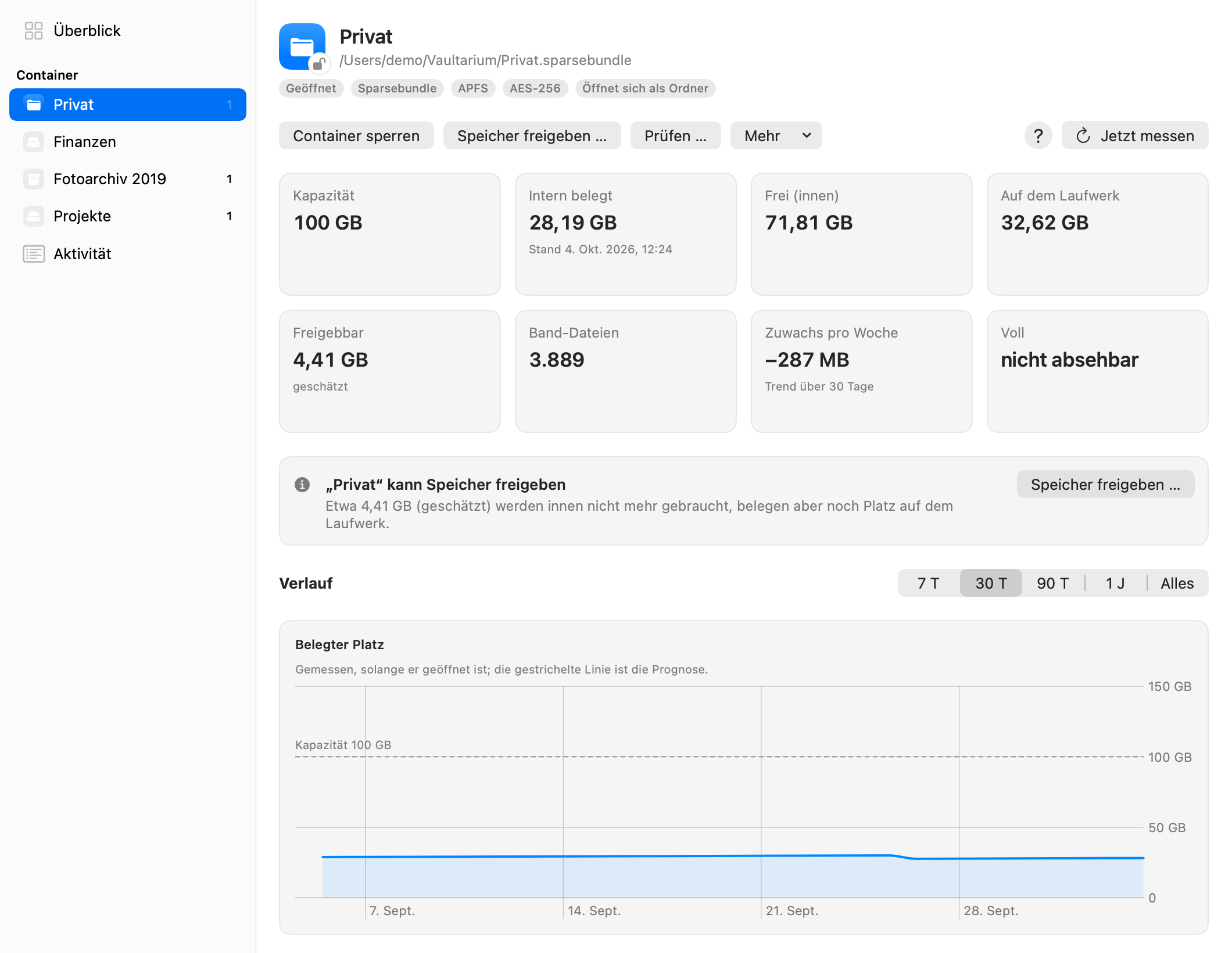
Dashboard-Seite eines Containers mit Kennzahlen und Diagramm des belegten Platzes Dashboard page of a container with key figures and a chart of the used space

Jeder Container im Detail

Every Container in Detail

Kapazität, belegter und freigebbarer Platz, Zuwachs pro Woche und der Verlauf seit der ersten Messung.

Capacity, used and reclaimable space, growth per week and the history since the first measurement.

Wartung – Finanzen
Maintenance – Finanzen
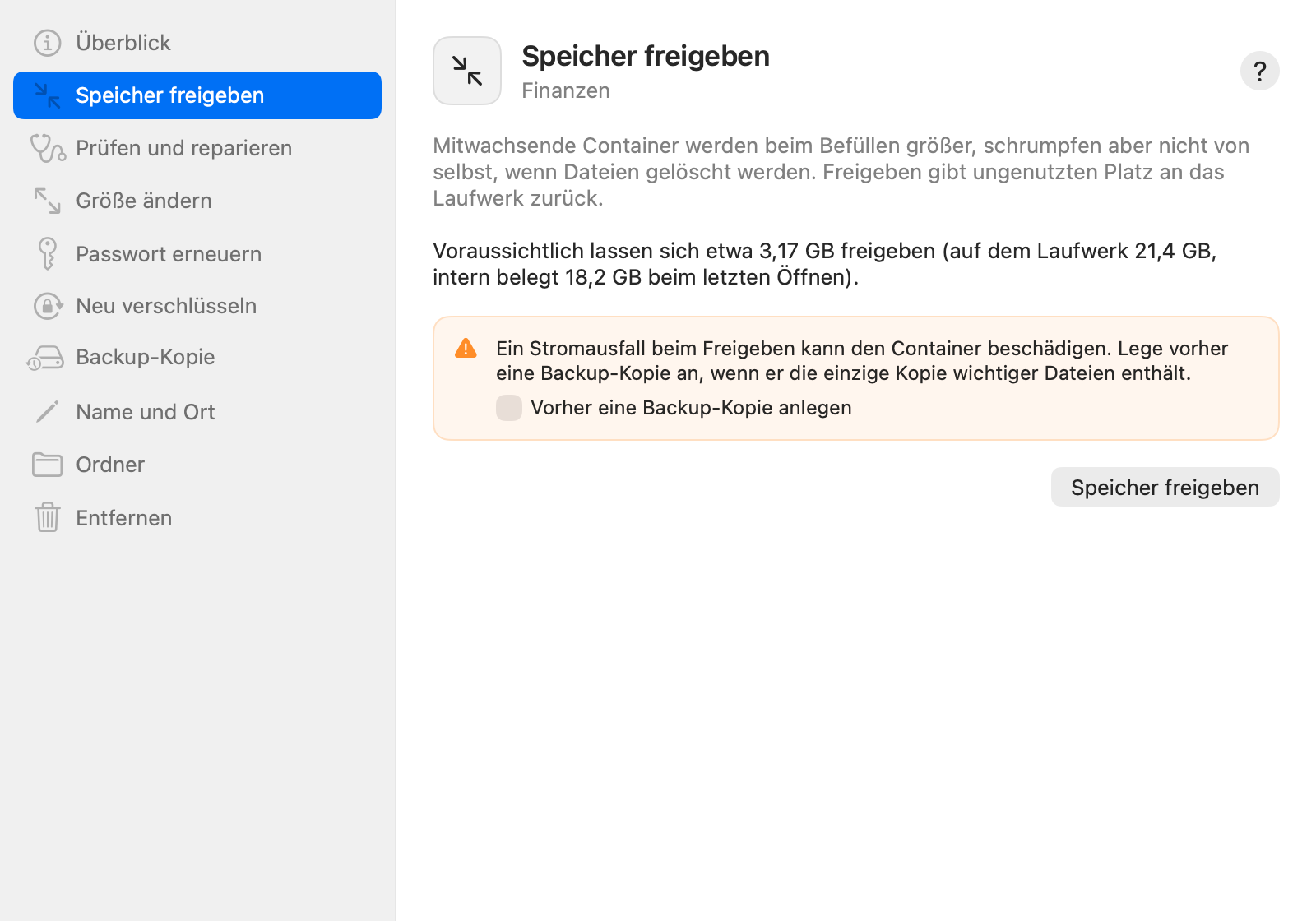
Wartungsfenster eines Containers, Bereich Speicher freigeben Maintenance window of a container, Reclaim Space section

Wartung

Maintenance

Speicher freigeben, prüfen, Größe ändern, Passwort erneuern, neu verschlüsseln – mit klaren Hinweisen vorab.

Reclaim space, check, resize, renew the password, re-encrypt – with clear notes beforehand.

Sicherheit
Security
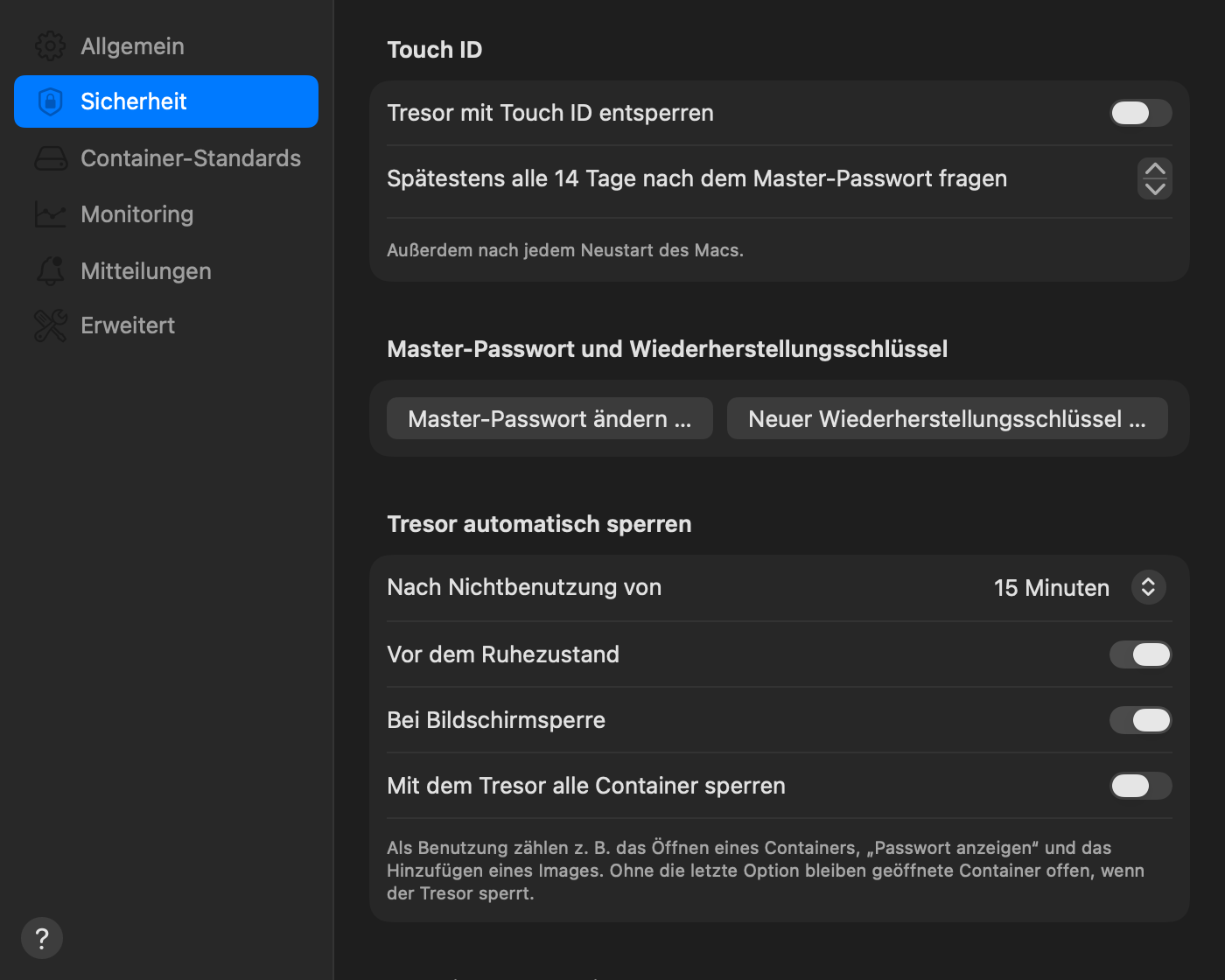
Einstellungen, Bereich Sicherheit mit Touch ID, Master-Passwort und automatischem Sperren des Tresors Settings, Security section with Touch ID, master password and automatic locking of the vault

Einstellungen

Settings

Touch ID, Master-Passwort und Wiederherstellungsschlüssel, automatisches Sperren – übersichtlich wie in den Systemeinstellungen.

Touch ID, master password and recovery key, automatic locking – laid out like System Settings.

Vaultarium-Hilfe
Vaultarium Help
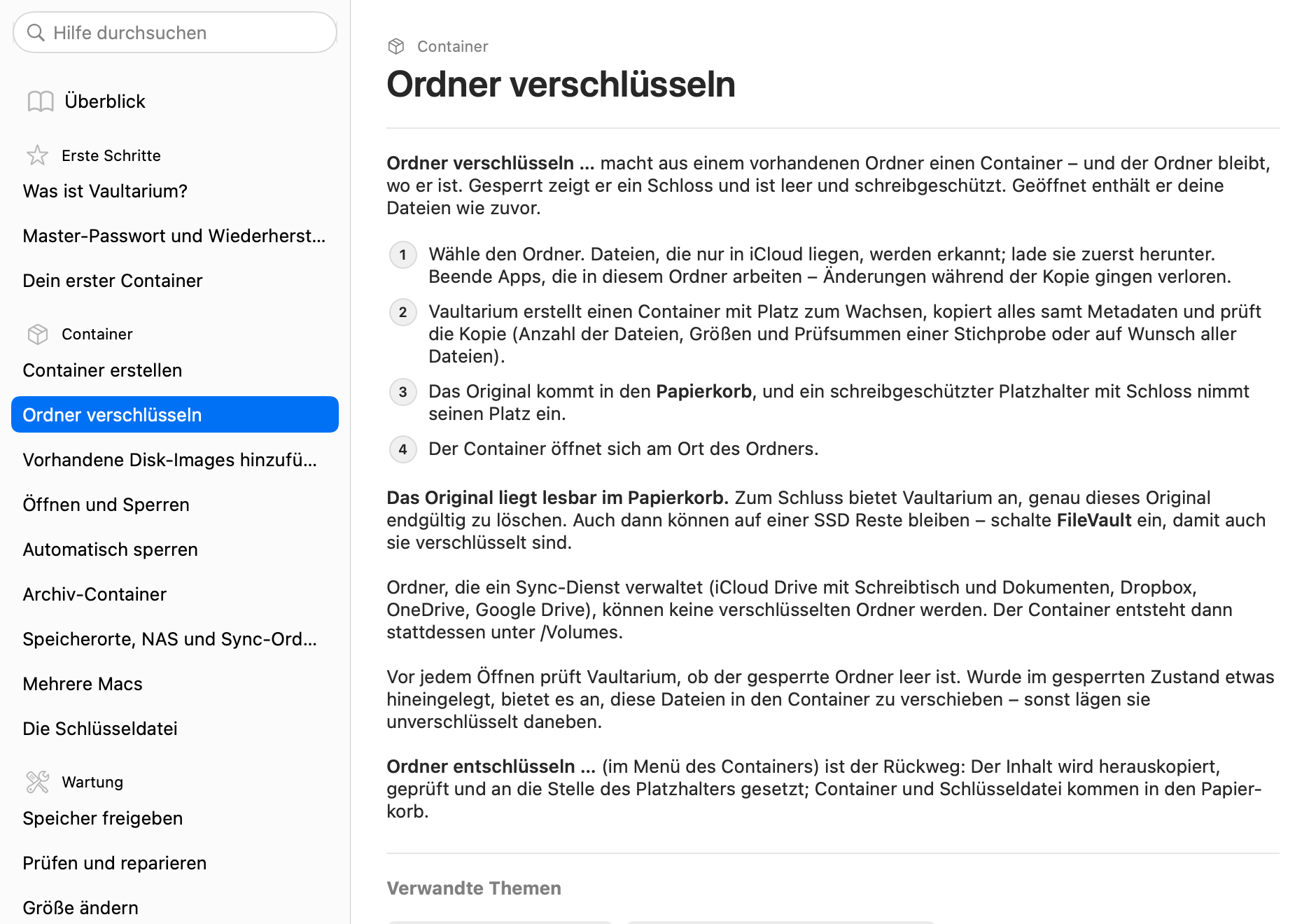
Eingebaute Hilfe mit dem Thema Ordner verschlüsseln Built-in help showing the topic Encrypting a Folder

Eingebaute Hilfe

Built-in Help

35 Themen auf Deutsch und Englisch, mit Suche – und ein ?-Knopf in jedem Fenster führt direkt zum passenden.

35 topics in German and English, with search – and a ? button in every window leads straight to the right one.

Sicherheit

Security

Vaultarium verschlüsselt nichts selbst, sondern verwaltet die Passwörter der Disk-Images von macOS – sorgfältig und nachvollziehbar.

Vaultarium doesn't encrypt anything itself; it manages the passwords of macOS disk images – carefully and transparently.

So schützt VaultariumHow Vaultarium Protects

  • Jeder Container hat ein eigenes Zufallspasswort mit 256 Bit
  • Tresor und Schlüsseldateien sind mit AES-256-GCM verschlüsselt, der Schlüssel entsteht per Argon2id aus deinem Master-Passwort
  • Passwörter erscheinen nie in Prozesslisten, Dateien oder Protokollen
  • Kopierte Passwörter bleiben auf diesem Mac und werden nach 60 Sekunden aus der Zwischenablage entfernt
  • Mehrstufige Änderungen laufen mit Journal und lassen sich nach einem Absturz fortsetzen
  • Kein Konto, keine Statistik – die einzige Verbindung ist die Update-Prüfung
  • Every container has its own random 256-bit password
  • The vault and the key files are encrypted with AES-256-GCM; the key comes from your master password through Argon2id
  • Passwords never appear in process lists, files or logs
  • Copied passwords stay on this Mac and are removed from the clipboard after 60 seconds
  • Multi-step changes run with a journal and resume after a crash
  • No account, no statistics – the only connection is the update check

Was es nicht schütztWhat It Does Not Protect

  • Ein geöffneter Container ist offen: Jede App, die du verwendest, kann ihn lesen
  • Schadsoftware unter deinem Benutzer kann mitlesen, was du tippst
  • Kopien außerhalb des Containers, etwa Vorschauen und Caches anderer Apps
  • Reste des Originals nach „Ordner verschlüsseln“ auf einer SSD – schalte FileVault ein
  • Ohne Master-Passwort und Wiederherstellungsschlüssel kann niemand deine Daten retten
  • An open container is open: every app you use can read it
  • Malware running as your user can record what you type
  • Copies outside the container, such as previews and caches of other apps
  • Remains of the original on an SSD after “Encrypt Folder” – turn on FileVault
  • Without the master password and the recovery key, nobody can rescue your data

Notfall ohne VaultariumEmergency Without Vaultarium

  • „Passwort anzeigen“ und den Container im Finder öffnen
  • vaultarium-cli liegt in der App und öffnet Container mit Schlüsseldatei und Master-Passwort oder Wiederherstellungsschlüssel – auch ganz ohne Tresor
  • Die Dateiformate von Tresor und Schlüsseldatei sind vollständig beschrieben
  • “Show Password” and open the container in Finder
  • vaultarium-cli ships inside the app and opens containers with the key file and the master password or recovery key – even without a vault
  • The file formats of the vault and the key file are documented in full

Versionshistorie

Version History

Vaultarium aktualisiert sich selbst – neue Versionen erscheinen dezent im Popover und im Menü.

Vaultarium updates itself – new versions appear discreetly in the popover and the menu.

Version 1.0.0 Beta 2

Behoben

  • Mit installiertem Dropbox galten alle Ordner im Benutzerordner fälschlich als von Dropbox synchronisiert – verschlüsselte Ordner waren dort deshalb nicht möglich.

Fixed

  • With Dropbox installed, every folder in the home folder was wrongly treated as synced by Dropbox – so encrypted folders were not possible there.

Version 1.0.0 Beta 1

Neu

  • Verschlüsselte Container (AES-256-Disk-Images) aus der Menüleiste erstellen, öffnen und sperren – jeder mit eigenem Zufallspasswort im Tresor.
  • Tresor mit Master-Passwort, Wiederherstellungsschlüssel und Touch ID; neben jedem Container eine Schlüsseldatei, mit der auch andere Macs ihn öffnen.
  • Ordner verschlüsseln: Der Ordner bleibt an seinem Platz und zeigt im gesperrten Zustand ein Schloss.
  • Container auf Wunsch beim Start von Vaultarium öffnen – nach dem Entsperren, ohne gespeichertes Master-Passwort.
  • Automatisches Sperren bei Ruhezustand, Bildschirmsperre, Bildschirmschoner, Inaktivität und beim Abmelden.
  • Wartung: Speicher freigeben, prüfen und reparieren, Größe ändern, Passwörter erneuern, neu verschlüsseln, Backup-Kopie.
  • Dashboard mit Belegung, Prognose, Warnungen, Aktivität und CSV-Export.
  • Vorhandene Disk-Images übernehmen und Ordner von Espionage umziehen.
  • Notfallzugang ohne App: Passwort anzeigen und vaultarium-cli.
  • Hilfe mit allen Themen, Versionshistorie und Über-Fenster auf Deutsch und Englisch.

New

  • Create, open and lock encrypted containers (AES-256 disk images) from the menu bar – each with its own random password in the vault.
  • Vault with master password, recovery key and Touch ID; next to every container a key file with which other Macs open it too.
  • Encrypt Folder: the folder keeps its place and shows a lock while locked.
  • Open containers when Vaultarium starts if you like – after unlocking, without a stored master password.
  • Automatic locking on sleep, screen lock, screen saver, inactivity and log out.
  • Maintenance: reclaim space, check and repair, change size, renew passwords, re-encrypt, backup copy.
  • Dashboard with usage, forecast, warnings, activity and CSV export.
  • Add existing disk images and move folders from Espionage.
  • Emergency access without the app: Show Password and vaultarium-cli.
  • Help with every topic, version history and About window in German and English.

Jetzt kostenlos laden

Download for Free

Von Apple notarisiert, für Apple Silicon und Intel, ab macOS 14 (Sonoma).

Notarized by Apple, for Apple Silicon and Intel, from macOS 14 (Sonoma) onward.

Vaultarium ist eine öffentliche Beta. Sie ist gründlich getestet – lege von wichtigen Daten trotzdem wie immer eine Sicherung an.

Vaultarium is a public beta. It is thoroughly tested – still, keep a backup of important data, as always.

InstallierenDMG öffnen und Vaultarium in den Ordner „Programme“ ziehen.
InstallOpen the DMG and drag Vaultarium to the "Applications" folder.
Tresor einrichtenMaster-Passwort wählen und den Wiederherstellungsschlüssel notieren oder ausdrucken.
Set Up the VaultChoose a master password and write down or print the recovery key.
LoslegenErsten Container erstellen, einen Ordner verschlüsseln oder ein vorhandenes Image hinzufügen.
Get StartedCreate your first container, encrypt a folder or add an existing image.

Häufige Fragen

Frequently Asked Questions

Was passiert, wenn ich das Master-Passwort vergesse?

Dann öffnet der Wiederherstellungsschlüssel deinen Tresor und deine Container, und du legst ein neues Master-Passwort fest. Fehlen beide, kann niemand die Daten wiederherstellen – auch nicht der Entwickler. Bewahre den Wiederherstellungsschlüssel deshalb getrennt von deinem Mac auf.

What happens if I forget the master password?

Then the recovery key opens your vault and your containers, and you set a new master password. Without both, nobody can recover the data – not even the developer. So keep the recovery key apart from your Mac.

Komme ich auch ohne Vaultarium an meine Daten?

Ja. Container sind gewöhnliche verschlüsselte Disk-Images von macOS. Mit „Passwort anzeigen“ öffnest du einen Container direkt im Finder, und das mitgelieferte vaultarium-cli öffnet ihn mit der Schlüsseldatei und deinem Master-Passwort oder Wiederherstellungsschlüssel.

Can I reach my data without Vaultarium?

Yes. Containers are standard encrypted macOS disk images. With “Show Password” you open a container right in Finder, and the included vaultarium-cli opens it with the key file and your master password or recovery key.

Ich habe schon FileVault – wozu Vaultarium?

FileVault verschlüsselt das Startlaufwerk, solange der Mac aus ist. Sobald du angemeldet bist, ist alles lesbar. Container bleiben dagegen verschlüsselt, bis du sie öffnest – auch auf externen Laufwerken, auf einem NAS und in Backups. Beides ergänzt sich: Lass FileVault eingeschaltet.

I already use FileVault – why Vaultarium?

FileVault encrypts the startup disk while the Mac is off. Once you are logged in, everything is readable. Containers, on the other hand, stay encrypted until you open them – on external drives, on a NAS and in backups, too. The two complement each other: keep FileVault turned on.

Kann ein Container auf einem NAS oder in iCloud Drive liegen?

Ja, ein Container kann überall liegen, wo eine Datei liegen kann, und bleibt dort verschlüsselt. Sparsebundles eignen sich besonders, weil nach einer Änderung nur wenige Teildateien übertragen werden. Öffne einen Container nie auf zwei Macs gleichzeitig – eine Sperrdatei warnt dich davor. Verschlüsselte Ordner gibt es in Sync-Bereichen nicht.

Can a container live on a NAS or in iCloud Drive?

Yes, a container can live wherever a file can, and it stays encrypted there. Sparse bundles suit this best, because after a change only a few band files are transferred. Never open a container on two Macs at the same time – a lock file warns you about it. Encrypted folders are not available in sync areas.

Ich nutze Espionage – wie ziehe ich um?

Ein eigener Assistent kopiert jeden in Espionage entsperrten Ordner in einen Vaultarium-Container und prüft die Kopie. Espionage selbst fasst Vaultarium nicht an. Auf Wunsch wird danach ein verschlüsselter Ordner am alten Ort daraus.

I use Espionage – how do I move over?

A dedicated assistant copies every folder unlocked in Espionage into a Vaultarium container and verifies the copy. Vaultarium never touches Espionage itself. If you like, it then becomes an encrypted folder at its old place.

Sammelt Vaultarium Daten?

Nein. Tresor, Container-Liste und Einstellungen bleiben auf deinem Mac. Die einzige Verbindung ist die tägliche Update-Prüfung, bei der keine persönlichen Daten übertragen werden. Details stehen in der Datenschutzerklärung.

Does Vaultarium collect data?

No. The vault, the container list and your settings stay on your Mac. The only connection is the daily update check, which transmits no personal data. Details are in the Privacy Policy.